
A family photo lands in your messages, you tap to save it, and your phone shows a blank square instead of a face. For most HEIC to JPG on Android jobs, you don’t need clever software. You need a route that fits the number of photos, keeps private pictures private, and works on the phone in your hand.
Table of Contents
- Choose the Right Conversion Method for Your Phone
- Check Whether Your Android Can Read HEIC Files
- How to Convert HEIC to JPG in Chrome on Android
- Pick Quality and Metadata Settings for Each Destination
- Fix Converted JPGs That Look Wrong or Won’t Convert
- Tips to Stop HEIC Photos Arriving on Your Android
- Confirm Your Method and Check the First Batch
Choose the Right Conversion Method for Your Phone
Say a relative sends a family photo from an iPhone, it downloads as IMG_4021.HEIC, and your Android gallery shows a blank tile or an error preview. For a handful of photos, a browser converter or a sender-side camera change is usually fastest, and a desktop converter wins for large batches.
Two questions decide the route. First, do you have one or two photos or dozens? Second, are they private? A converter that works on your device avoids uploading family pictures to a server you know nothing about, and that distinction matters more than a fancy feature list.
Android HEIC to JPG methods compared
| Method | What you need | Where the photo is processed | Best for |
|---|---|---|---|
| Browser converter (ConvertHEICto in Chrome) | Any modern mobile browser and an internet connection | On your device if the site confirms it; check the stated method | A few photos with no app install |
| Dedicated converter app from Google Play | Installing the app and granting file access | On your phone or the app provider’s server; read its privacy policy | Frequent conversions on one phone |
| Desktop converter on Windows or Mac | A computer and a file transfer from the phone | On the computer | Large batches and precise quality control |
| Sender changes iPhone camera format | Access to the sender’s iPhone settings | Photos are saved as JPG from the start | Recurring photos from the same person |
Apps differ sharply in their privacy policies, so check the policy before installing one for family photos. Some process files locally, others send them off the phone, and the Play Store listing doesn’t always make that obvious at a glance.
Practical rule: If the photo is private and you have only a few, convert on your own device; if you have dozens, use a computer; if the same person keeps sending them, fix it at the source.
That’s the whole decision. I’d apply it before downloading anything, because installing an app to convert two pictures is usually more friction than the conversion itself.
Check Whether Your Android Can Read HEIC Files
A version number is a hint, not a guarantee. Android’s HEIC support arrived in stages, so the same file can open on one phone and fail on another running what looks like a similar system.
Android 9 (Pie), released in 2018, added platform-level HEIF support, including the ImageDecoder, BitmapFactory, and HeifWriter APIs, per the Android 9 platform notes. Platform support never meant identical behavior across phones, because HEIF still depended on device hardware and how each manufacturer implemented the codec. Decoding is available from Android 9.0 onward. Encoding arrived in Android 9 through HeifWriter on a device-optional basis, and Android 10 extended it to MediaCodec as well.
Android version and HEIF support
| Android version | HEIF decoding (viewing) | HEIF encoding (capture) | What it means for you |
|---|---|---|---|
| Android 9 (Pie) | Platform support, device-optional | Via HeifWriter, device-optional | Viewing may work; some apps still fail |
| Android 10 and later | Platform support, device-optional | Via MediaCodec or HeifWriter, device-optional | Recent phones usually decode, but test first |
| 10-bit HEIF photos | Needs optional HEVC Main10 profile | Device-optional, same profile limits apply | Often fail on phones without that profile |
If you’re unsure what the format itself is, our guide explaining what a HEIC file is covers the basics before you troubleshoot your handset.
Run a three-part test that takes minutes. Check your version under Settings, About phone. Open the HEIC in Files or Gallery and see whether the preview really renders. If it doesn’t render despite a recent version, assume your phone’s decoder is missing or limited and move to a browser or desktop route rather than retrying the same app.
A working preview doesn’t settle everything. If the picture displays but a converted copy still looks wrong, that’s a conversion problem, not a viewing problem, and you’ll fix it with different tools.
How to Convert HEIC to JPG in Chrome on Android
This route works well for many readers because there’s nothing to install and your photo isn’t handed to a messaging app that compresses it on the way through. With our converter, photos are converted inside your own browser on your device. There’s no upload step and no server that keeps a copy, which is the claim worth confirming on any site before you trust it with private pictures.
Here’s the converter you’ll see when the page loads.
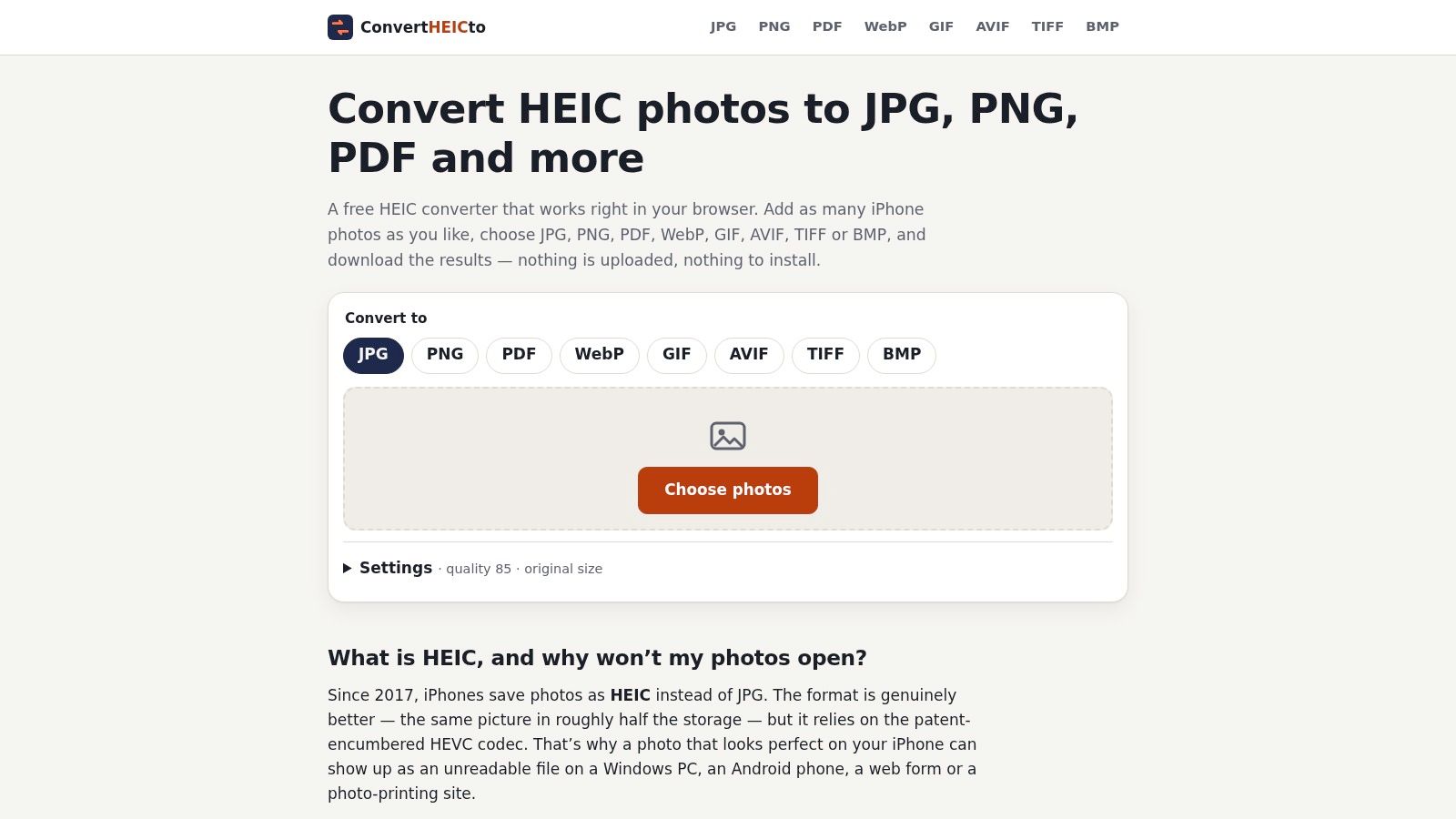
Convert step by step
- Save the HEIC to your phone first. Download it from the email attachment or find it in Downloads, because the browser needs a local file it can read.
- Open convertheicto.com in Chrome. You’re working in the browser, so there’s no Play Store detour.
- Tap the choose-photos control and select your HEIC files. You can add as many iPhone photos as you like, though older phones handle smaller groups more reliably.
- Set the output to JPG and keep the default quality. The default suits most uses, and you’ll have reasons to change it only for specific destinations.
- Tap convert and let the progress bar finish. Large batches take longer and may fail on older phones, so split a big set into groups instead of forcing it through at once.
- Download each JPG, or grab the ZIP for the batch. The ZIP is faster when you’ve converted several photos together.
- Open the JPG in Gallery and check it before deleting anything. Confirm it’s upright and the colors look right while you still have the original to compare against.
This short walkthrough shows the same taps in order.
Two details catch people out. The Downloads folder name varies by phone, so search your Files app if you can’t spot it. And a Google Drive or Photos download may save a different file than the original HEIC, so convert from the original attachment whenever you can. Since we never receive your photos, we can’t look at a failed file unless you choose to send it, which is exactly the privacy trade-off working in your favor.
Pick Quality and Metadata Settings for Each Destination
Converting HEIC to JPG on Android is normally lossy, so settings aren’t a formality. A higher quality value keeps more detail but produces a larger file, and converting a wide-gamut or high-bit-depth source can change colors or reduce tonal information even when the result looks fine on a phone screen, a point set out in Android’s official HEIF documentation. That documentation also notes HEIC carries JPEG-related metadata such as orientation and quality settings, and the orientation stored in the file should be applied before saving so your photo isn’t sideways.
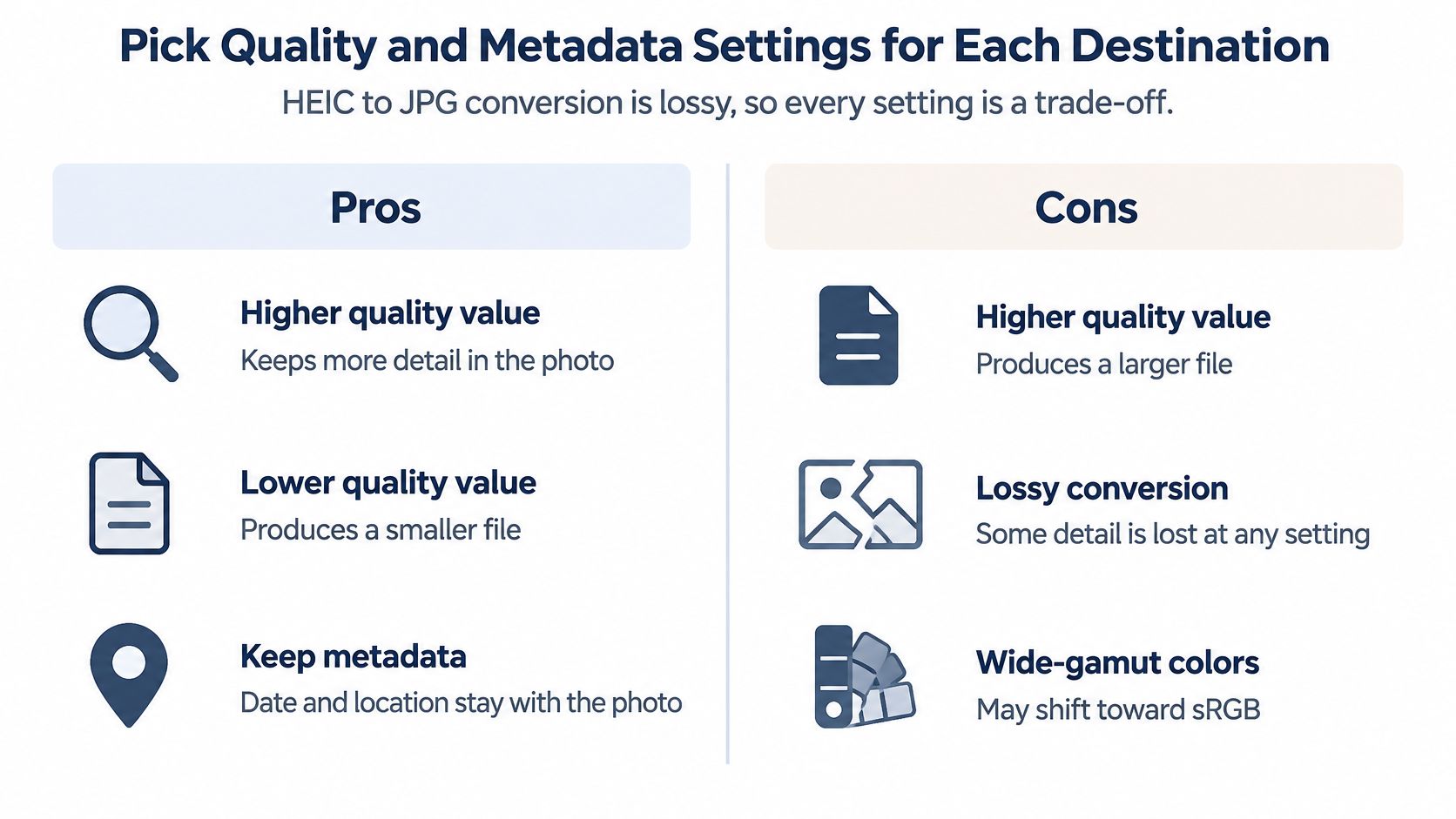
Quality and metadata settings by destination
| Destination | Keep GPS location? | Size approach |
|---|---|---|
| Print or archive | Yes, if place matters to you | Keep original dimensions and high quality |
| Email attachment | No | Moderate quality; shrink the long edge if the mail host rejects the file |
| Web form or online portal | No | Match the portal’s stated limit |
| Public social post or stranger | No | Moderate quality; resize to the platform’s limit |
| Family sharing in a group chat | Your choice | Moderate quality; send one batch copy to every recipient |
Location data is a decision, not a default, because EXIF may expose the capture date, device details, or GPS coordinates. Strip GPS for anything public or sent to a form, but keep it for a family archive where place is part of the memory. If you want the deeper quality comparison, our HEIC vs JPG breakdown works through it side by side.
Before you export, ask three questions.
- Where’s it going? A print shop and a web form want different things.
- Who will see it? Strangers shouldn’t get your GPS coordinates.
- Does a portal set a limit? Match its pixel or file-size cap instead of guessing.
The best JPG keeps what the destination needs and removes personal data it doesn’t. The largest file with the most metadata is rarely the right answer.
Fix Converted JPGs That Look Wrong or Won’t Convert
The most common complaint isn’t a failed conversion. It’s a photo that’s sideways, or colors that look flat. A viewer may ignore the orientation metadata, and color shifts usually come from a wide-gamut source saved without a profile, so a JPG that looks wrong is often being read differently rather than corrupted.
Symptoms, causes and fixes for converted JPGs
| Symptom | Likely cause | Fix |
|---|---|---|
| Photo appears sideways | Viewer ignores the orientation metadata | Re-export so the rotation is applied before saving |
| Colors look flat or shifted | Wide-gamut color converted without a profile | Re-convert and compare on a second screen; use PNG if color must stay exact |
| Conversion fails on the phone | Missing decoder, 10-bit variant or memory limit | Convert in smaller batches or use a browser or desktop route |
| Converted file is much larger than the HEIC | Quality set too high or lossless output chosen | Re-export at moderate quality or resize to the destination’s limit |
| File fails on the second phone | Incomplete download or corrupt transfer | Download again and check the file size matches the original |
Conversion errors on Android usually come from the handset itself. The Android supported media formats documentation lists HEIF decoding from Android 9.0 onward but marks device support as optional, and 10-bit HEIF also needs an optional HEVC Main10 profile. The version number alone doesn’t prove your specific phone can decode the file, so check decode support before blaming the converter.
The other culprits are unsupported hardware codecs, malformed files, and memory pressure from multi-megapixel images on older phones. Work through them in order. Convert in smaller batches first, since that costs nothing. If the phone keeps failing, switch to a browser or desktop route. Converting inside the browser keeps the photo on your device, so a second attempt gives up nothing on privacy. Re-download the HEIC if the file itself may be corrupt.
A decoder problem won’t be fixed by changing quality settings, so stop adjusting output options once a file won’t open at all.
If none of that works, email hello@convertheicto.com with your device model, browser, Android version and the exact error message. Conversion runs in your browser, so your photos never reach us and we can’t inspect a failed file unless you choose to send it. Those details are what make the report useful.
Tips to Stop HEIC Photos Arriving on Your Android
The cheapest conversion is the one you never need, which is why the sender matters more than any app on your phone.
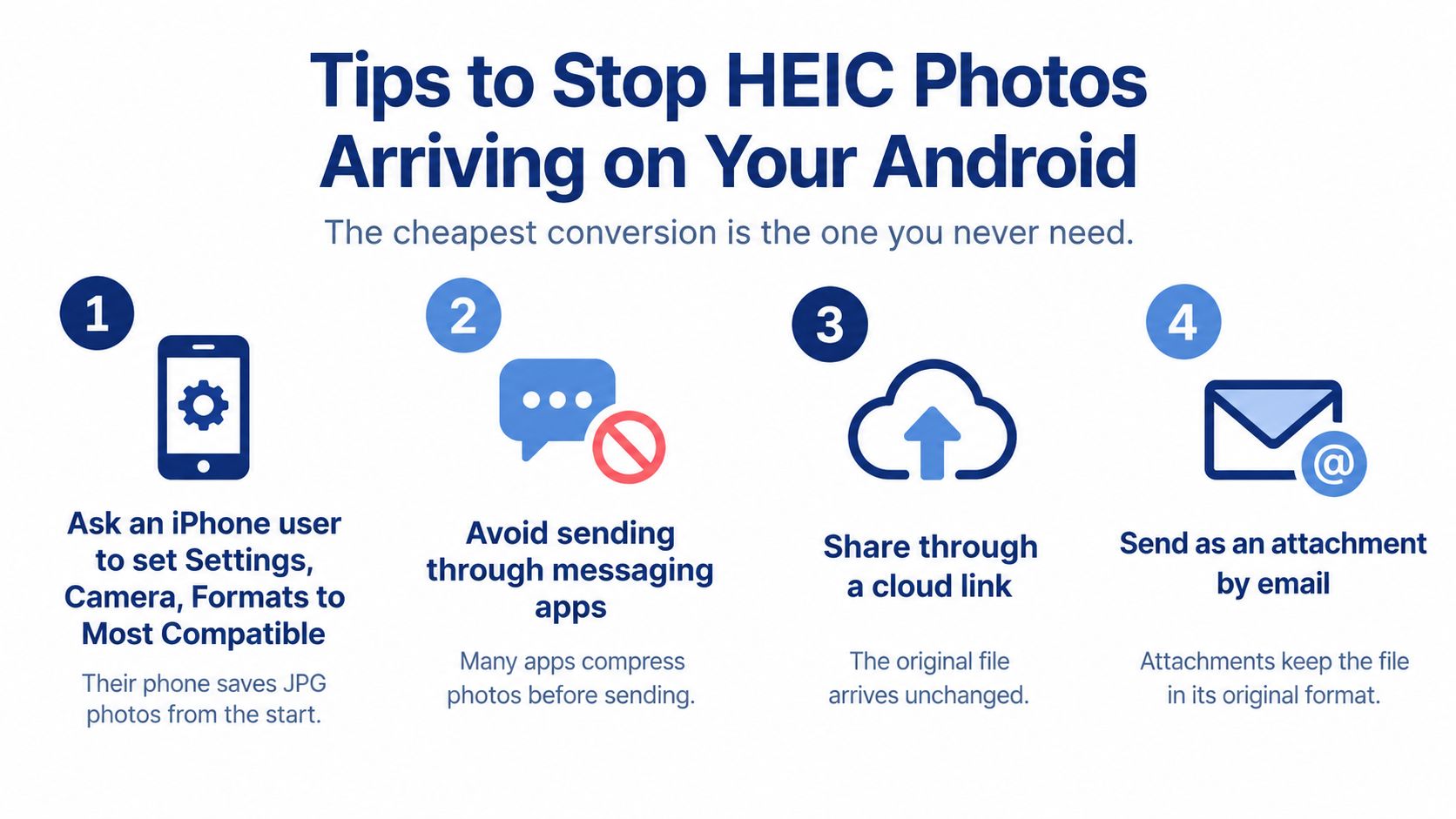
- Ask an iPhone user to set Settings, Camera, Formats to Most Compatible. Their phone saves JPG instead of HEIC from then on, so the problem stops at the camera.
- Ask for the photo as a file or through a cloud link. Many messaging apps compress photos and may leave the original HEIC or change it unpredictably, so you can’t be sure what you’ll receive.
- Request a one-time resend in JPG for an important family photo. Converting a low-quality copy twice costs you detail you can’t get back.
- Convert in one batch before forwarding to a group chat. Every recipient then gets the same JPG at the same quality, instead of each person converting their own copy differently.
- Keep the original HEIC in a backup folder before converting. You can reconvert at higher quality later if a destination needs it.
There’s a trade-off for the sender, since Most Compatible files are larger than HEIC and they give up storage efficiency for compatibility. That’s a fair ask of relatives who send you photos every week, and it explains why iPhone photos are HEIC in the first place. For a single file from someone you’ll never hear from again, don’t bother. Just convert it and move on.
Confirm Your Method and Check the First Batch
Don’t convert the whole batch on faith. Convert one HEIC using the route that fits your number of photos, then check that single file properly before you touch the rest. Our converter is free to use, so a throwaway test costs you nothing but a minute.
Run the test
- Open the JPG on your Android phone in Gallery. Confirm the preview renders and the picture looks like the original.
- Open the same file on a second device, or in a second app or browser. A file that opens in one place may fail in another, and that is the cheapest way to find out.
- Compare orientation, colors and location data against your destination. Check whether GPS survived when it should have been stripped, and whether the photo sits upright everywhere.
- Convert the rest only if the test file passes. Then send the batch, knowing every file used settings you’ve already verified.
JPG output opens on every device, app and website, so a passing test file is a strong signal the batch will behave. A failed test isn’t wasted effort either, since the specific way it fails tells you whether you’re dealing with rotation, color, a size problem or a decoder your phone doesn’t have.
Convert the test file today, and keep the original HEIC in a backup folder until the JPG passes the check.
That’s the habit worth keeping. One verified file, then the batch, and you’ll stop discovering problems after you’ve already sent photos to everyone.
Convert your test photo with ConvertHEICto, where your files are processed inside your own browser with no upload and no server copy left behind. Pick your HEIC files, choose JPG and the quality your destination needs, then download the results or a ZIP of the whole batch. It’s free, so run one file through now and check it on a second screen before you convert the rest.