
The popular advice on HEIC vs JPG is simple and wrong in a useful way. You’re told to pick HEIC for smaller files or JPG for compatibility, as if one label decides quality, privacy and whether an upload form accepts your photo. It doesn’t.
A photo can keep its pixels and lose its color range. It can open perfectly in a phone gallery and get rejected by a website. It can even change format and still carry the GPS coordinates of your home. The better question isn’t which format wins. It’s what you need to survive the trip from your iPhone to a specific destination, and what you’re willing to trade to get it there.
Table of Contents
- HEIC vs JPG at a Glance
- How Much Storage HEIC Actually Saves
- Where Quality Differs in Bit Depth, Color and Re-encoding
- Metadata, Location Data and Privacy After Conversion
- Compatibility by Destination Across Devices, Apps and Sites
- How to Convert HEIC to JPG Without Losing Quality
- Choose the Format Based on Where the Photo Goes
HEIC vs JPG at a Glance
HEIC is smaller and carries more data. JPG is accepted almost everywhere. The right choice depends on where the photo goes, not on which format is better in the abstract.
HEIC is a HEIF container holding an image compressed with HEVC, and it’s been the default for iPhone photos since iOS 11 in 2017. JPG is the JPEG format from the 1992 standard, still the most widely supported photo format you’ll meet. If the container, codec and extension still blur together, start with what a HEIC file actually is before you change any settings.
The File Itself, Side by Side
| Criterion | HEIC | JPG |
|---|---|---|
| Full name | High Efficiency Image Container (HEIF container, HEVC-coded image) | Joint Photographic Experts Group format |
| Typical 12 MP iPhone photo | 1 to 3 MB | 2 to 7 MB |
| Bit depth | 8, 10 or 12-bit | 8-bit |
| Color profile in practice | Display P3 wide gamut supported | Usually sRGB |
| Transparency | Supported | Not supported |
| Depth maps and burst sequences | Supported | Not supported |
| Native browser support | Safari only, as of late 2025 | All major browsers |
These rows show defaults, not hard limits. You can export a bloated JPG at maximum quality and full resolution. You can also export a poor HEIC that throws away the very color and depth advantages in the table. A format sets what’s possible. Your export settings decide what you end up with.
Practical rule: Keep the original HEIC as your source file and treat JPG as an export you make for a destination.
That division matters because the comparison changes at each stage. Storage is about how efficiently the same image is encoded. Quality splits into bit depth, color gamut and re-encoding loss. Metadata and location data raise separate privacy questions, and destination acceptance is different again from whether a device can display a file. Conversion steps and the verdict by situation follow from those distinctions, not from a single score.
Don’t delete the HEIC after you make a JPG copy that works today. The JPG is a delivery file. The HEIC is the version you can still edit, re-export at another size, and convert again when the next portal asks for something different.
How Much Storage HEIC Actually Saves
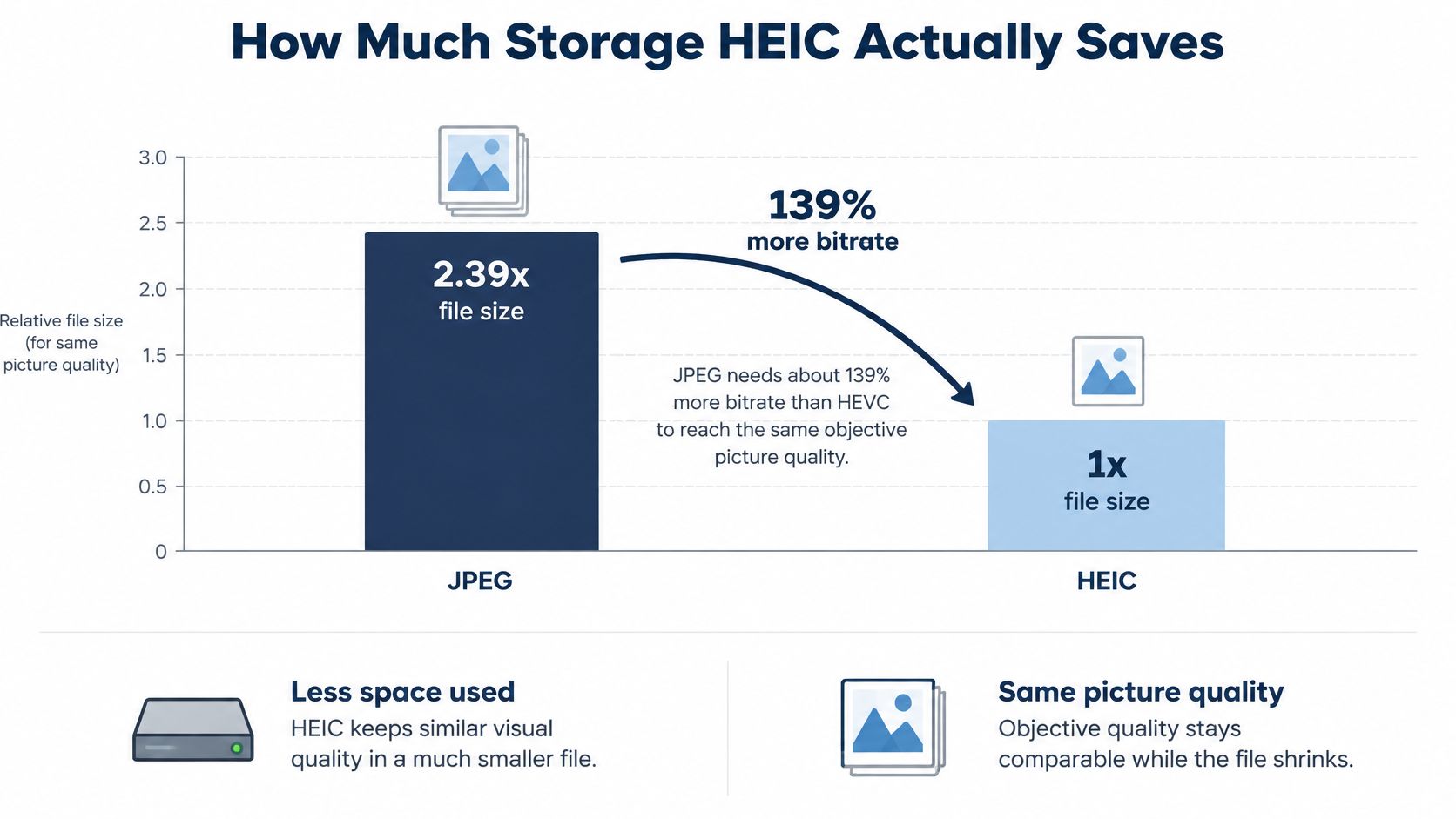
At the same objective picture quality, HEIC is roughly half the size of JPG, and sometimes smaller. According to Nokia’s technical overview of HEIF, JPEG needs, on average, 139% more bitrate than HEVC to reach the same objective picture quality, approximately 2.39 times the file size.
In practical terms, a HEIC image may preserve similar visual detail at roughly 40 to 60% of the JPEG size. That range matters. It is not a promise that every photo in your library will shrink by the same percentage.
| Photo type | HEIC size | HEIC as share of JPG |
|---|---|---|
| 12 MP iPhone photo, default settings | 1 to 3 MB | about 40 to 60% |
| Portrait-mode photo with depth data | 2 to 4 MB | about 40 to 60% for the image data |
| Same photo resized to 2048 px long edge | 0.3 to 0.8 MB | about 40 to 60% |
| Batch of 1,000 photos at 12 MP | about 1 to 3 GB | about 40 to 60% |
Why Your Ratio Moves
Scene complexity is the biggest variable. Flat skies, plain walls and smooth gradients compress well, so HEIC saves more. Grain, foliage, fabric and fine texture give the encoder less predictable data to remove, so the saving narrows. Encoder settings and chroma subsampling also move the result, which is why two converters can produce different sizes from the same original.
Pixel dimensions usually beat format choice as a lever. Cutting a 12 MP photo to 2048 px on the long edge removes most of the pixels before either encoder starts work. If a form has a tight size limit, resize first and argue about format second.
There’s also a storage trap in conversion itself. A HEIC plus its JPG copy takes more space than the HEIC alone, so converting an entire library and keeping both versions can make a storage problem worse, not better. Convert what you need to send, archive the original, and delete delivery copies you can remake.
Run your own test before you rethink a library. Export the same busy street scene and the same flat sky shot as HEIC and JPG at your working resolution. Compare those four file sizes. That tells you more about your photos than any average ratio will.
Where Quality Differs in Bit Depth, Color and Re-encoding
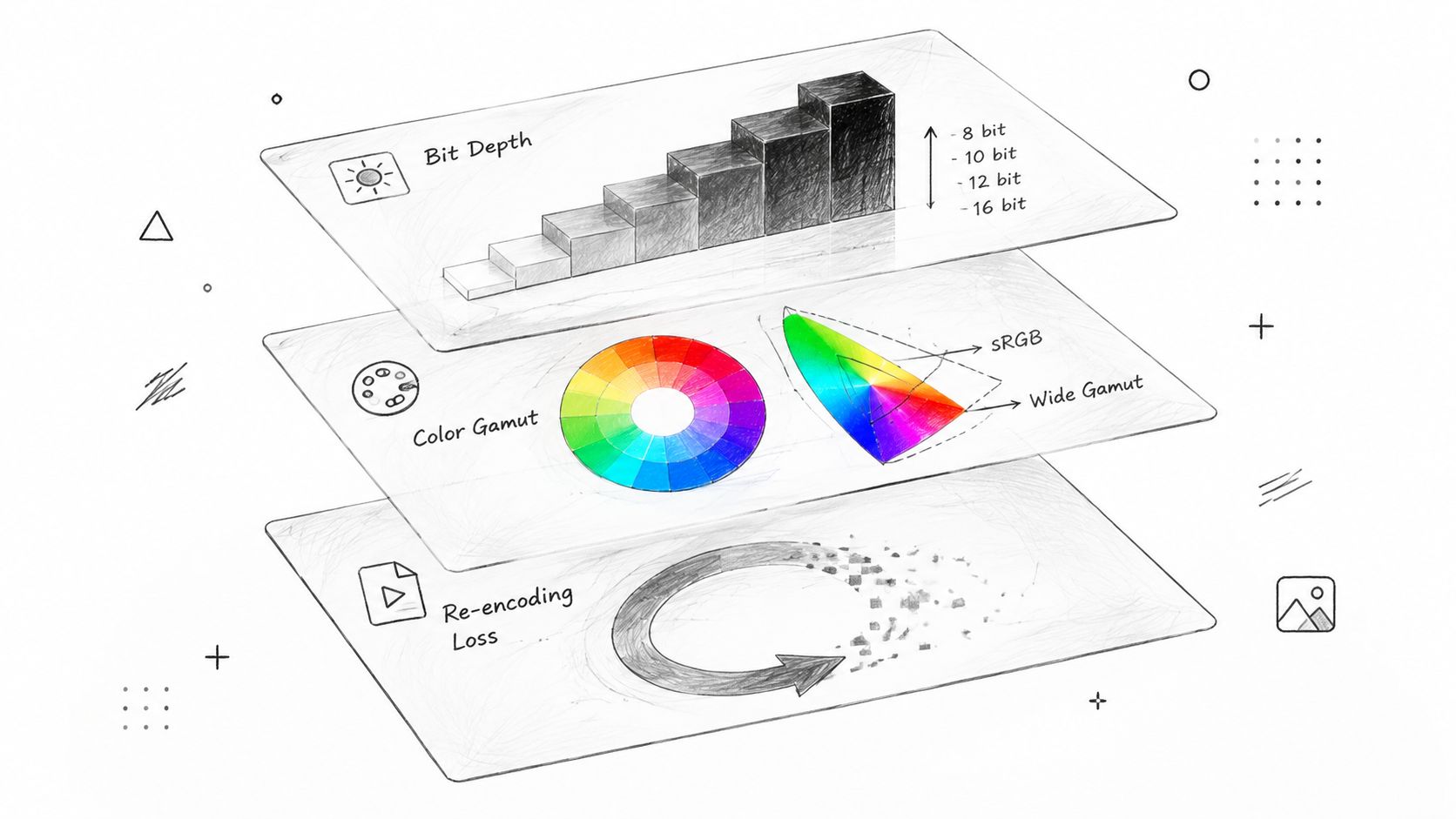
Quality is not one thing. In the HEIC vs JPG comparison it splits into at least three separate dimensions, bit depth, color gamut and re-encoding loss, and a conversion can preserve one while reducing another without any warning.
That’s why a JPG can look identical on a phone screen and still be a poorer editing file. It also explains why two people can argue about the same converted photo and both be right. One is judging the pixels at display size. The other is judging what’s left to work with.
Bit Depth Shows Up in Gradients
HEIF can store 10- and 12-bit color, while conventional JPEG is generally limited to 8-bit photographic color, a distinction set out in the Convertio HEIF to JPEG format notes. More bits mean more steps between tones. You’ll see the difference first in smooth skies, sunsets, fog and HDR gradients, where 8-bit files can break into visible bands after editing.
For an unedited snapshot viewed small, that extra depth may never matter. For a photo you plan to lift shadows on, darken a sky in, or print large, it gives you more room before the image starts to fall apart.
Color Gamut Shows Up in Saturated Reds and Greens
iPhone photos commonly use Display P3, a wider gamut than sRGB. When a converter maps Display P3 to sRGB, colors outside the smaller gamut have to move, and saturated reds and greens are usually the first to look duller. Our converter carries the iPhone’s Display P3 color profile over, or converts colors to sRGB for formats that cannot store a profile.
That conversion isn’t automatically a mistake. A web page or office screen that assumes sRGB will often display a correctly converted sRGB file more predictably than a wide gamut file it mishandles. The mistake is making the change without any notice, without knowing which profile the destination expects.
Re-encoding Loss Adds Up Quietly
HEIC to JPG conversion decodes one lossy format and encodes another. That’s a second lossy compression stage, and every later re-save of that JPG adds more loss. At a JPEG quality around 85, most viewers won’t spot the difference on a phone screen. Large prints, heavy crops, repeated edits and HDR work expose it much faster.
HEIF also has a lossless mode, which is the only route to zero loss on the HEIC side. JPG has no equivalent escape hatch in normal photo workflows, so you shouldn’t use it as your editing master.
Compare before you commit. Open the HEIC and the converted JPG at 100% zoom on a Display P3 screen, check a gradient and a saturated color, then decide whether the trade is acceptable for that use.
Metadata, Location Data and Privacy After Conversion
Both HEIC and JPG can carry EXIF data such as date taken, camera model, lens and exposure settings, plus XMP fields and, when location services were on, GPS coordinates. Converting the picture doesn’t automatically clean the file. You have to check what the converter kept.
| Element | Typical result after conversion | What to check |
|---|---|---|
| Pixels | Re-encoded; quality depends on the export setting | Compare at 100% zoom before deleting the HEIC |
| Date taken | Usually kept as EXIF | Check in the file info panel |
| Camera model and settings | Usually kept as EXIF | Remove if sharing publicly |
| GPS location | Kept unless the converter strips it | Remove before sharing publicly |
| Orientation | Correct only if rotation is applied before saving | Open the JPG on a second device |
| Depth map and portrait effects | Not kept in JPG | Keep the HEIC if you may re-edit the depth |
Orientation Is the Visible Failure
An iPhone often stores rotation as an instruction rather than turning the pixels themselves. If a converter reads the pixels and ignores that instruction, your upright portrait opens sideways in the JPG. It looks like a broken file, but the actual problem happened at export. Open the result on a second device, not just in the app that made it.
Date taken is the quieter failure. If it is stripped or replaced with the conversion date, a library sorted by capture time falls out of order and records become harder to audit. Camera settings are less sensitive, but they still tell a stranger what device you used and when you used it.
Privacy Is About Copies, Not Extensions
Changing a file from .heic to .jpg does not make it safe to share. The location and timestamps can travel with it.
The bigger privacy question is where conversion happens. A converter that uploads photos to a server holds a copy you can’t see or delete yourself. Our photos are converted inside your own browser on your device. There’s no upload step and no server that keeps a copy.
That design has a limit you should know about. We never receive your photos, so we can’t look at a failed file unless you choose to send it. Local processing protects privacy, but it also means support can’t inspect a problem file on your behalf.
Before you share publicly, run a short check.
- Turn GPS off for the export: Keep location only for personal archives where it helps you search.
- Check the file info panel: Confirm date taken, dimensions and location fields match what you intend to send.
- Open the output elsewhere: Use a second device or browser to catch rotation and color problems early.
Compatibility by Destination Across Devices, Apps and Sites
If you don’t know the destination, send JPG. That’s the rule, and the rest of this section explains why a photo can look fully supported right up to the moment you try to use it.
Device support and destination acceptance are different layers. Your phone gallery only has to decode the file. A website form also has to allow the file type, generate a preview and process the image on a server. A failure at any one of those steps looks the same to you. The upload just doesn’t work.
Windows may require additional HEIF and HEVC components, Android support is uneven across versions and manufacturers, and the GIMP documentation on HEIF export states that as of November 2025 Safari was the only browser with native HEIF support. That is why opening HEIC files on Windows 10 can involve extra components before File Explorer or Photos shows a thumbnail.
| Destination | HEIC accepted? | Send as |
|---|---|---|
| iPhone and iPad Photos or Safari | Yes | HEIC |
| Windows File Explorer and Photos app | Needs HEIF/HEVC components | JPG |
| Android phone gallery | Not on all versions and makers | JPG |
| Chrome, Edge or Firefox upload form | Often rejected | JPG |
| Email to an unknown recipient | Unpredictable | JPG |
| Government or insurance portal | Often rejected | JPG or PDF |
| Print shop or designer | Ask first | JPG at high quality, or TIFF |
| Website content management system | Set by the system’s allowed formats | JPG, WebP or AVIF |
Where the Chain Usually Breaks
Upload forms often use a MIME allowlist built around JPG and PNG. Your browser can select the HEIC file, the form rejects its type, and the error message may only say the upload failed. Newsroom, insurance and government portals are especially conservative because their preview generators and document systems were built around older formats.
Email fails differently. The attachment sends fine, then the recipient’s mail client or phone can’t preview it. You hear about it a day later, after the deadline has moved. Our JPG output opens on every device, app and website, which is why it’s the safer attachment when you don’t control the other end.
Print is a conversation, not a guess. A print shop may accept HEIC, prefer a high quality JPG, or want TIFF for a large job. Ask before you convert a batch, because the wrong choice costs you a second export.
Format also isn’t the only reason a destination says no. A portal can reject a valid JPG for exceeding a file size limit or a maximum resolution. One test upload with a single converted photo is faster than converting 200 files and discovering the limit afterward.
How to Convert HEIC to JPG Without Losing Quality
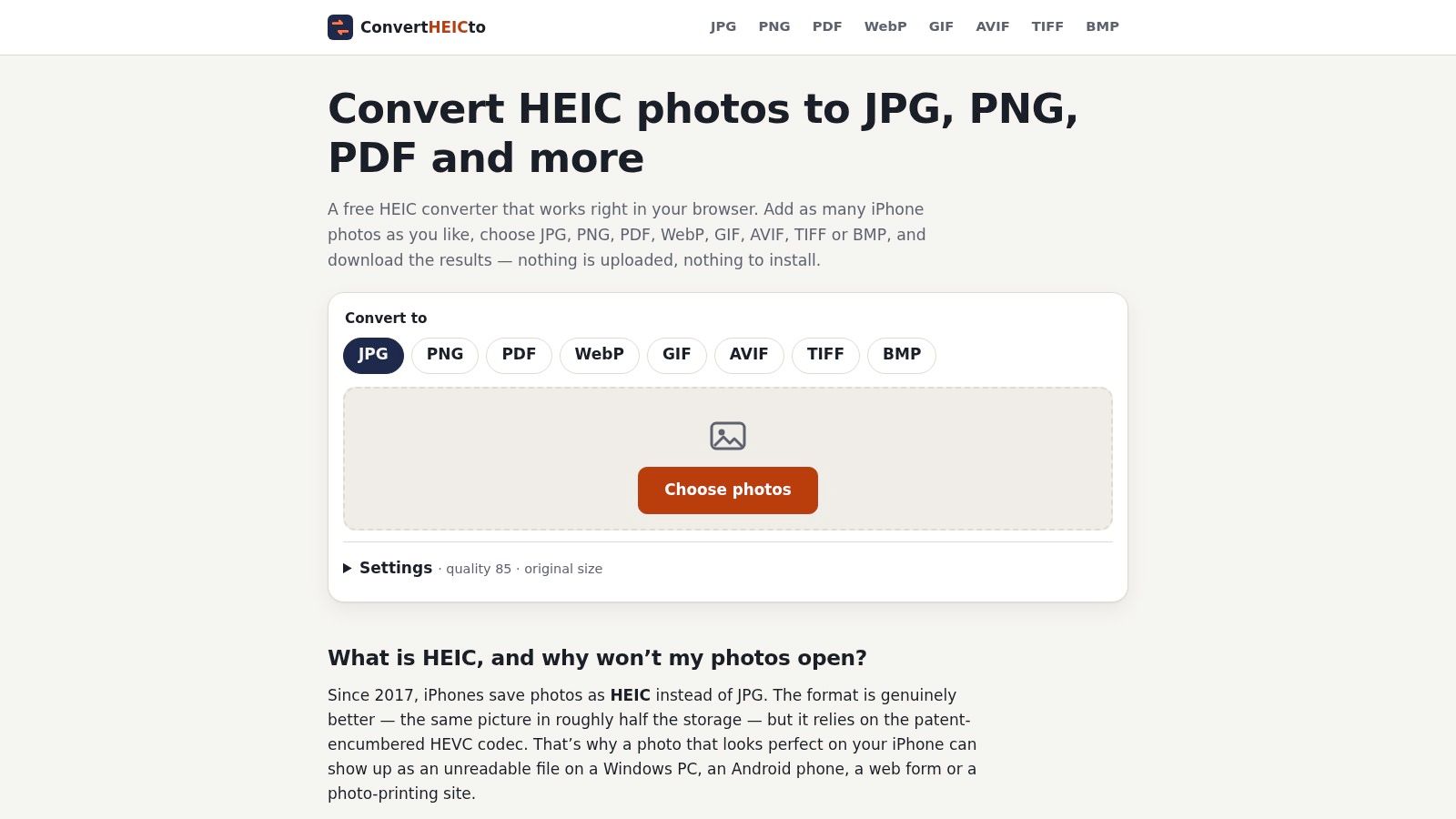
You can’t convert HEIC to JPG with zero loss, because JPG encoding is lossy. You can keep the loss below what anyone will see at the intended size, and you can avoid the mistakes that make it obvious. The walkthrough at change format to JPEG covers the basic flow, but the settings below are where quality is won or lost.
The Conversion Sequence
- Keep the original untouched: Put the HEIC files in their own folder and never export over them. Every JPG you make is a new lossy stage, so the HEIC is your only clean source for a better export later.
- Set the size before encoding: Choose the maximum edge first, such as 3000 px for documents or 2048 px for sharing. Resizing after JPG encoding forces another save. You can set maximum size to original size or to 4096, 3000, 2048, 1600, 1280, 1024, 800 or 640 px.
- Pick quality for the use, not the maximum: Use about 85 for general sharing and higher for prints. The Quality setting includes a Lossless option labeled for graphics and screenshots, alongside a quality value of 85. Never open an existing JPG and re-save it as your new master.
- Decide the color profile deliberately: Keep Display P3 for files staying on Apple devices. Convert to sRGB for the web and unknown screens. Sending a Display P3 file to an sRGB only display pipeline is a common reason colors look flat after an otherwise correct conversion.
- Decide GPS as a separate choice: Remove location for public sharing, listings and forms. Keep it only for personal archives where place based search matters to you.
- Export a small test batch first: Convert three photos, including one portrait orientation shot and one with strong color. Check orientation, date taken and colors on a second device before you run the full batch.
- Name batch outputs predictably: Use a fixed pattern with the date and a sequence number, keep HEIC and JPG folders separate, and confirm the output file count matches the source count before deleting anything. This matters most for receipts and records, where a missing page is worse than a slightly larger file.
You can add as many iPhone photos as you like, choose an output format and download the results. Batch size isn’t the hard part. The hard part is catching one sideways photo or one wrong color profile before it multiplies across 300 files.
Most common slip: Exporting a JPG from a JPG. Go back to the HEIC every time you need a different size or quality.
Choose the Format Based on Where the Photo Goes
For your iPhone library and editing in Apple Photos, keep HEIC. Depth data, wide gamut color and the smaller file size all stay available, and the HEIC remains your archive copy.
For sharing with a person or service you don’t control, send JPG. Use a quality around 85, resize the long edge to what the recipient needs, and check the destination against the acceptance pattern that fits it.
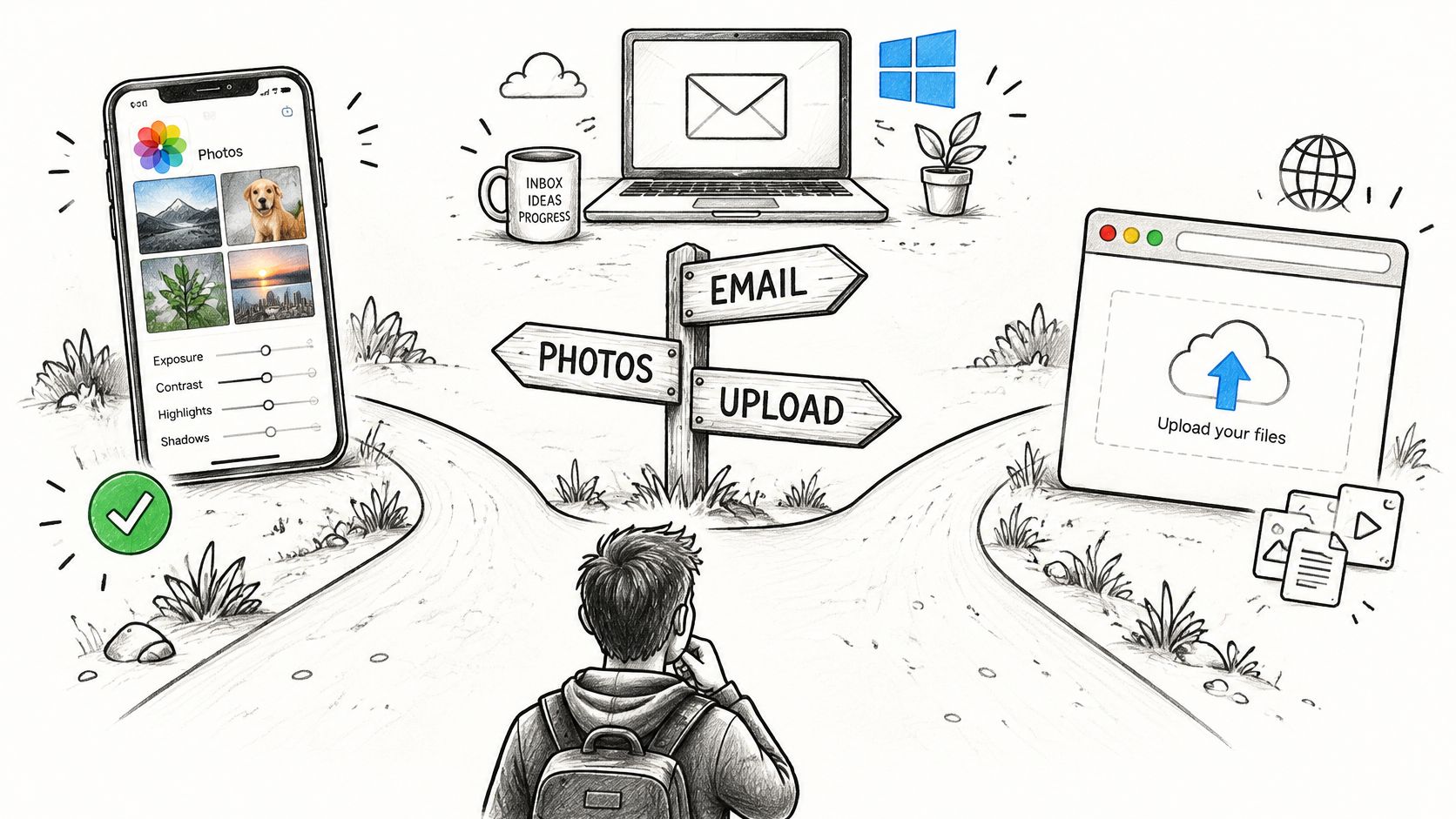
For website pages, use WebP or AVIF where the content management system accepts them. WebP suits cases where file size is the main constraint. AVIF output is a next-gen format, about half the size of JPG, so it’s worth testing where browser support and your publishing tools allow it.
For print, use TIFF or a high quality JPG. TIFF output is lossless and intended for printing, publishing and archives. For several photos that belong together as records or a report, use PDF so the recipient receives one document in the order you intended.
JPG is shrinking on the web, but it hasn’t stopped being the baseline. As reported in a ShortPixel summary of the 2024 Web Almanac, JPEG accounted for approximately 32% of images found on the web in 2024, down from 40% in 2022, based on the HTTP Archive analyzing more than 10 million pages. Newer formats are growing around it. They haven’t replaced it as the format every system assumes.
Confirm the destination, export a copy made for that destination, and keep the original HEIC. The service is provided as is, without warranties of any kind, and we can’t guarantee every file will convert or suit your purpose. Keeping the original is what turns a failed export into a retry instead of a loss.
Convert the photos you need to share without uploading them to a server, with control over output size, quality, color and GPS before you download. Visit ConvertHEICto, add your HEIC files in your browser, export a test JPG for your destination, and check it on a second device before you convert the full batch.