
An iPhone photo lands in your inbox or on a USB stick, and Windows 10 shrugs. You get a generic icon, or a message that no app can open the file. The picture is fine. The PC is missing a decoder, or the build is too old to use one.
Learning how to open HEIC files on Windows 10 means sorting those two gates before you install anything. One gate is the Windows version. The other is whether you can add Microsoft Store extensions. Pick the route that matches the gate you hit.
Table of Contents
- Choose the Method That Fits Your Windows 10 PC
- Install the HEIF and HEVC Extensions Step by Step
- Convert HEIC to JPG When Extensions Will Not Work
- Why HEIC Files Fail on Windows 10 and How to Fix Them
- Confirm Your Setup and Pick Your Next Step
Choose the Method That Fits Your Windows 10 PC
Start with the Windows build. Photos can open HEIC files on Windows 10 version 1809, build 10.0.17763, or later once the required codecs are installed. Earlier releases lack the HEIF framework, so a Store package cannot fix them until Windows is updated.
On a qualifying PC, check the codec requirement next. HEIF Image Extensions adds support for the HEIC container. Many iPhone stills use HEVC compression, so HEVC Video Extensions can also be required even though the file is a photo. Installing only one package can leave a valid image unreadable.
Store access is a separate blocker. A managed work PC can run 1809 or later and still prevent both installs. A portal, form or email recipient can also reject .heic after Photos opens it locally. If you want the format itself explained before choosing a fix, read what a HEIC file actually is.
| Method | Cost | What it needs | Best for |
|---|---|---|---|
| Photos app with HEIF and HEVC extensions | HEIF free, HEVC a paid Store listing | Windows 10 version 1809 or later | Regular HEIC use on your own PC |
| Browser converter such as ConvertHEICto | Free | A browser; conversion runs on the PC without an upload | One-off files, or a PC where the Store is blocked |
| Export to JPG in a HEIF-capable app | Free when the app is already installed | An app that decodes HEIF and HEVC | Batches you want to keep on your PC |
Renaming .heic to .jpg |
Free | Nothing | Avoid it; the image data stays HEIC |
Below build 1809: update Windows first. No Store package can supply the missing framework.
Personal PC on 1809 or later: install both extensions and use Photos.
Managed PC without Store access: use a browser converter.
Destination that rejects HEIC: convert to JPG or PNG before you upload or send it.
Keep the original HEIC files until the result opens where you need it.
Install the HEIF and HEVC Extensions Step by Step
The extension route fails at two different gates, and most walkthroughs treat them as one. The first is your Windows build. The second is whether the Store will hand you both codecs. Check them in that order, because a codec install on an unsupported build wastes your time either way.
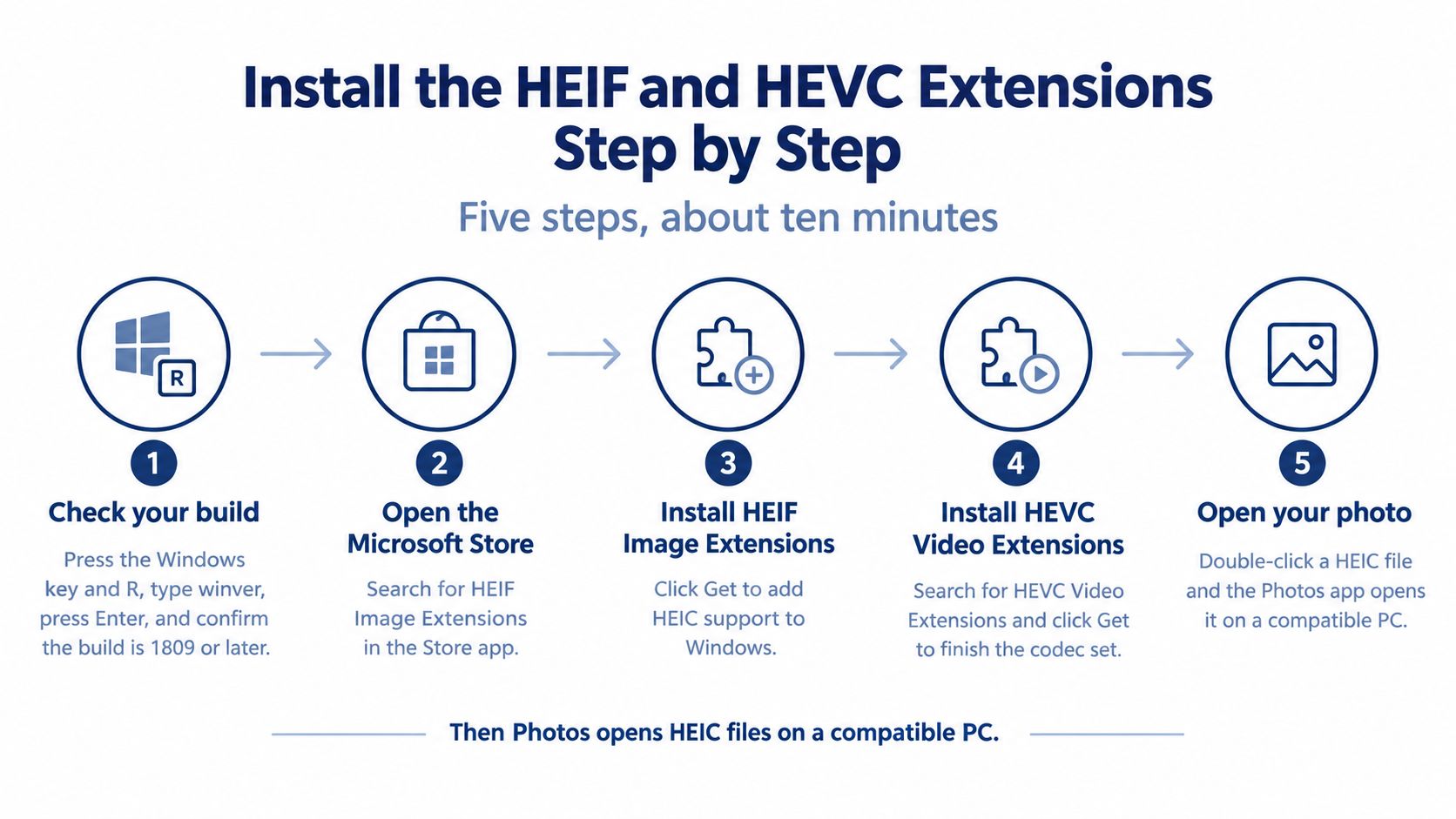
Check the build before the Store
- Press the Windows key and R, type
winver, and press Enter. You need version 1809 or a later build, number 10.0.17763 and up. An older build has no HEIF framework to attach a codec to, so update first through Settings > Update & Security. - Open Microsoft Store, search HEIF Image Extensions, and install the free package. This teaches Windows the container and image format.
- Install HEVC Video Extensions as well. This one is a paid Store listing, though it comes free on some devices. Check Settings > Apps > Apps & features first, because the package sometimes arrives already installed by another app. If you do need to buy it, confirm the current price on its Store page before you pay.
- Restart the Photos app. Reboot Windows if the
.heicassociation still looks unchanged. Windows often caches the old “no app” state until Photos reloads. - Right-click the file, choose Open with > Photos, and confirm both the thumbnail and the full-size view. A thumbnail alone can be a stale cache. The full view is the definitive test.
Why one extension is not enough
The error you see tells you which gate stopped you. A Store prompt when you open the file means a codec is missing. A silent failure on an old machine points at the build.
A PC that opens a .heif sample will not always decode a .heic file. The extension, the Windows build, Store licensing, and CPU or GPU decoder support can each block one photo and pass another. Microsoft doesn’t publish a success-rate figure, so don’t trust anyone who quotes one. The practical test is simpler. Open two files from different iPhones. If both load, the setup is working.
Microsoft’s Office documentation on HEIF, AVIF, and WebP confirms the split install: it tells users to get HEIF and HEVC separately, since both can be required even for still photos.
Practical rule: If Photos still says the codec is unsupported, confirm both packages under Apps & features before you buy anything a second time.
If the Store path is blocked or you want Explorer and Office support from a separate installer, CopyTrans HEIC for Windows is the alternative people usually compare against the Store codecs. It doesn’t replace an update on a pre-1809 PC.
Convert HEIC to JPG When Extensions Will Not Work
Conversion is the right call in three situations. The extensions won’t install. The PC is older than build 1809 and you can’t update it. Or the other side rejects HEIC, which is common with office portals, school forms, and older email clients. Viewing on your PC and sending a file are different problems. Codecs only solve the first.
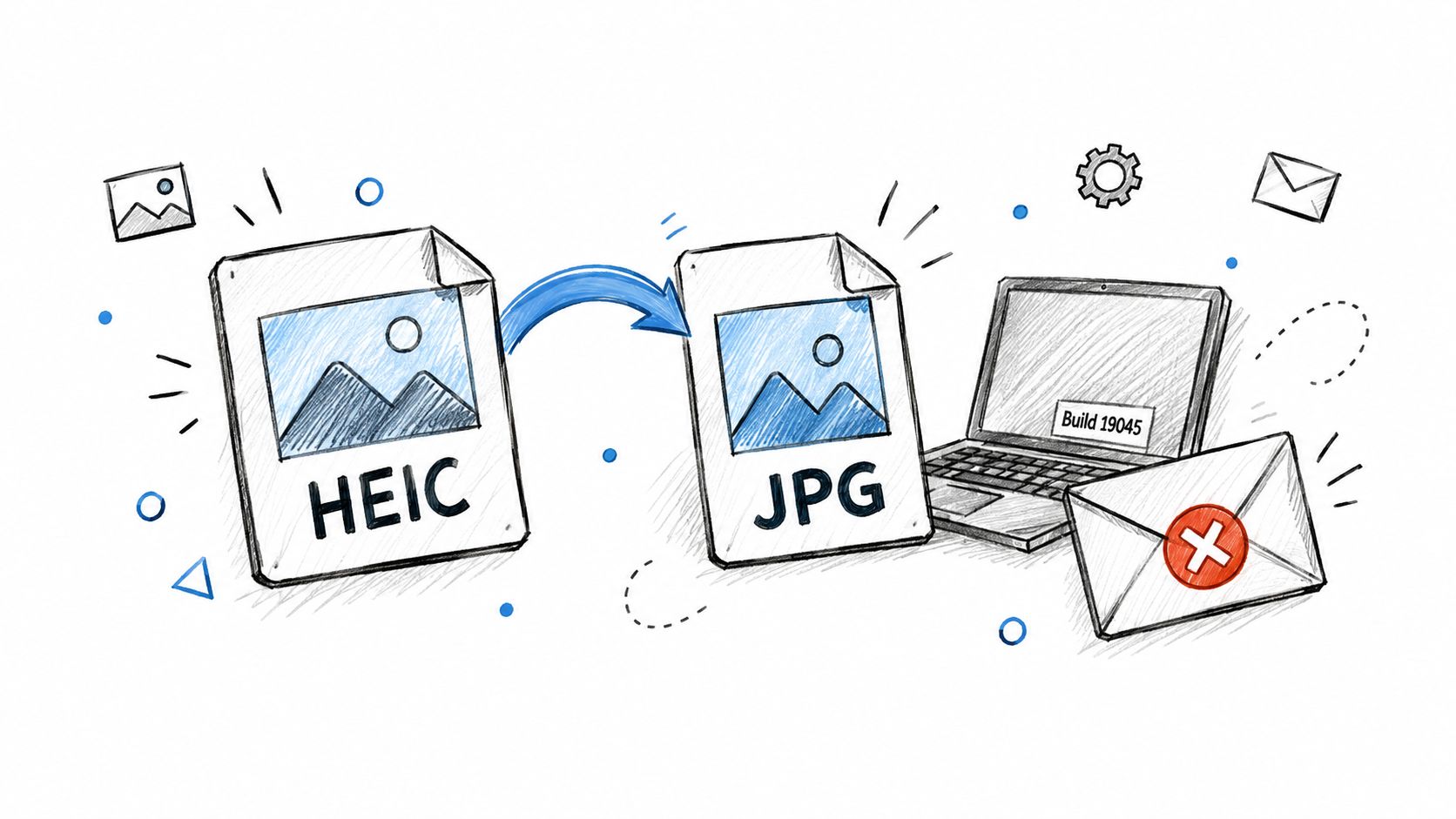
A repeatable local export
- Copy the originals into a separate folder and leave that folder alone until the copies check out. A bad export is annoying. A deleted original is not recoverable from the JPG.
- Pick a decoder you trust. A browser tool works with no install. An installed app works when it reads HEIF and HEVC. We built ConvertHEICto for the locked-down case. Photos convert inside your own browser on your device. There is no upload step and no server that keeps a copy. You can add as many iPhone photos as you like, choose an output format, and download the results. JPG output opens on every device, app, and website.
- Match the format to the job. Use JPG for forms and email. Use PNG when you still need to edit or when the image is a screenshot. Use PDF when a portal wants one multi-page submission instead of a pile of attachments. A fuller walk-through of the JPG path is in how to convert HEIC to JPG.
- Keep JPEG quality high. A quality value of 85 is a sensible default for photos. Dropping it further saves space and starts to band skies and smooth gradients.
- Don’t dump a whole library through on the first pass. Test one file from each iPhone generation, including a large image, then run a small batch. Export into a new folder and add a
_convertedsuffix so you can tell the copies from the originals. - If a portal rejects the file for size, resize the long edge. A 4096 px cap is enough for most forms and still looks sharp on screen.
- Open several outputs before you delete anything. Check orientation, color, dimensions, and the date taken.
The short video below shows the same idea in motion, from a file Windows won’t open to a JPG you can send.
What conversion can drop
HEIC isn’t one codec setting. HEIF may contain AVC/AVCI, while HEIC commonly contains HEVC, so one sample can open while the next fails. Image-parsing research on these containers is a reminder that the bytes inside the box vary. Microsoft describes .HEIC files as HEIF compressed with HEVC and points people at codecs rather than treating the extension as JPEG.
Renaming .heic to .jpg doesn’t transcode those bytes. The file stays HEIF/HEVC with a misleading name, and the app that tries to read it fails or shows garbage.
Expect possible loss of Display P3 color, depth data, Live Photo relationships, HDR information, or GPS and EXIF fields. That depends on the exporter, not on Windows. Check metadata before you post a photo publicly, and keep the phone original if location or HDR still matters.
No source gives a cross-device success rate for conversion. Test representative files before you process a batch.
Why HEIC Files Fail on Windows 10 and How to Fix Them
The symptom you see most is Photos reporting an unsupported file type. That almost always means the HEVC extension is missing, or the build is older than 1809. The photo didn’t corrupt on the way over. Windows was built around JPEG, and Apple changed the default years earlier.
Apple introduced HEIF and HEVC with iOS 11 in September 2017. Apple estimated the formats could cut storage by up to 50% at comparable quality. One reported side-by-side put a JPG at 2 MB and the matching HEIC at 1.2 MB, about 40% less in that example. Coverage of the iOS 11 camera formats is where those figures come from. Microsoft’s native path arrived later, with Windows 10 version 1809 in 2018. That’s why a PC set up for JPEG still meets these files every week. Renaming can’t bridge that gap, because the encoding is still HEIF/HEVC.
| Symptom | Likely cause | Fix |
|---|---|---|
| Photos says the file type isn’t supported | HEVC extension missing, or build older than 1809 | Run winver, update Windows, install both extensions |
| Thumbnails are blank but the file opens | Stale Photos cache after the codecs went in | Restart Photos or reboot, then reopen the file |
A renamed .jpg still won’t open |
The name changed, the bytes didn’t | Convert with an exporter. Don’t rename |
| One HEIC opens, another fails | Different data inside the HEIF container, or a damaged file | Test a second file. Re-export the failing one from the iPhone |
| An error appears right after you install the extensions | Store licence or decoder support | Reinstall the extension from Microsoft Store, or convert |
| The Store is blocked on a work PC | Policy restriction | Use a browser converter, or ask IT to approve the extensions |
A restart of Photos or a winver check takes a couple of minutes. A reinstall of the extension takes longer, and a blocked Store isn’t something you can click past.
Stop the next batch on the iPhone
Open Settings on the iPhone, go to Photos, scroll to Transfer to Mac or PC, and choose Automatically. Future transfers then send JPEG copies. The originals stay on the phone as HEIC, so you don’t give up the smaller files in the camera roll.
If you’re unsure whether Windows or the file is at fault, open one photo from a different device. When that second file opens, the first file is the problem. Re-export it from the phone instead of reinstalling codecs again.
Confirm Your Setup and Pick Your Next Step
How often these files show up should decide the habit, not whichever fix you tried first.
They arrive all the time, and the PC is on build 1809 or later. Install the two extensions once, using the steps above, and stop converting every attachment. Photos and thumbnails are then the normal path.
They arrive now and then, or the PC is locked down. Convert each batch in the browser or in an app that already decodes HEIF, and send the JPG outputs. You don’t need a Store purchase for a handful of photos a month.
A file still fails after the checks in the table. Leave the original on the phone and re-export it. A truncated copy from a cloud handoff won’t be fixed by another codec install.
The service is provided as is, without warranties of any kind. Always keep the original, because we can’t guarantee that every file will convert or that the result will suit the job. If a file fails, email hello@convertheicto.com and mention your device, browser, and the error you saw.
Before you close the laptop, four checks are enough for today.
- Build checked with
winver. - Extensions installed, or a converter chosen.
- One test file from a second iPhone opened successfully.
- Originals kept in a separate folder.
If the Store is blocked, the PC is too old to update, or a form still rejects the iPhone original, ConvertHEICto turns those HEIC photos into JPG, PNG, or PDF in your browser, on your device, with no upload. It is built for the exact moment Windows 10 won’t open the file and the other end won’t accept it either. Open a photo in ConvertHEICto and download a copy you can send.