
The listing portal bounced the photos. They left the phone as HEIC, the form wants JPG, and the deadline is this afternoon. You drop the files into a converter, pick JPEG, and they open. One sky looks striped. A red jacket looks duller than it did on the phone. A map pin from last weekend is still sitting in the file.
That pattern is common, and the file-type dropdown doesn’t fix it. When you change format to JPEG, you’re making a compatibility export from a richer original. The camera file can hold wider color and finer tonal steps than an 8-bit JPEG. The export can also keep location data you never meant to share. Check those points on a copy before the batch goes out.
Table of Contents
- Why JPEG Still Works as the Default Format
- Converting HEIC and PNG Files to JPEG
- Setting JPEG Quality, Size, and Bit Depth
- Color Profiles and Metadata Before You Save
- Choosing Between JPEG, PNG, WebP, and AVIF
- Practical Tips and Your Next Conversion
Why JPEG Still Works as the Default Format
A photo sent to an unfamiliar upload form needs to open on the other end, not preserve every capability of the original. JPEG remains a dependable handoff format because cameras, browsers, office software, and older apps have supported it for decades. The Joint Photographic Experts Group formed in 1986 and published the original specification in 1992 as ISO/IEC 10918-1, also known as ITU-T Recommendation T.81. That shared standard explains why a JPEG from a recent phone can open in software that predates HEIC. JPEG’s history as a widely adopted standard helps explain its staying power.
Built for photographs, weak on graphics
JPEG uses lossy compression: it removes image information to reduce file size. That trade-off suits photographs, where gradual changes in tone and texture can survive compression well. It is less suited to screenshots, charts, text, and line art, where compression can leave visible halos around sharp edges. Keep those graphics in a lossless format when crisp detail matters.
The format’s place on the web has declined as newer options have spread, but it remains widely used. The Web Almanac’s media chapter reports that JPEG accounted for 41.8% of images measured in 2021, ahead of PNG at 28.8%, GIF at 16.5%, and WebP at 6.9%. In its 2022 data, JPEG still led at 40.3%, while WebP reached 8.9%. A 2024 measurement put JPEG at 32.4%, PNG at 28.4%, GIF at 16.8%, and WebP at 12.0%. The trend is clear: JPEG is losing share, yet remains a common compatibility choice.
A compatibility choice, not the smallest file
Practical rule: Choose JPEG when you do not control the receiving system. Keep a newer format when you control the site and can provide a fallback.
JPEG may not produce the smallest file, and converting a wide-gamut Display P3 photo to standard sRGB can change its color. Re-saving a JPEG also recompresses it, so repeated edits can gradually soften detail. When storage matters, compare the camera original with the export before deleting anything. The HEIC and JPEG differences explain the trade-offs when choosing between a phone’s original and a JPEG copy.
Converting HEIC and PNG Files to JPEG
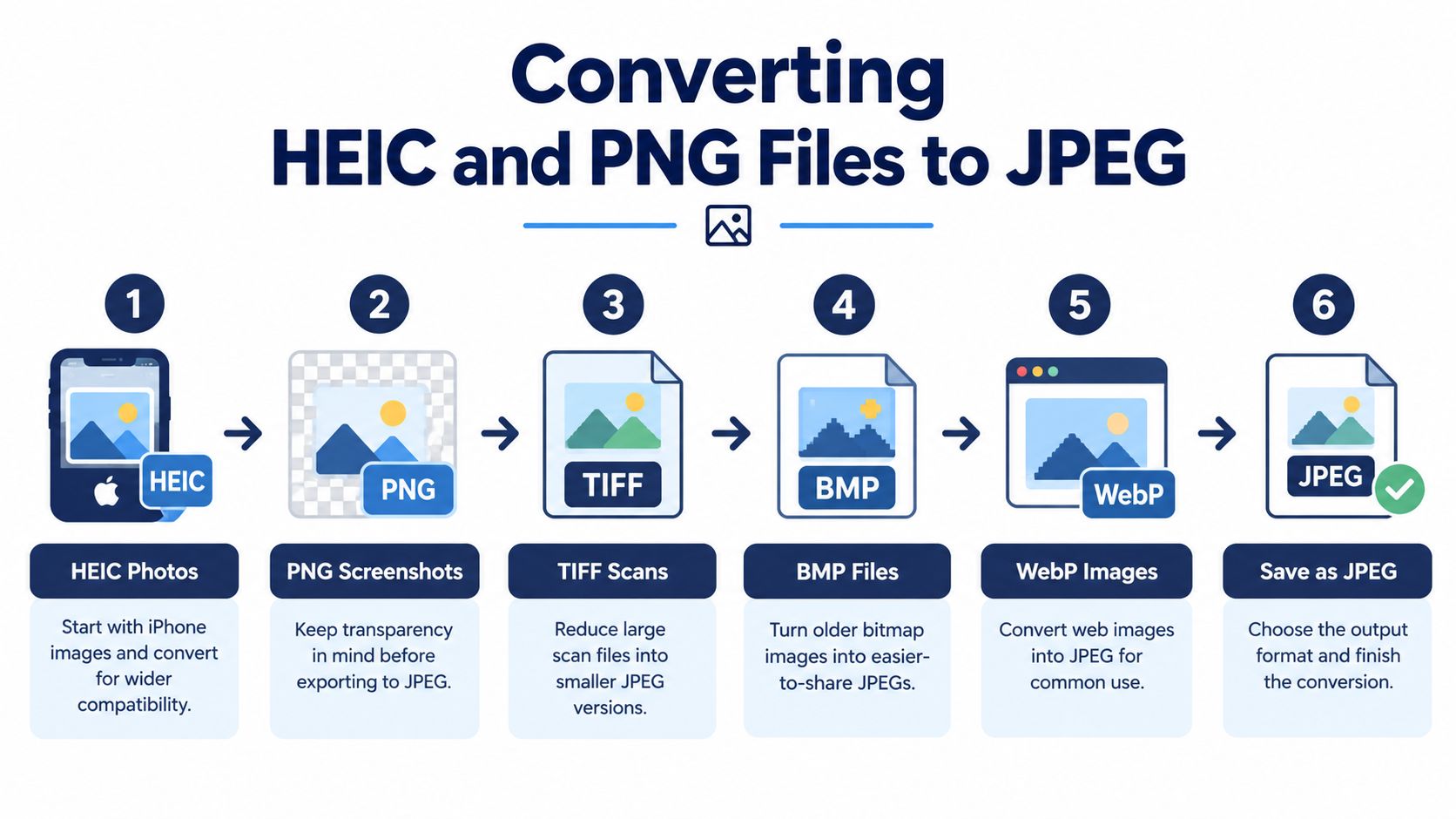
Start from the file you have, not from a generic “image.” iPhone and iPad photos are usually HEIC or HEIF. Screenshots are often PNG. Scans arrive as TIFF. Old desktop graphics are BMP. Pictures saved from the web may be WebP. Each one changes in a different way once JPG is the output, so the safe habit is the same: write a new file and leave the original where it is.
What a reliable pass actually does
A trustworthy converter doesn’t rename the extension. Renaming .heic to .jpg leaves HEIC data inside, and many apps then refuse the file.
The useful sequence is short.
- Decode the source. Read the container, including HEIC, HIF, PNG, TIFF, BMP, or WebP, so pixels and declared color information exist before any JPEG math.
- Correct orientation. Apply the camera’s rotation to the pixels. If you skip this, some viewers show the JPEG sideways even though it looked upright on the phone.
- Encode JPEG last. Only after those steps do you compress. Saving first and “fixing it later” means a second lossy pass.
For a camera roll, batch the set and download a ZIP of the results into a folder named for the job, next to the originals. Don’t convert in place.
What each source loses
HEIC photos are the usual reason people change format to JPEG. Windows, many web forms, and plenty of Android apps still reject them. You gain opening and upload compatibility. You spend the extra efficiency HEIC had on the phone.
PNG screenshots keep sharp text and, often, transparency. JPEG has no alpha channel, so a transparent background becomes a solid color, usually white. If the graphic must stay transparent, don’t export JPEG. The HEIC to PNG walkthrough is the better path when you need a lossless still.
TIFF scans are large because they’re built for print and archiving. A JPEG copy is what you attach. Keep the TIFF if someone may reprint the page.
BMP files are uncompressed leftovers. JPEG makes them practical to send. Expect softer edges on diagrams.
WebP images already opened in a browser may still fail in an office template or an older mail client. JPEG is the boring file those tools accept.
Finish on a second device. Open one photo from the batch on the computer or phone that will receive it. Confirm it’s upright, the background isn’t an unexpected white box, and colors aren’t wildly off. If that single file fails, the rest of the batch will fail the same way.
Setting JPEG Quality, Size, and Bit Depth
Quality sliders invite guessing. A number near the top feels safe and often wastes space. A number near the bottom looks fine on a thumbnail and falls apart on a laptop. Test on one hard photo, then lock the setting for the batch.
What the quality value is doing
The quality value tells the encoder how aggressively to discard detail. Pushing it near the maximum can inflate the file without a matching visual gain, which is why “100” is a poor default for email and forms. A practical HEIC-to-JPEG pipeline treats quality as something you judge on the picture, not as a badge of fidelity.
Use a photo that contains a sky, foliage, and a bit of text or a sign. Export two or three copies. Look at them at 100% zoom, not as icons.
- Gradients: Banding in skies and skin means the tonal steps collapsed. Raise quality or fix bit depth before you blame sharpness.
- Foliage and hair: Mush here means the setting is too low. These textures show loss before flat walls do.
- Red and blue edges: Color fringing on thin type often comes from chroma subsampling, not from the quality number alone.
4:2:0 subsampling stores less color detail than brightness detail. It cuts bitrate a lot on photos of people and outdoor scenery. It smears thin colored text, logos, and sharp red or blue boundaries. For a portrait destined for a form, 4:2:0 is usually fine. For a screenshot of a UI or a chart with colored lines, turn subsampling off or keep PNG.
Bit depth and pixel size
JPEG is an 8-bit format. HEIF can carry higher bit depth. If a converter truncates those extra steps carelessly, smooth ramps break into stripes. You see it in sunsets and on cheeks before you see it on buildings. The fix is an 8-bit conversion that dithers or maps tones on purpose, not a raw chop of the extra bits.
Resize to the destination, not to a habit. A full-resolution export still makes sense for a print handoff. A long edge around 4096 px is plenty for many large previews. Something near 640 px is a thumbnail or a tiny web stand-in, not a photo you’ll crop later. Shrinking after a heavy JPEG save looks worse than shrinking the pixels first and encoding once.
Export one sample, inspect gradients, leaves, and colored edges at full zoom, then apply that setting to the batch. Don’t tune fifty files by the slider alone.
Color Profiles and Metadata Before You Save
Most conversion guides stop at the quality percentage. The photos that come back “wrong” usually failed earlier, in color or in hidden tags.
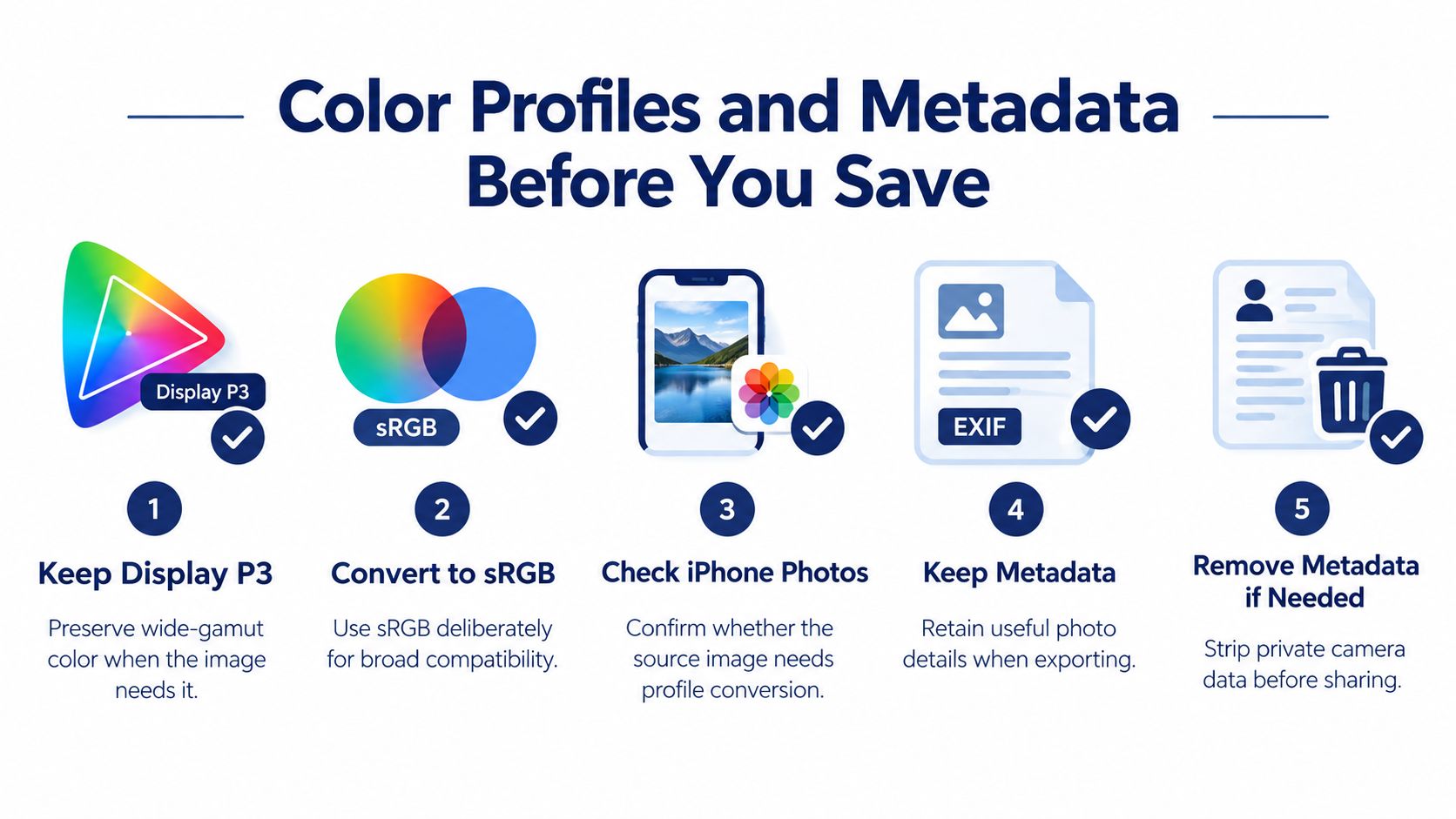
iPhone photos are often tagged Display P3. That space covers a substantially wider slice of visible color than sRGB, especially in reds and greens. A pipeline that drops the profile, or a browser canvas that exports without it, can mute, shift, or unexpectedly saturate those colors. The JPEG still opens. It just doesn’t match the phone. Wide-gamut pipelines fail in exactly this quiet way.
When to keep P3 and when to force sRGB
Keep a Display P3 profile when the next app understands it and color match matters: a design handoff, a print prep file, or a gallery that preserves embedded profiles. Convert deliberately to sRGB when the file will land in email, a CMS, a government form, or any viewer you don’t control. sRGB is the predictable common ground. Leaving a wide-gamut JPEG untagged is the option that produces surprises, because each app guesses differently.
Check one iPhone original before a large export. If the info panel says Display P3 and the destination is “whoever opens this,” convert to sRGB on purpose and compare a red object and a patch of green foliage against the phone. If both destinations are color-managed, preserving P3 is reasonable. Don’t mix the two choices inside one batch.
Orientation and what you leave in the file
Orientation belongs in the pixels, not only in a tag. Map EXIF rotation into the image before you save. Otherwise one viewer honors the tag and another ignores it, and the same JPEG arrives sideways.
Metadata is a privacy choice, not a single checkbox labeled “metadata.”
- Keep date taken and camera model when a client, insurer, or editor needs to know when and how the frame was captured. Those fields aren’t a map of your house.
- Remove GPS by default. Coordinates on a public post, a form, or a file sent to a stranger publish a place. Retain location only when that recipient actually needs it, and say so in the filename or the note you send with the files.
Run this before every batch, whether it’s ten family shots or a set of listing photos:
- Confirm the source profile, P3 or otherwise.
- Choose keep-P3 or convert-to-sRGB, and don’t mix them.
- Bake orientation into the pixels.
- Keep capture date and camera. Strip GPS unless required.
- Save a new JPEG. Leave the HEIC or PNG untouched.
Choosing Between JPEG, PNG, WebP, and AVIF
JPEG is the safest fallback for forms, email, office files, and unknown recipients. It isn’t the best file for every job. Chrome’s image guidance, summarized by MDN, says WebP and AVIF generally compress better than JPEG, while older browsers still need a JPEG or PNG fallback. An independent 2025 analysis estimated support at about 95.4% for WebP and 93.5% for AVIF. “Convert everything to JPEG” is a compatibility-first habit, not a universal technical win.
JPEG compared with other output formats
| Format | Best for | Main trade-off |
|---|---|---|
| JPEG | Photos for email, forms, office apps, and unknown recipients | Lossy, no transparency, 8-bit |
| PNG | Screenshots, logos, text, and any transparency | Larger files on photographs |
| WebP | Photos and graphics on a site you control | Needs a JPEG or PNG fallback for older clients |
| AVIF | Photos where smallest size matters and you can test support | Encode time and fallback work |
What the converter has to expose
A useful tool shows JPEG quality and a resize control, tells you the file will get larger or smaller in plain language, and writes a new file. Conversion to JPEG is irreversible. Edit the master, export once. Saving the JPEG, tweaking it, and saving again compounds artifacts even when each pass “looks fine.”
If you’re choosing WebP for a site you control, the HEIC to WebP notes cover that path. Keep JPEG as the fallback those older clients still require.
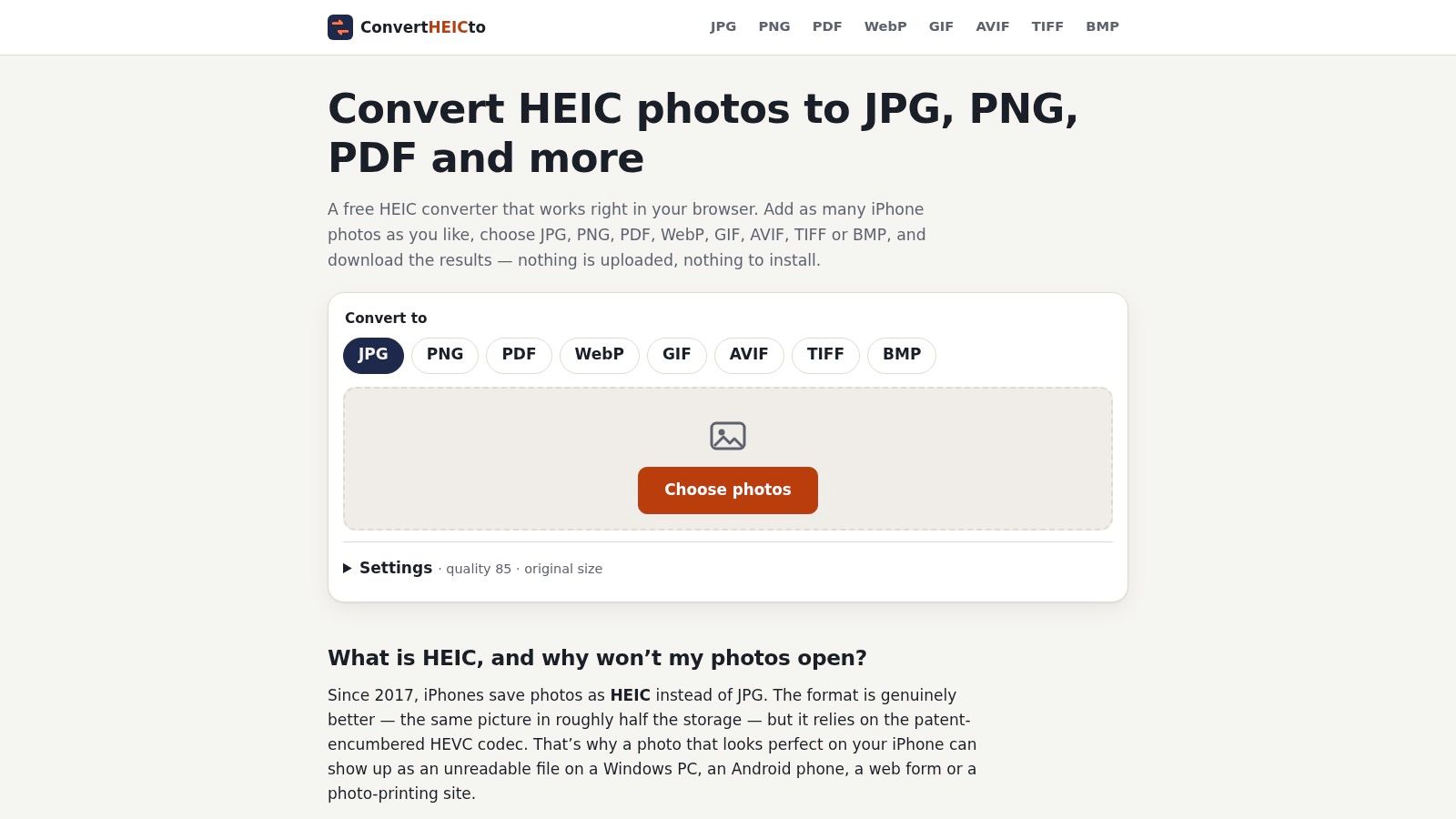
ConvertHEICto is one browser option aimed at this handoff. It accepts HEIC, HEIF, and HIF, encodes JPG plus PNG, WebP, AVIF, GIF, TIFF, BMP, and single or multi-page PDF, and processes on the device rather than uploading the photos. GPS comes off by default, with an option to keep it. Display P3 can be preserved where the format allows, or mapped to sRGB. Quality and maximum-edge resize sit in the same pass, and results download one by one or as a ZIP. Desktop converters and built-in apps such as Preview or Photos still make sense for a single file on a machine that already opens the original.
Match the format to the receiver, not to the trend. Unknown person or strict form: JPEG. Transparency or crisp UI text: PNG. Your own site, with a fallback: WebP or AVIF.
Practical Tips and Your Next Conversion
The export screen is where those choices become a file you can attach. Open it, leave the defaults, and don’t touch quality until a real photo tells you to.
Rules that keep the photos usable
Each lossy save spends detail you can’t get back. Do the crop, the rotate, and the color decision on the HEIC, PNG, or TIFF master. Export JPEG at the end, once. If a client asks for “a bit tighter,” go back to the master rather than re-saving the JPG.
Batch when the set shares a destination. One quality, one color choice, one metadata policy. Mixed jobs, a print file beside an email attachment, should be separate runs. Download the ZIP and spot-check filenames so you don’t send the original HEIC by mistake.
Open the JPEG on the device that will receive it. A phone preview can hide banding that a laptop shows, and a portal’s thumbnail can hide a sideways frame. If the photo is for a form, upload one file first and confirm the preview before you submit the set.
A short walkthrough of the same checks helps if you’d rather watch the sequence than read it.
Run one test before the whole roll
Pick a batch that’s due: ten listing photos, a school form, a set you’re about to email. Run them with default JPEG settings to a new folder. Compare one frame with the original at full size. Look at sky, skin, foliage, and any colored text. Change quality only if something looks wrong. Confirm GPS is gone unless you chose to keep it. Then send that folder, not the camera roll.
Change format to JPEG for the system that has to open the file. Keep the original, export once, and look at color and location before you hit send.
ConvertHEICto turns iPhone HEIC, HEIF, and HIF photos into JPEG in the browser, with quality, resize, color, and GPS choices handled on your device and no account required. If a form, inbox, or office app is rejecting your camera files, convert a copy, compare it with the original, and send the JPEG. Open ConvertHEICto and run one batch before the next upload deadline.