
You’re ready to publish a post, but the iPhone photos won’t cooperate. The upload form rejects a HEIC file, the converted preview looks washed out, or a portrait appears sideways after you save it. Getting a downloadable WebP is easy. Getting a file that survives your publishing workflow takes more care.
HEIC to WebP conversion should end with a successful publication, not a download notification. Choose the output for its destination, then check the details that a converter’s success message can’t confirm.
Table of Contents
- Why Convert HEIC to WebP for the Web
- HEIC and WebP Compared for Publishing
- Convert HEIC Files in Your Browser
- Choose the Right WebP Quality Mode
- Check Browser and Upload Compatibility
- Verify Images Before Publishing
- Apply These Tips for Reliable Web Images
Why Convert HEIC to WebP for the Web
Suppose you’re preparing a photography blog. Your images look right on the iPhone, but the publishing system needs a different format. Converting them makes sense, provided you treat WebP as a delivery copy rather than an automatic upgrade to the original.
HEIC is the filename extension commonly associated with Apple’s implementation of HEIF, while WebP is a separate format developed for web images. Apple’s adoption of HEIF for photo capture and storage established the mobile-photo workflow that many publishers now need to accommodate, as explained in Apple’s introduction to HEIF and HEVC. The practical distinction is capture and storage versus browser delivery.
Convert for the destination, not the extension
A website editor needs an image that the site can ingest and visitors can view. A photographer maintaining an archive has a different requirement: preserve the original and create publishing derivatives when needed. Those jobs shouldn’t share an unquestioned export preset.
WebP’s appeal is efficient compression alongside broad contemporary browser support. Its development and adoption history explain why it’s a useful delivery target for photos that originated on Apple devices, as outlined in this WebP browser-support overview.
Practical rule: Convert because the destination benefits from WebP, not because every HEIC needs replacing.
Don’t promise yourself a smaller file than the HEIC original. The result depends on the source, dimensions, encoder mode, and quality target. A usable publishing copy must also preserve the intended appearance and satisfy the receiving system’s requirements.
That means a successful export needs separate checks for orientation, color, transparency, metadata, and acceptance. Compression is only part of the decision.
HEIC and WebP Compared for Publishing
HEIC and WebP serve different stages of an image’s life. Understanding that distinction prevents the common mistake of replacing an archival original with a web derivative. If you’re unfamiliar with the source format, this explanation of what a HEIC file is provides useful background before you choose an export.
For publishing, compare what you need to keep with what the destination needs to receive. Don’t choose solely by whichever file has the shortest filename or smallest download.
HEIC and WebP Publishing Comparison
| Consideration | HEIC source | WebP output | Publishing takeaway |
|---|---|---|---|
| Primary role | Mobile capture and efficient storage | Web-oriented delivery | Create a delivery copy for the site |
| Compression decision | Already encoded before conversion | Lossy or lossless encoding | Match the mode to the content |
| Container contents | May include multiple image items and metadata | Exported image for the chosen workflow | Don’t assume every source component transfers |
| Transparency | Requires correct decoding when present | Requires an alpha-preserving export | Inspect the actual result |
| Color | May carry a wide-gamut profile | Needs deliberate profile handling | Opening successfully doesn’t prove color accuracy |
| Application acceptance | Depends on the receiving system | Still depends on the receiving system | Check the destination’s format rules |
Choose by publishing scenario
For a photography blog, I’d make a WebP derivative and retain the HEIC source. For product screenshots or text-heavy graphics, I’d prioritize clean edges over aggressive compression. For a family archive, I wouldn’t replace the original merely because a converted file opens more conveniently.
An upload portal is a different problem. If its instructions require JPEG or PNG, use the required format rather than trying to persuade it to accept WebP.
A technically valid image can still be the wrong submission file.
JPEG is a sensible fallback for photographic workflows that don’t accept WebP. PNG is worth considering when a receiving system requires it for graphics or transparency. Neither choice is a failure to optimize: meeting the destination’s requirements comes first.
Convert HEIC Files in Your Browser
Start with a representative sample rather than committing an entire photo collection to untested settings. Include a portrait, a detailed outdoor photo, and any image whose color or edges matter especially. You’ll learn more from those files than from a single uncomplicated preview.
The browser workflow should keep selection, export settings, and downloads easy to review.
Select files and establish the output
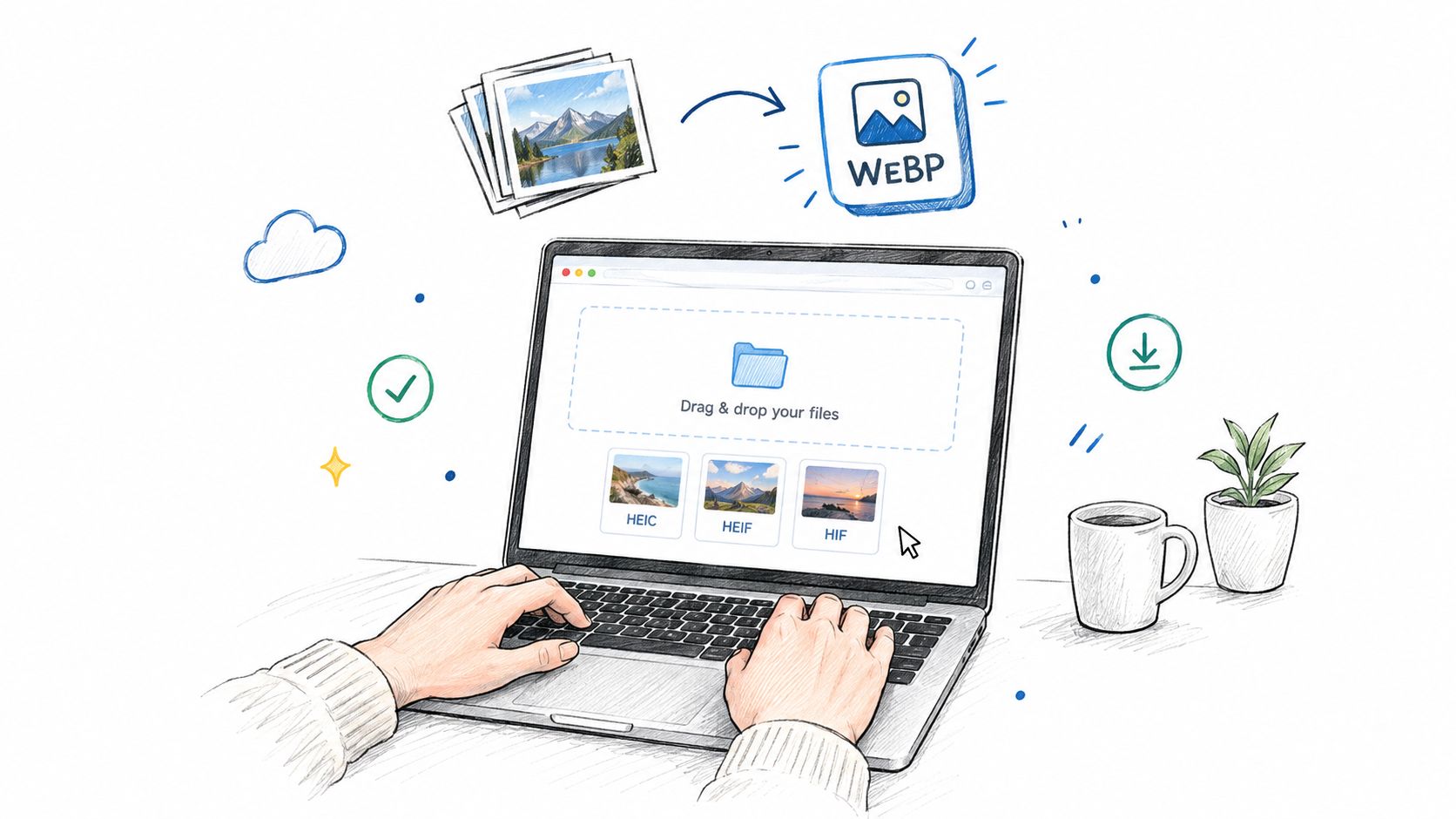
Open the in-browser HEIC to WebP converter, then use the file chooser or drag-and-drop to add HEIC, HEIF, or HIF images. You can select a batch, but keep files with different publishing requirements separate. A collection of photographs and a set of text-heavy graphics shouldn’t automatically receive identical compression settings.
Choose WebP as the output, then decide whether you need original dimensions or a maximum-edge resize. Keep the original size when the next editor needs that resolution. For a finished web asset, use dimensions appropriate to the destination instead of carrying unnecessary pixels through the export.
- Set quality deliberately: Use your sample exports to establish an acceptable setting before processing the remaining photos.
- Review metadata choices: The workflow retains capture-date and camera information while removing GPS by default, with an option to retain location when appropriate.
- Check color handling: Profile-aware processing preserves Display P3 where possible or converts to sRGB when required by the output workflow.
- Confirm orientation: The converter applies orientation correction before saving, so the output doesn’t rely on the original viewing arrangement.
Download without uploading your photos
Processing runs locally through WebAssembly, so the photos remain on your device rather than being uploaded to a conversion server. That’s a useful distinction for personal images or sensitive documentation: there’s no server copy of the photos to manage afterward.
Download results individually when you need to inspect and name each asset carefully. Use the ZIP download for an approved batch, then extract and review the actual output files before handing them to another editor.
Keep your HEIC sources separate from the downloaded derivatives. If the sample export needs adjustment, return to those originals rather than repeatedly recompressing a previous WebP.
Choose the Right WebP Quality Mode
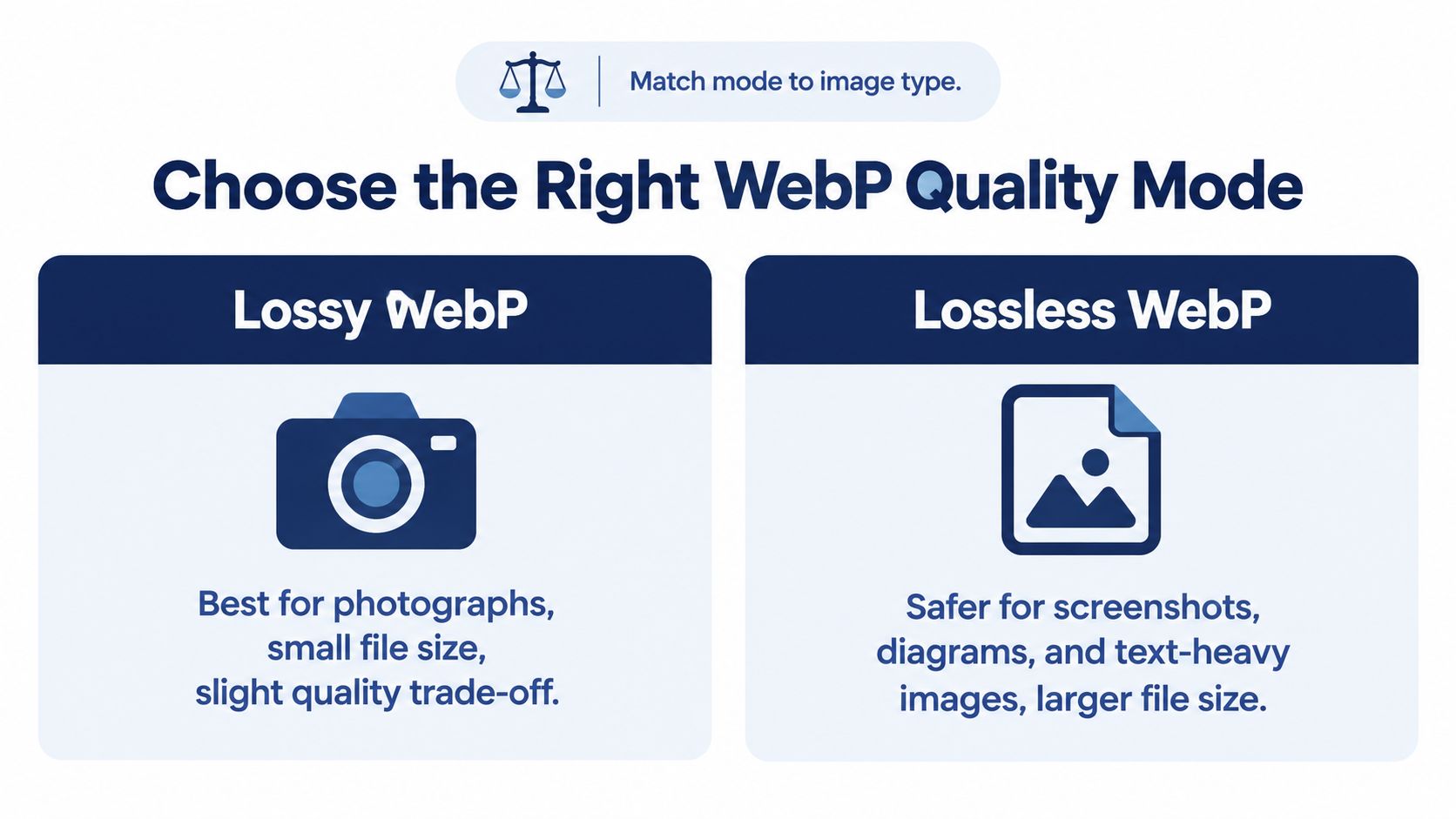
Use lossy WebP for photographs unless visible defects give you a reason not to. Choose lossless for screenshots, diagrams, and text-heavy graphics when compression damages their edges. Don’t treat a quality slider as a universal standard across encoders.
Match the encoding mode to the image before chasing a smaller file.
Understand what lossy encoding changes
Lossy WebP uses 8-bit Y′CbCr 4:2:0, which stores color detail at a lower spatial resolution than brightness detail. Saturated lettering and fine colored boundaries can therefore soften even when the overall image looks acceptable; Google’s WebP compression documentation explains the underlying encoding approach.
Lossless WebP avoids that additional lossy encoding step, but it doesn’t reconstruct information already missing from the HEIC. For an archive, a lossless derivative still isn’t a substitute for keeping the source.
For transparent artwork, a mixed approach can combine lossy RGB with lossless alpha. Google’s WebP study and transparency comparisons also show why compression results must be evaluated against the actual image rather than assumed from its category.
Test detail, not just the overall preview
Encode representative files at several quality levels and compare both appearance and byte size. Inspect foliage for smeared texture, skin for unnatural transitions, shadows for damaged gradients, and lettering for halos or softened boundaries.
- Photographs: Start with lossy encoding and increase quality only where the result needs it.
- Screenshots and diagrams: Prefer lossless when exact-looking edges matter.
- Transparent artwork: Judge the subject and its boundary separately.
If the destination requires PNG instead, use a deliberate HEIC to PNG conversion workflow rather than forcing WebP into an incompatible process.
For an additional visual reference, use the video alongside your own export comparisons.
The winning setting is the smallest output that meets your visual and delivery requirements. It isn’t necessarily the smallest output the encoder can produce.
Check Browser and Upload Compatibility
Browser decoding and upload acceptance are separate tests. Current Chrome, Edge, Firefox, Opera, and Safari versions support WebP, but older environments need attention. MDN’s image-format guide specifically notes Safari support from Safari 14 and macOS Big Sur.
That doesn’t mean a form opened in a supported browser will accept the file. A CMS validator, email client, embedded browser, or internal business tool can impose its own requirements independently of the browser displaying the page.
Use a destination-based decision
| Destination | Recommended approach |
|---|---|
| Modern website under your control | Publish WebP after testing the rendered page |
| Website with legacy audience requirements | Provide a JPEG fallback through the site’s image-delivery setup |
| Government or education upload portal | Follow its stated accepted formats and test a submission |
| Email or internal business workflow | Confirm recipient application support before relying on WebP |
| Downloadable assets for mixed users | Offer a conventional fallback alongside WebP when needed |
Don’t diagnose every rejection as a broken conversion. First read the receiving system’s format and size requirements. A valid WebP rejected by a JPEG-only form needs a different derivative, not another round of WebP compression.
Compatibility checkpoint: Test the receiving application, not just the browser you used to convert the image.
For websites you maintain, HTML picture sources can provide alternative formats where the publishing setup supports them. For document submissions or downloads, separate files may be more practical.
Most importantly, complete an actual upload before preparing a large batch for an unfamiliar destination. An accepted file should also survive whatever happens next: preview generation, saving, and display in the published page. Don’t stop at the moment the progress indicator finishes.
Verify Images Before Publishing
Open the downloaded WebP, not just the converter’s preview. The preview is useful for selecting settings, but your reader receives the saved output through another application. Review that file beside the source, then test it in its destination.
Treat this as an acceptance checklist rather than another editing session. If an item fails, return to the source and change the relevant export setting.
Inspect the saved asset
- Dimensions: Confirm the width and height match the intended export. If you resized, check the result against that decision rather than expecting source dimensions.
- Orientation: Check portraits, signs, and other obvious directional cues. A sideways result needs a corrected export, not a workaround that only fixes the page preview.
- Transparency: Inspect edges against light and dark backgrounds. Look for unwanted solid backgrounds, halos, and damaged boundaries.
- Color appearance: Compare in the intended viewing workflow, especially for vivid product colors or Display P3 photographs.
- Image detail: Examine the areas identified during quality testing, not only the center of the image.
- Metadata: Confirm the fields you intended to retain or remove match that policy.
Test the publication result
Check both the destination’s pixel-dimension limit and its file-size limit. They’re different constraints: reducing dimensions may be appropriate, while aggressive compression at unnecessarily large dimensions may sacrifice detail without solving the right problem.
Upload the candidate, save the draft, and reopen its preview. Check any thumbnail or generated image version that the audience will see. If the published rendering differs from the local file, investigate the destination’s handling before altering a correctly exported original.
Finally, open the page or asset in the target browser environment. Local appearance, upload acceptance, and published appearance are distinct checkpoints. Approve the image only when all of them meet the requirements.
Apply These Tips for Reliable Web Images
The smallest file isn’t always the most useful file. Neither is the file with every metadata field removed. A public blog photo and an image retained for documentation deserve different export policies.
HEIC metadata may include capture time, device information, orientation, and location, while browser re-encoding can discard fields unless they’re explicitly preserved. This discussion of browser-based HEIC conversion, metadata, and color handling explains why privacy and fidelity require deliberate choices rather than blanket stripping.
Keep presets tied to a purpose
- Public sharing: Remove GPS and review whether any other retained fields are appropriate for public release.
- Web-safe publishing: Use an explicit sRGB conversion where the destination expects it, rather than ignoring an embedded Display P3 profile.
- Retained archives: Keep the source and preserve permitted capture-date and camera information in derivatives when the workflow needs them.
Capture details can matter in photography archives, journalism, legal documentation, and asset management. Don’t erase them because a generic optimization checklist says metadata is unnecessary.
Optimize for the image’s job, not an isolated file-size score.
For final format selection, apply the content and compatibility decisions already established: lossy for suitable photos, lossless for edge-sensitive graphics, and a fallback when the destination requires it. Keep those choices documented so another editor can reproduce the result.
A dependable HEIC to WebP workflow balances appearance, privacy, acceptance, and usefulness. The final approval belongs in the publishing destination, where the image has to work.
ConvertHEICto offers local, in-browser HEIC to WebP conversion with batch processing, resizing, orientation correction, and controlled metadata handling. Visit ConvertHEICto to export a representative photo, check the downloaded result, and test it in your publishing system before converting the rest.