
The most popular advice for going from AUP to MP3 is also the worst. Rename the extension, drop the file into a generic online converter, wait for a download. That workflow fails because it misunderstands what you’re holding.
An AUP file isn’t audio you can play. It’s an editable Audacity project that has to be rendered. Treat the export as a mixdown, not a conversion, and you’ll avoid the silent files, missing tracks, and lost edits that send most people searching for help.
Table of Contents
- Why an AUP File Is Not an MP3
- Checking Your Project Files and Audacity Version
- Exporting an AUP Project to MP3 in Audacity
- Choosing the Right Bitrate for Your Audience
- Pitfalls That Can Cost You Audio Quality
- Recovering Old or Incomplete AUP Projects and What to Keep
Why an AUP File Is Not an MP3
Renaming episode.aup to episode.mp3 doesn’t create a podcast. It creates a mislabeled text based project file that no player can decode.
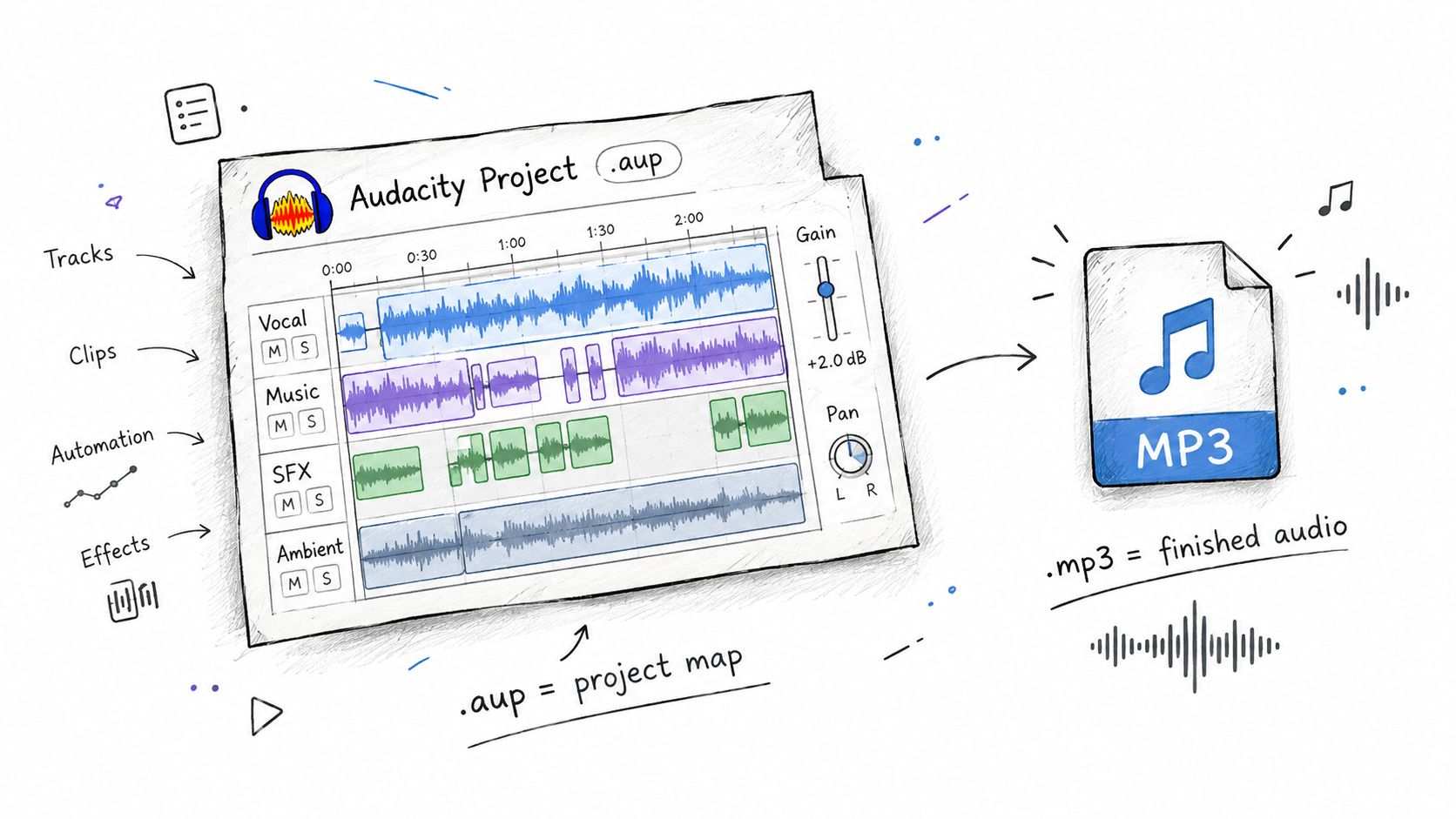
In Audacity 2.x, the AUP file is a project map. It stores instructions for tracks, clips, edits, labels, gain, and pan, while the actual sound lives elsewhere in multiple AU block files inside a folder that shares the project name and ends with _data, as explained in the Audacity manual on the legacy project format. Open the map without its audio and Audacity has nothing to play.
Where the Sound Actually Lives
Think of a multitrack session you recorded for a student interview. Your cuts, fades, and label markers sit in the AUP file. The voice itself is split across the block files in that _data folder.
That’s why a generic converter can’t help you. It expects one continuous audio stream. You’re giving it directions pointing to audio stored somewhere else.
The visual below shows that split between project instructions and finished audio.
What Exporting Really Does
Exporting asks Audacity to follow those instructions, mix everything down, and encode the result as MP3, WAV, or AIFF. Multiple tracks and clips become one file. That’s useful for sharing, uploading, or playing on a phone.
It’s also flattening. The MP3 preserves what the mix sounds like, not the separate tracks you can still move, mute, or re edit in the project.
An MP3 is a listening copy. The project is the thing you edit.
Keep both ideas clear and the rest of the job gets simpler. You don’t convert the map. You open the project in Audacity and render a new audio file from it.
Checking Your Project Files and Audacity Version
Don’t export first and troubleshoot later. Two minutes of checking tells you whether a render will be complete or broken.
Start where the project lives on your drive. If a collaborator emailed you only a small AUP file for a podcast episode, stop there. You don’t have the recording yet.
A Short Preflight Check
- Find both parts together: For a 2.x project, confirm the AUP file and its matching _data folder sit side by side with the same project name. Moving only the AUP file can make the project appear broken because its referenced audio blocks are missing.
- Open, don’t import blindly: Open the project in Audacity and press play from start to finish. Listen for silences, missing clips, or tracks that should be there.
- Check track states: Look for muted, minimized, or offset tracks. What you hear in playback is what your export will bake in.
- Note your version: Check whether you’re running Audacity 2.x or 3.x before you save anything new.
Why the Version Changes What You See
Audacity changed its project architecture with Audacity 3.0.0 in 2021, introducing AUP3 as a single, unified project file, a shift covered in the Audacity FAQ on opening and saving files. Earlier projects needed the XML based AUP plus a separate data folder. AUP3 puts the complete project into one database style file.
When Audacity 3.x opens an old AUP project, it converts it into AUP3 structure. The original AUP file and its data folder may remain afterward and consume extra disk space, so don’t panic if you suddenly see both.
That also affects collaboration. A podcaster who receives an AUP3 from someone on a newer release can’t assume an older install will open it. Confirm versions before you promise a quick turnaround.
Your go or no go decision is simple. If the project opens, plays cleanly, and every expected track is audible, you’re ready to export. If anything’s missing, fix the file pairing or version mismatch first.
Exporting an AUP Project to MP3 in Audacity
Take a typical podcast session. Track one is your voice, track two is a remote interview, track three is a low music bed under the intro and outro. Your job is to render those three editable layers into one MP3 a listener can play anywhere.
This process flow sums up the sequence before you click through it yourself.
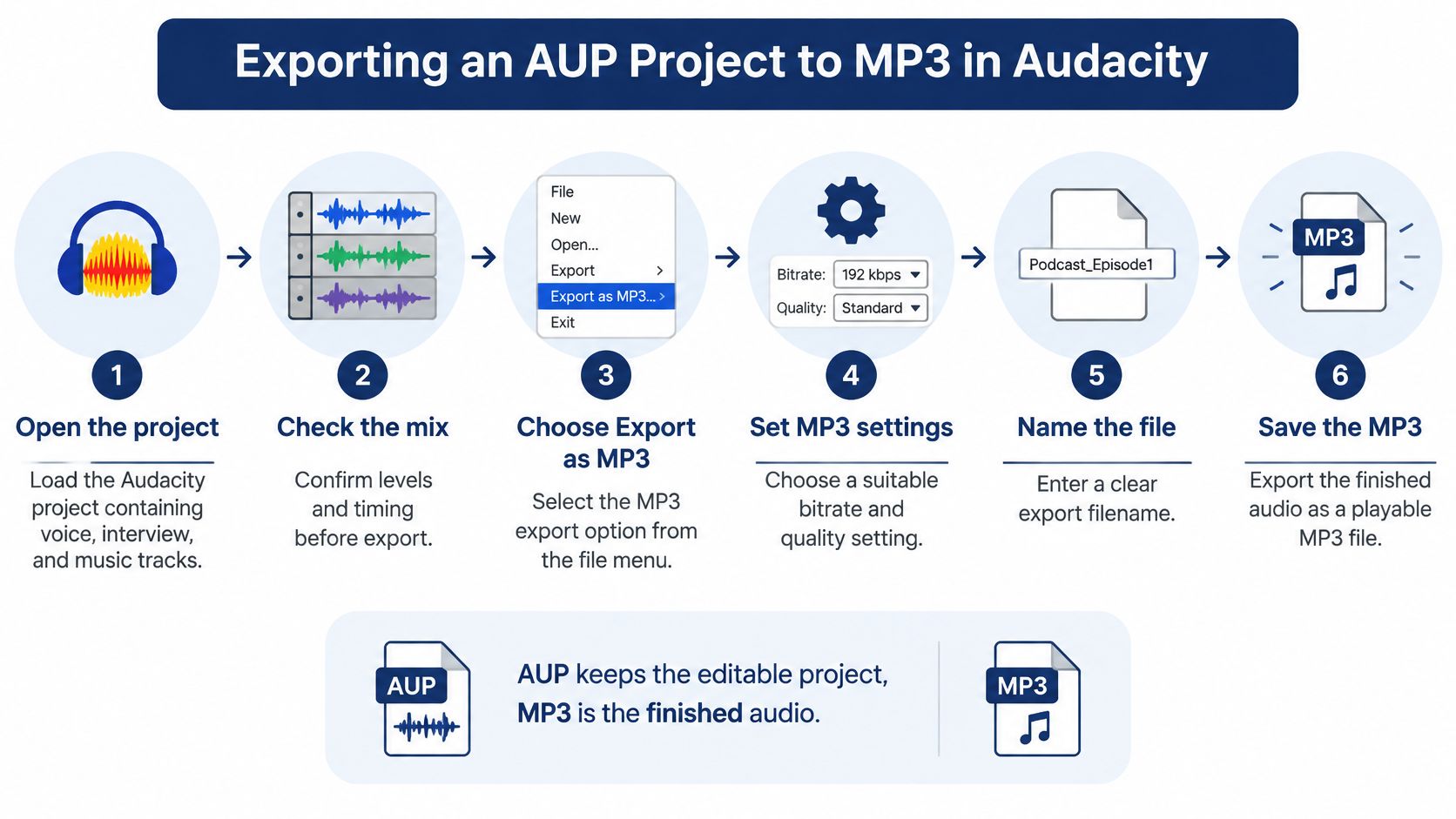
Audacity project files are editable workspaces intended to be opened only by Audacity, while MP3 is an exported listening file, a distinction laid out in the Audacity guide to projects. That is why the path runs through Audacity itself, not a third party converter.
The Export Routine
- Open the project and check the mix: Play the transitions between voice and music. Confirm levels, timing, and that no track you need is muted.
- Choose File then Export Audio: Select MP3 as the format. This is the render step, not Save Project, which would only update your editable session.
- Pick your scope: Export the whole project for a finished episode, a selection for a clip or test, or multiple files when labels divide the session into segments.
- Confirm channels and sample rate: Decide on mono or stereo based on your material and destination, then check the sample rate matches what your host or platform expects.
- Name the file and add tags: Use a clear file name and fill in title and artist fields now, while you know exactly what the episode is.
Unmuted tracks get mixed together in the export. If you solo your voice to check edits and forget to restore the interview and music, you’ll render exactly that mistake. Do a final full playback with the track states set the way listeners should hear them.
The walkthrough below shows the export dialogs in action if you want to follow along on screen.
When the render finishes, play the MP3 outside Audacity. Check the beginning, a middle transition, and the end. You’re verifying the flattened file, not the project you already trust.
Choosing the Right Bitrate for Your Audience
Maximum bitrate isn’t a quality strategy. It’s just a bigger file. Pick the setting that fits your content and where people will hear it.
Audacity offers constant, average, and variable bitrate modes for MP3. Its default Standard preset is approximately 170 to 210 kbps VBR, which is generally appropriate for stereo music, while Audacity export guidance gives 128 kbps as a practical default for speech and 256 kbps for music when no platform requirement is specified, as detailed in the Audacity documentation on exporting to an external program.
Suggested MP3 Settings by Content Type
| Content type | Suggested MP3 setting | Why it fits |
|---|---|---|
| Speech only podcast or lecture | 128 kbps | Keeps files manageable while speech stays intelligible for most listeners |
| Stereo music or music heavy show | Standard preset, about 170 to 210 kbps VBR | Variable bitrate spends bits where the music needs them |
| Music where you want a higher fixed default | 256 kbps | A practical step up when no platform limit pushes you lower |
Variable bitrate makes sense for mixed content. A quiet spoken intro doesn’t need the same data as a full band chorus, and VBR adjusts instead of wasting space or starving complex passages.
Test Before You Render Everything
Export a short representative section first. Pick a passage with your loudest music, quietest speech, or trickiest transition, not the easiest ten seconds.
Listen for speech intelligibility or musical artifacts such as warbling and smeared high frequencies. Confirm your mono or stereo choice sounds right, check the sample rate, then export the full project.
Practical rule: If a short test sounds strained, a full episode at the same setting won’t fix itself.
A higher bitrate can’t restore information already lost in your source recording or a previous lossy encode. You’re choosing how faithfully to encode what you have, not upgrading what was captured. Match the setting to the material, verify with your ears, and keep file size honest for your audience’s downloads.
Pitfalls That Can Cost You Audio Quality
Most bad exports aren’t caused by one wrong menu. They come from habits that remove your options.
Re Encoding What Is Already Compressed
If your interview arrived as an MP3, you edited it in Audacity, exported an MP3, then later re edit that MP3 and export again, each encode discards more detail. Repeated MP3 re encoding is a quality pitfall you can’t undo with a higher bitrate on the final pass.
The habit that prevents it is simple. Export a lossless WAV or AIFF master from the project first, then make MP3 copies from a stable source. Keep the project too if you might revise edits later.
Forgetting the Export Is Flattened
A client asks you to lower the music bed by a touch next week. If you only kept the MP3, you can’t pull that one track down. It’s baked into the single file with voice and interview.
You’ll need the original project to make that change cleanly. Journalists, students, and podcasters moving between computers get caught here often, because a successful MP3 can still mean an irreversible loss of editability.
- Keep the project: Retain the AUP and its data, or the AUP3, until you’re certain no revisions are coming.
- Keep a lossless master: A WAV or AIFF export gives you a high quality file for future versions without reopening the session for every derivative.
- Treat MP3 as delivery: Upload it, share it, play it. Don’t make it your only archive.
Trusting Metadata You Have Not Checked
Standard ID3 fields such as artist, title, album, track number, year, genre, and comments are broadly recognized by players. Custom tags may be stored in frames that some players ignore, so a carefully typed description can vanish where your audience listens.
Open the finished MP3 in a player you use and inspect its duration, tags, and playback level. What shows up there is what counts, not what you typed into a dialog and assumed would travel everywhere.
Recovering Old or Incomplete AUP Projects and What to Keep
Some projects won’t give you a clean export no matter how carefully you click. The faster you recognize that, the less audio you risk losing.
New AUP3 projects cannot be opened in previous Audacity versions, so exporting individual tracks as WAV and importing them into the older version is the documented workaround described in the Audacity notes on updating from 2.x to 3.x. That path isn’t elegant, but it preserves the audio when a collaborator can’t upgrade.
When the Data Folder Is Missing
If you have only an AUP file and its _data folder is gone, MP3 conversion may be impossible or incomplete. The project map can tell Audacity where clips belong, but it can’t recreate audio blocks that aren’t on the drive.
Exporting anyway won’t repair a damaged project. It may produce silence, gaps, or a partial file that looks finished until someone listens closely. Ask the sender for the complete folder, check backups and other drives, and be honest if the source audio is unavailable.
The fastest looking MP3 solution can worsen archival risk by masking missing media and discarding editable structure.
A Preservation Order That Works
When a project does open in a compatible version, verify every track by listening, not just by looking at waveforms. Then export lossless WAV files, individually by track when multitrack recovery matters, so voice, interview, and music survive as separate usable pieces.
Only after those masters are safe should you produce MP3 derivatives for sharing. That order protects you if the project format changes again, a drive fails, or someone needs the material in an older editor.
Finish by storing three things together in a clearly named folder: the project file with its data if it has any, the lossless masters, and the final MP3. Future you will know which file to edit, which to re encode from, and which to send.
When your next project involves iPhone photos that won’t open where you need them, ConvertHEICto converts HEIC and HEIF files in your browser to JPG, PNG, PDF, WebP, and other widely supported formats, with control over quality and metadata. All processing runs locally on your device, so your files aren’t uploaded to a server. Visit ConvertHEICto to turn incompatible photos into files you can share and submit with confidence.