
The usual advice to convert DOC into JPEG is to take a screenshot or upload the file to a converter. That skips the most important question: do you need a quick visual reference, or a faithful image of every page? Those are different jobs, and choosing the wrong method can leave you with clipped tables, missing footers, or text that looks fine as a thumbnail but falls apart when opened.
Table of Contents
- Why DOC to JPEG Conversion Needs a Plan
- Prepare the DOC or DOCX for Conversion
- Use the PDF-First Workflow for Every Page
- Capture a DOC Directly with Screenshots
- Tune Resolution and JPEG Quality
- Choose JPEG, PNG, or PDF for the Destination
- Verify the Final DOC-to-JPEG Output
Why DOC to JPEG Conversion Needs a Plan
A Word document isn’t a photograph waiting for a different extension. It contains flowing text and page-layout instructions that a rendering application must interpret before it can produce an image. Changing the filename won’t perform that rendering or encode a valid JPEG.
JPEG’s interoperability comes from a standardized compression and decompression system, not the letters after the filename. The ITU’s account of JPEG standardization explains the foundation behind its widespread use across applications and devices.
Match the output to the job
Start with the destination’s requirements. Does an upload form demand an image of each page? Does a colleague only need a visual excerpt? Or are you trying to share a document that should remain readable and navigable?
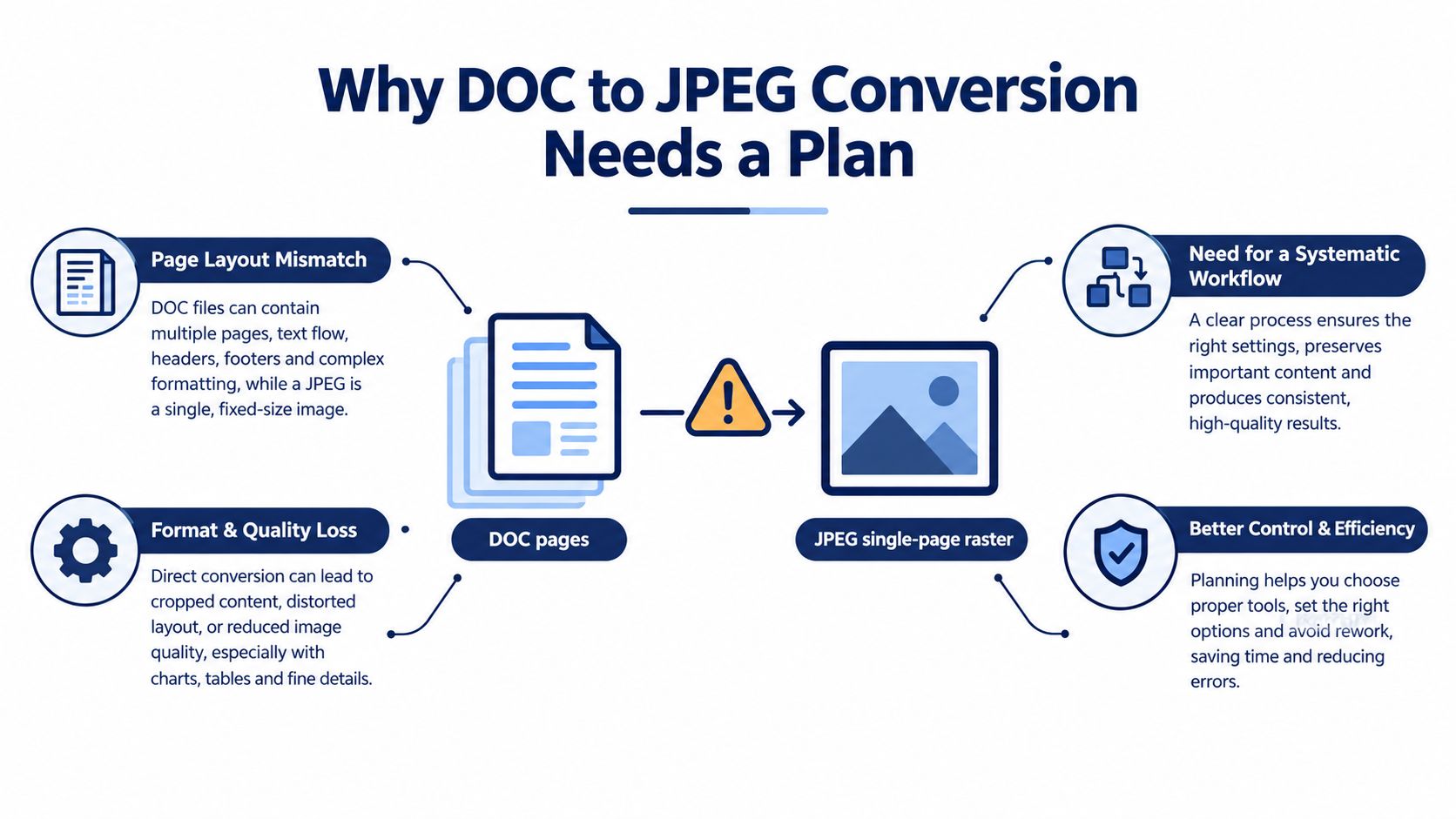
The fundamental mismatch is simple: a document can contain multiple pages, but an ordinary JPEG represents a single page image. Microsoft community guidance on saving a Word document as JPG also identifies the lack of direct JPEG export and the limitations of screenshot-based alternatives.
The diagram captures the planning problem before conversion begins.
Choose between these routes:
- PDF-first rendering: Use this when complete pages, consistent scale, and dependable pagination matter.
- Controlled screenshots: Use this for a short excerpt or a page that fits clearly within the visible window.
Practical rule: Decide what must survive conversion before deciding which converter to use.
Compatibility is a legitimate requirement. It just shouldn’t be confused with fidelity. If the recipient doesn’t require raster images, don’t assume JPEG is the best deliverable.
Prepare the DOC or DOCX for Conversion
Open the document in the application you intend to use for its PDF export. Treat that application’s layout as the working reference, rather than moving between different office engines and assuming they’ll render identically.
Resolve fonts before adjusting page breaks. Install the document’s fonts, or use embedded fonts where supported. Otherwise, substitutions can change line wrapping, table height, and where content falls on a page.
Establish a clean reference document
Review the document in page-layout view and settle the content that should appear in the exported version.
- Page geometry: Confirm paper size, orientation, margins, and intentional breaks.
- Tables and images: Check wide tables, anchored pictures, captions, and content near page edges.
- Review content: Decide whether comments and tracked changes belong in the deliverable. Inspect the export settings rather than assuming the editing view controls everything.
- Color treatment: Plan for RGB output where color matters, or grayscale where it doesn’t. Keep orientation and color handling consistent throughout conversion.
Set a target rasterization resolution before exporting images. About 150 DPI is a reasonable starting point for screen previews, 200–300 DPI suits readable text and OCR workflows, and 300 DPI is a safer print-oriented baseline; the rendering guidance also gives US Letter dimensions of approximately 2,550 × 3,300 pixels at 300 DPI, versus 1,275 × 1,650 at 150 DPI (PDF-to-image resolution guidance).
Keep the results organized
Choose a predictable naming convention such as document-page-first, document-page-next, or a consistently padded numeric sequence. For longer documents, numeric page suffixes are easier to sort and compare against the original.
Create separate folders for the source, reference PDF, and final images. That separation makes it harder to accidentally deliver an outdated export or overwrite the file you’ll need for another rendering pass.
Use the PDF-First Workflow for Every Page
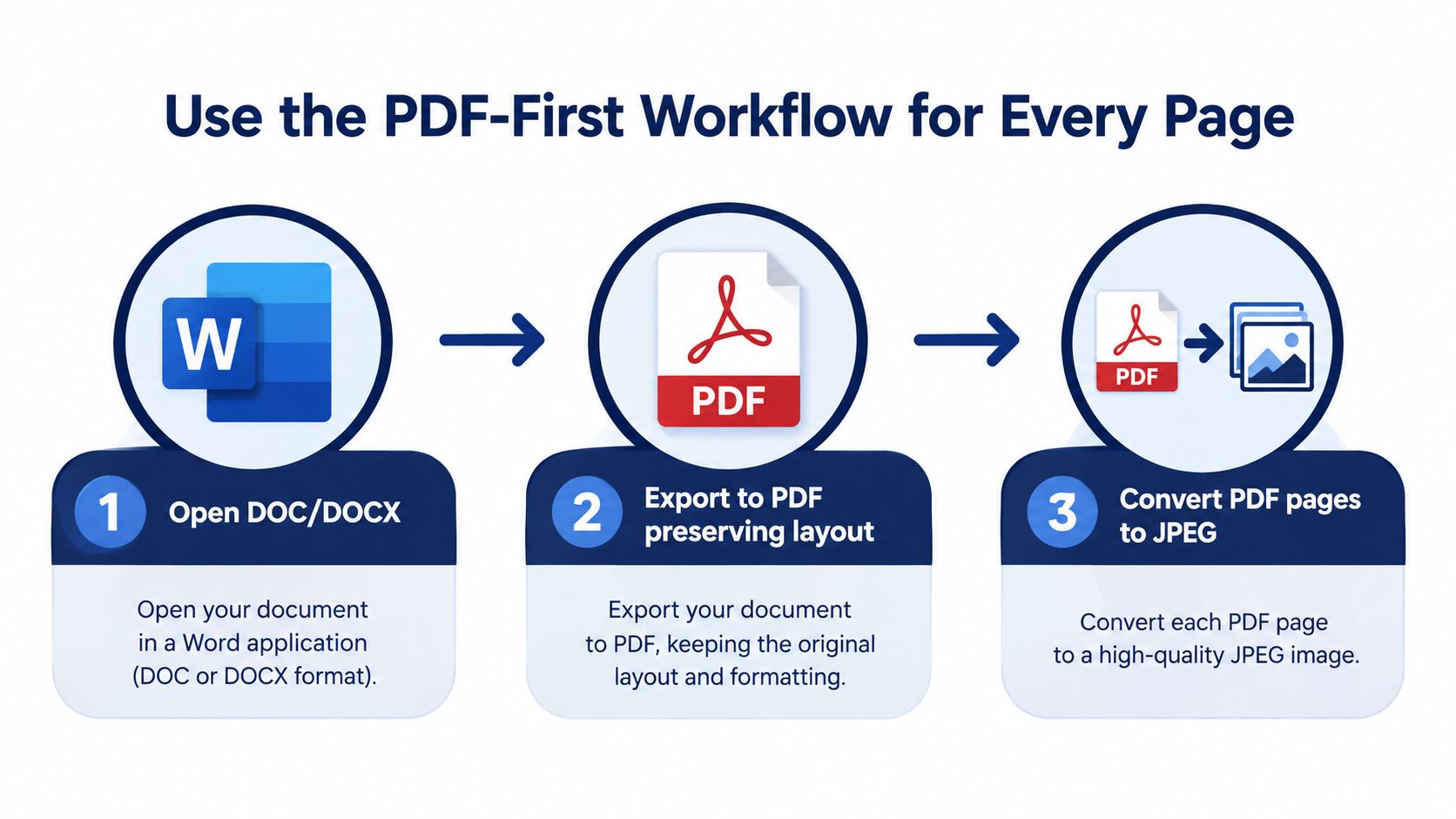
Render the layout first, then encode the images. This separates Word’s pagination decisions from JPEG compression and gives you a reference file you can inspect before producing the final batch.
The conversion path should preserve the document’s page structure throughout.
Export a reference PDF
Open the DOC or DOCX in Microsoft Word or another layout-capable office application. Export or save it as PDF while preserving its original page dimensions.
Open that PDF before proceeding. Compare the beginning and end of the document, then inspect pages containing wide tables, unusual fonts, rotated text, and embedded graphics. If a heading has moved or a table is clipped, fix the document or export configuration now.
A JPEG encoder can’t repair an incorrect PDF layout. Compressing the page differently will only produce a different image of the same mistake.
Render the complete page range
Use a PDF rasterizer such as PDF-XChange Editor, a desktop PDF-to-image utility, or a command-line rendering workflow. Choose JPEG output, select the complete page range, and specify the resolution rather than accepting an unexplained default.
- Preserve page boundaries: Export individual page images, not a continuous strip.
- Control the output: Select the destination folder, filename pattern, color mode, and JPEG quality.
- Check the batch: Compare its file count with the reference PDF and look for skipped or duplicated pages.
In a browser-based tool, confirm that it supports every page rather than only a preview. In a command-line workflow, set the page range, resolution, and output pattern explicitly. If a tool doesn’t expose those controls, test its output before using it for a complete document.
For a visual demonstration, use the video alongside those checks.
Keep the reference PDF. When an image looks wrong, it helps you distinguish a layout problem from a rasterization or compression problem.
Be careful about similarly named conversion tools. A photo-to-PDF workflow assembles image inputs into a document; it isn’t the same task as rendering an editable DOC file into page images. Check the accepted input type before choosing any service.
Capture a DOC Directly with Screenshots
A screenshot is useful when the deliverable is exactly what’s visible: a short passage, a marked-up page, or a quick reference for a colleague. It isn’t a poor method. It becomes unreliable when you treat a partial capture as a complete document export.
Display the intended page in Word’s page-layout view. Hide editing panels and unrelated interface elements, then adjust the window so the required content is visible and readable.
Capture deliberately
Use the operating system’s screen-capture tool to select the page area. Include the page edges if the recipient needs a full-page reference; crop tightly around the passage if the task is explicitly an excerpt.
- Inspect before saving: Check the bottom margin, footnotes, and any content close to the selection boundary.
- Choose the actual format: If the capture tool saves PNG, use an image editor’s export function to create JPEG. Don’t just rename the extension.
- Name the scope: Make it clear whether the file contains a complete page or an excerpt.
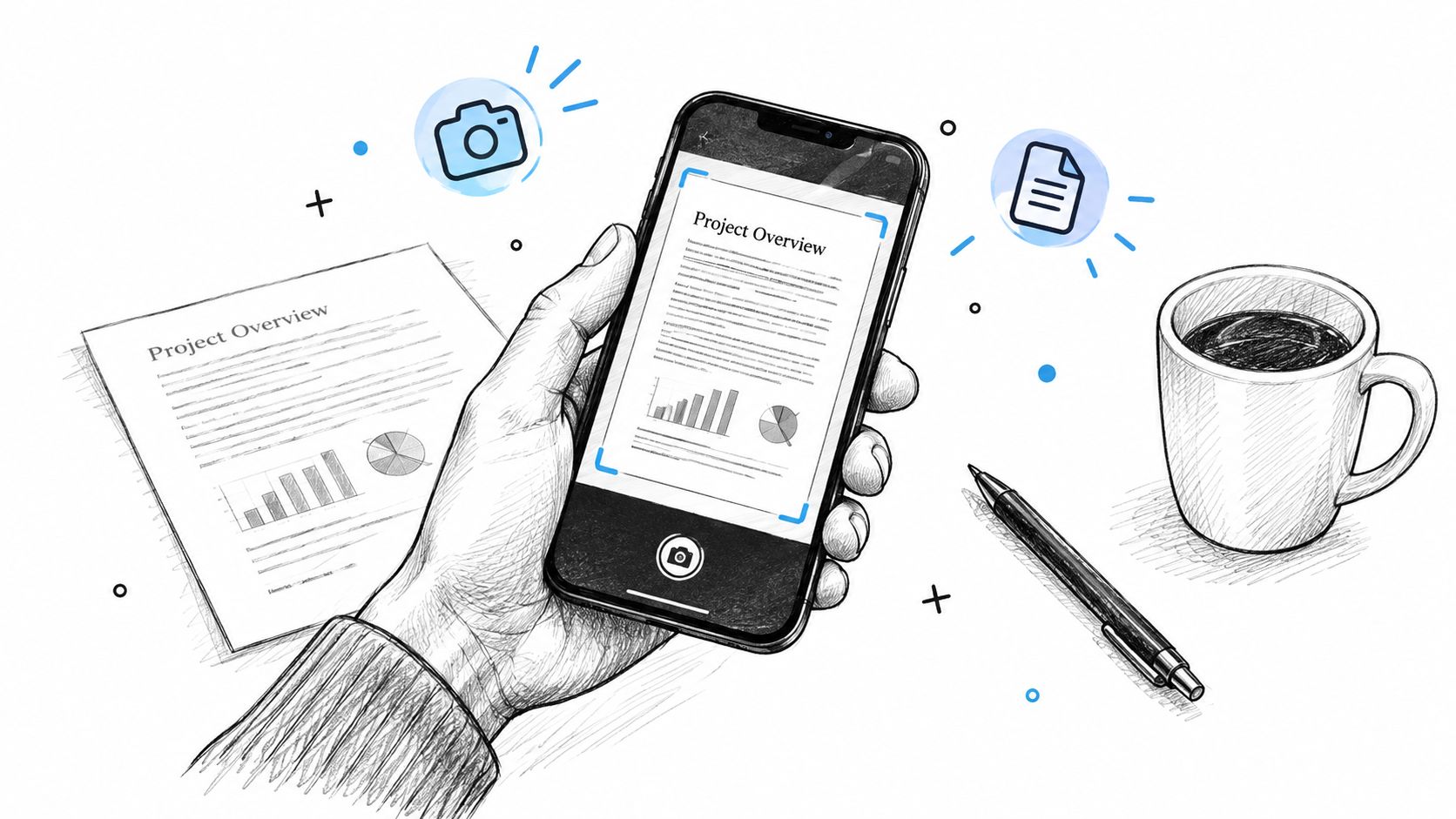
The illustration below shows document capture, but a direct screen capture avoids introducing a camera into this particular workflow.
Don’t shrink a full page until the text becomes unreadable merely to fit it on screen. Use the PDF-first route instead. Likewise, avoid blindly stitching scrolling captures: overlap, duplicated lines, and inconsistent zoom make completeness harder to verify.
Tune Resolution and JPEG Quality
Resolution and JPEG quality solve different problems. Resolution determines how many pixels describe the page. Quality controls how much information the JPEG encoder discards from those pixels.
Increasing quality won’t restore detail that wasn’t captured at sufficient resolution. Increasing resolution won’t remove artifacts caused by aggressive compression.
Compare representative content
Test pages that stress the output differently rather than judging the whole document from its cover.
| Page content | What to inspect | What to adjust |
|---|---|---|
| Small paragraphs | Letter shapes, punctuation, and fine strokes | Improve rasterization resolution before compressing harder |
| Embedded photograph | Fine texture and smooth color transitions | Balance JPEG quality against the destination’s size limits |
| Diagram or signature | Thin lines, sharp corners, and edge clarity | Keep compression conservative or consider a lossless output |
For general document sharing, start around JPEG quality 85–90; test 70–80 only when storage or bandwidth takes priority, and inspect the result at 100% pixel scale (rasterization and JPEG quality guidance). Those settings are starting points, not guarantees that every font, barcode, or table will remain acceptable.
Recognize compression damage
Ordinary JPEG encoding uses quantization, which discards information. Lower quality can introduce block boundaries, ringing near sharp text, and loss of fine detail, while successive lossy encodings can accumulate damage (research on JPEG compression trade-offs).
Look closely at dark letters on white backgrounds. Pale halos, speckled edges, or softened punctuation are reasons to revisit the encoding settings. Check signatures and barcodes separately rather than assuming readable body text means everything survived.
Save from the source: If you need another quality setting, render or encode again from the reference material instead of repeatedly resaving the delivered JPEG.
For photo assets accompanying the document, a lossless PNG conversion option may be useful when avoiding further lossy compression matters. That doesn’t replace the document-rendering stage, and a larger output file isn’t automatically a better result. Judge the smallest export that still meets the actual viewing or submission requirement.
Choose JPEG, PNG, or PDF for the Destination
The best format depends on what the recipient needs to do, not just what their software can open. Use the destination’s requirements as constraints, then preserve as much usefulness as possible within them.
A visual preview, an accessible report, and a website illustration shouldn’t automatically receive the same file.
| Deliverable | Prefer | Main trade-off |
|---|---|---|
| Portal requiring page images | JPEG | Meets an explicit image requirement but separates the document into files |
| Multi-page report | Keeps the document together and can retain selectable text | |
| Screenshot, diagram, or line art | PNG | Preserves sharp graphics without JPEG’s lossy artifacts |
| Website image | Evaluate modern formats with a fallback | Balance browser support, dimensions, and compression |
Separate compatibility from optimization
JPEG remains broadly supported by major browsers. WebP supports lossy and lossless compression, while modern web delivery can also use AVIF where appropriate; the MDN image-format guide provides the relevant format and compatibility distinctions.
For a website, prepare dimensions appropriate to the display area rather than serving a print-sized page image everywhere. Consider a smaller preview that opens a full-resolution version, with responsive image sources where your publishing system supports them.
Rasterizing text also changes how people can use it. Copying passages, translation, search indexing, and screen-reader access can be reduced or lost when the only deliverable is a picture. A PDF must retain actual text to provide those advantages; merely wrapping page images in a PDF doesn’t recreate it.
A JPG conversion option for HEIC photos addresses photographic compatibility, which is a different requirement from preserving a word-processing document. Keep that distinction clear when selecting tools.
For archival work, retain the editable original and a checked reference export. Treat the JPEG set as a destination-specific derivative, not the only surviving copy.
Verify the Final DOC-to-JPEG Output
Don’t approve the batch from thumbnails alone. Open the final images and compare them with the reference PDF, especially pages containing dense content or unusual layout.
Use this checklist before sending or uploading the files.
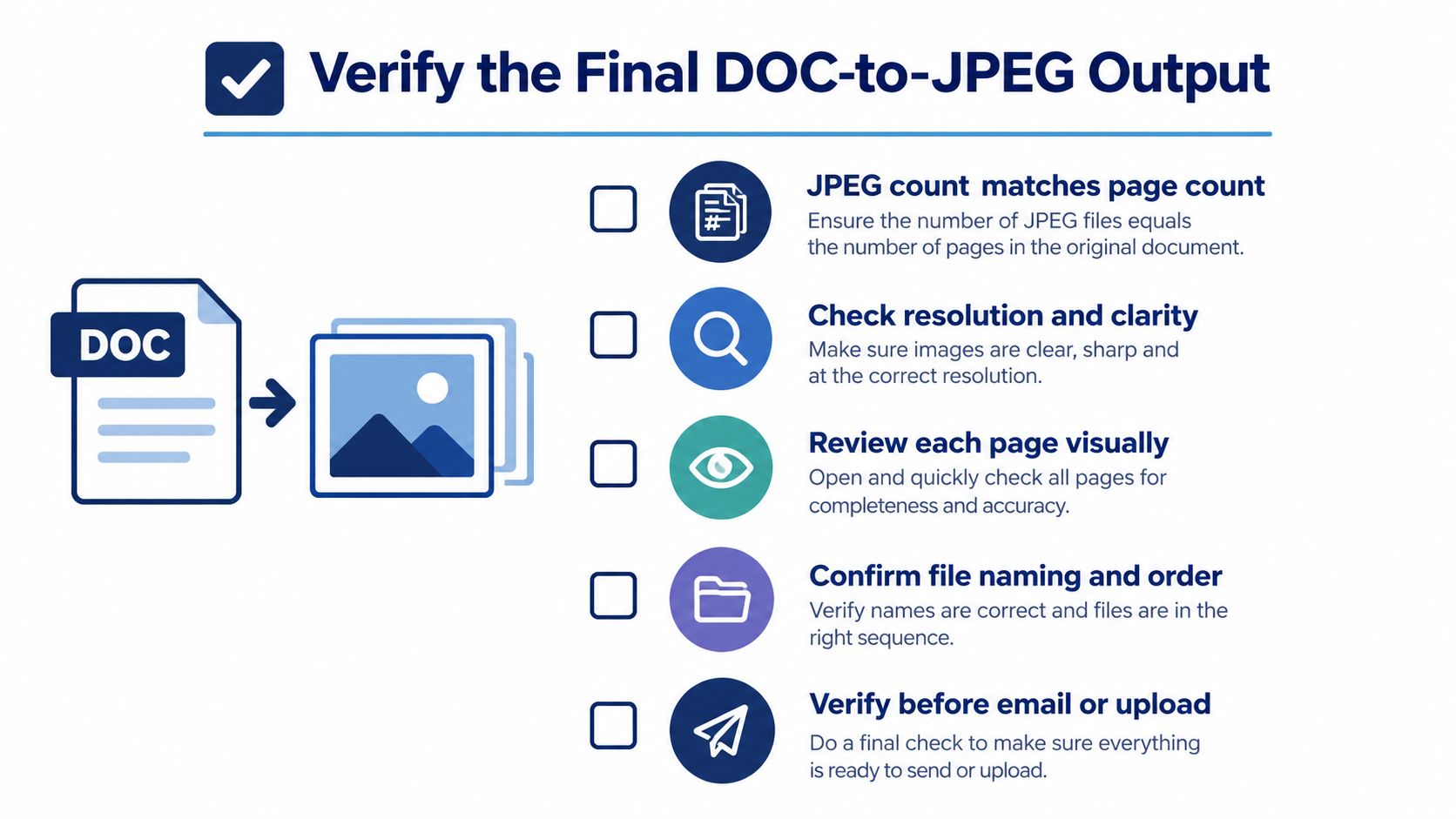
- Completeness: Match image count to page count and confirm the correct order.
- Layout: Inspect page edges, headers, footers, tables, and unusual glyphs.
- Clarity: Read the smallest text at the intended viewing size and check detailed elements closely.
- Behavior: Confirm that visible hyperlink text appears correctly, without expecting clickable links inside the JPEG.
- Delivery: Verify dimensions, filenames, file sizes, and acceptance by the actual destination.
For print, check the intended physical output rather than relying on a browser preview. For web publishing, test the displayed image on the page. For sharing or archiving, keep the reference material alongside the exported set.
Choose PDF-first for complete documents and screenshots for deliberate excerpts. If the destination doesn’t require JPEG, reconsider whether PDF or PNG would serve the reader better before committing to the final batch.
ConvertHEICto converts HEIC and HEIF photos into JPG, PNG, PDF, and other formats locally in your browser, with controls for quality and metadata. If your document workflow also includes iPhone or iPad photos, visit ConvertHEICto to prepare those image assets without uploading them to a server.