
The most popular advice for converting an SVG to AI is also the part most likely to leave you with a file that looks fine at first glance but fails when someone tries to edit or print it. Opening an SVG in Illustrator and saving it as an AI file is straightforward. Preserving the artwork’s appearance, structure, and behavior is a separate job.
SVG and AI were built for different purposes. A safe conversion starts by preparing the source, then checking what Illustrator imported, and finally reopening the saved file to confirm it still works in the intended workflow.
Table of Contents
- Why SVG to AI Is Not a Free Conversion
- Preparing the SVG Before You Open Illustrator
- Opening and Saving the AI File the Right Way
- Handling Text, Fonts, and Effects for Editability
- Verifying Layers, Styles, and Visual Fidelity
- When to Skip the Conversion Entirely
Why SVG to AI Is Not a Free Conversion
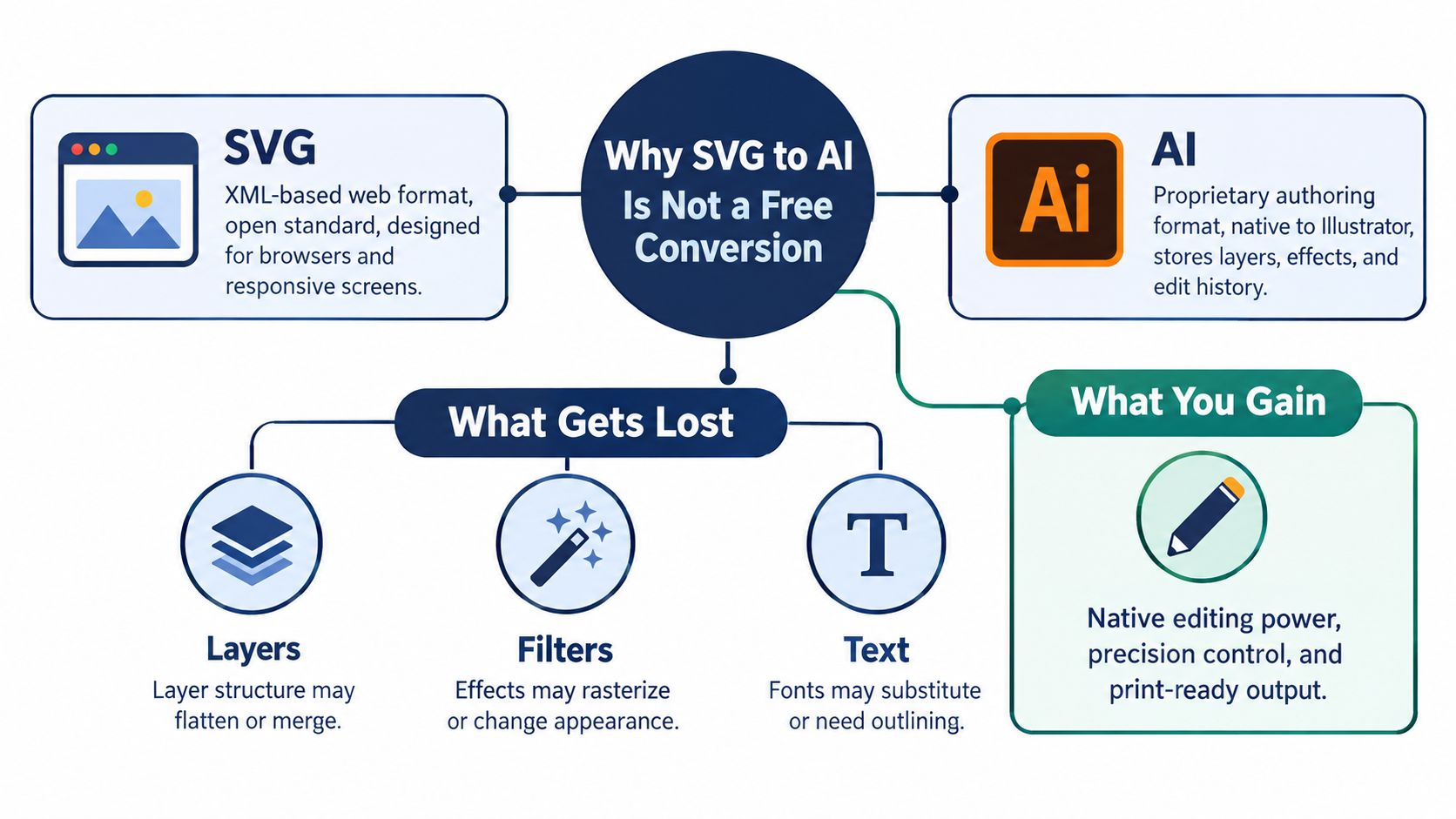
Opening an SVG in Illustrator and choosing Save As doesn’t create a lossless round-trip. SVG is an open, XML-based format for vector graphics, while AI is Illustrator’s proprietary authoring format, designed to preserve Illustrator-specific information. Converting between them means translating artwork from one object model to another, not merely changing the filename. Adobe describes AI as a format that preserves Illustrator-specific data, while SVG may not retain all of that information when reopened (Adobe’s guidance on saving artwork).
That distinction matters because two files can look similar while having very different internal structures. Paths, fills, and strokes may remain editable, but text, effects, masks, and images can behave differently. For example, live SVG text may depend on CSS rules or a font that isn’t installed on the machine doing the conversion. A browser may render that text as expected, while Illustrator substitutes another font or changes its layout.
What can change in translation
A mesh object is a clear example of why appearance and editability need separate checks. Adobe notes that mesh objects are rasterized when artwork is saved as SVG, so the original vector structure may already be gone before the SVG is opened in Illustrator. Embedded images can also be re-encoded. Images without alpha may become JPEG, while images with alpha may become PNG.
Other fragile areas include gradients, clipping paths, masks, transparency, blend modes, and filter effects. A successful open or save only confirms that Illustrator handled the file. It doesn’t confirm that the design still has its original object structure or will render consistently elsewhere.
Practical rule: Judge a conversion by three things: visual fidelity, structural editability, and reproducibility in the application that will use the file.
A quick history of the format gap
The formats have long shared an ecosystem, but they weren’t designed to be interchangeable in every detail. The W3C began developing SVG as an open standard in 1999, and SVG 1.0 became a W3C Recommendation on 4 September 2001. Adobe supported SVG early, with an Illustrator export plug-in announcement in 2000. That history helps explain why designers often move work between the formats, but it doesn’t make conversion lossless (SVG’s development history).
Preparing the SVG Before You Open Illustrator
A browser preview can hide problems that become obvious in Illustrator. Before importing, make the SVG as self-contained as possible. That means checking its XML structure, locating external dependencies, and confirming how its text and effects are represented.
Make the file self-contained
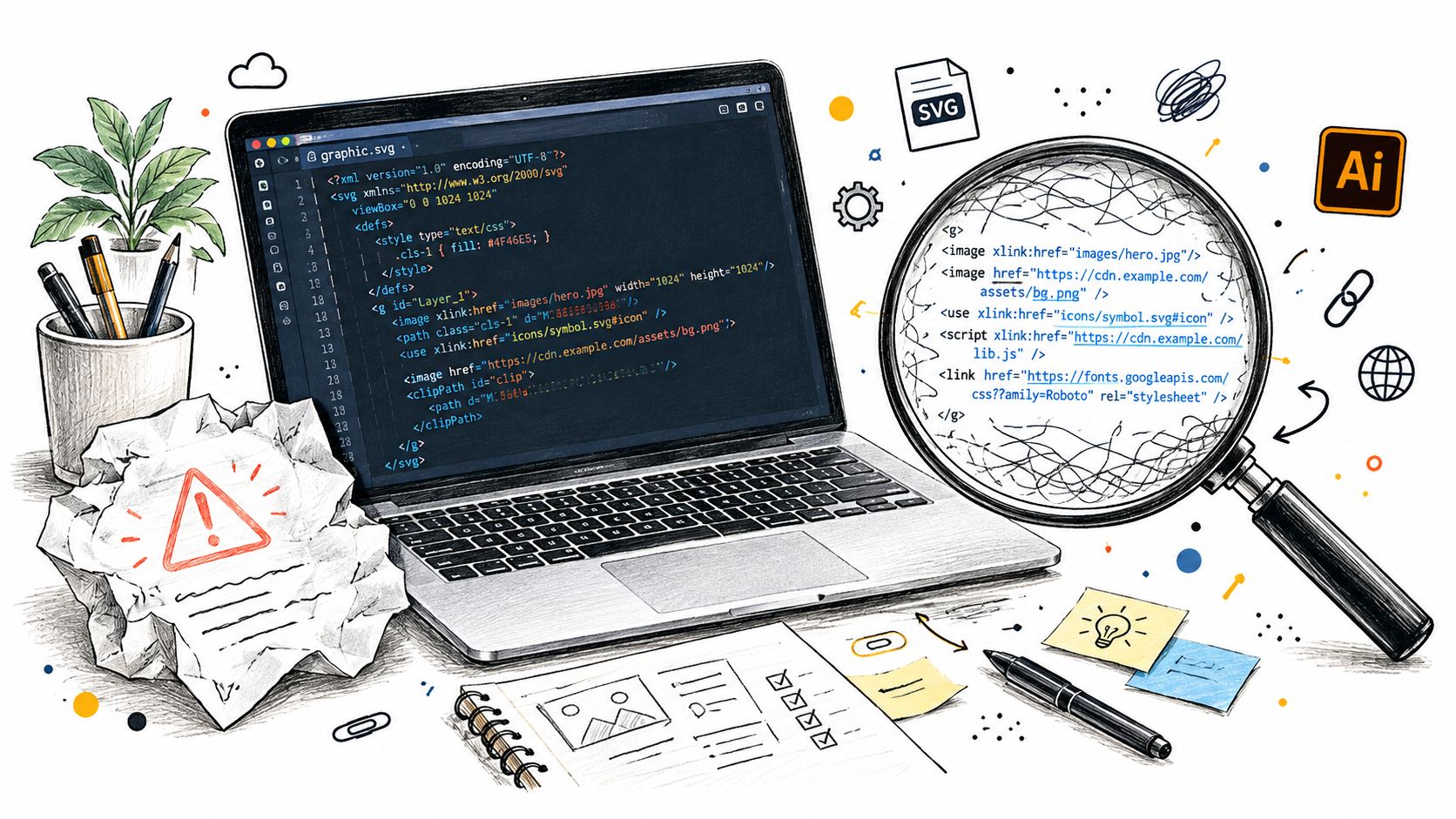
Start by opening the SVG in a text editor. Check that it has a sensible root <svg> element and a viewBox that corresponds to the intended artwork bounds. If the file is malformed XML, fix that before importing. Illustrator may still open an imperfect file, but any silent recovery makes later troubleshooting harder.
Look for external references, especially <image href> values pointing to remote URLs or local files that won’t travel with the SVG. A missing image may show up as an empty area, or it may be replaced by a broken reference that isn’t obvious until the file reaches another computer. Embed or relocate assets where practical, and keep linked files together if the workflow requires links.
Styles can be just as important as images. Scan for external stylesheets and font references. If the appearance depends on CSS that Illustrator won’t apply as expected, move critical styles into the SVG or simplify them before import. Confirm the required fonts are installed locally, or decide in advance whether the final artwork can use outlined text.
Check features that may not translate cleanly
Inspect the SVG for <foreignObject> and complex filter primitives. These can depend on browser rendering behavior or features that don’t map neatly to Illustrator’s object model. Masks and clipping paths deserve attention too, especially if they reference IDs or assets elsewhere in the file. Don’t assume that because the artwork looks right in a browser, all of its components will remain editable after import.
A practical preflight is simple: validate the XML, check the viewBox, search for external image and stylesheet references, and review fonts, masks, filters, and embedded content. This won’t guarantee a perfect conversion, but it removes common preventable causes of missing or altered artwork.
A clean source file gives Illustrator less to guess about. Resolve dependencies before import, not after a colleague reports that an image or typeface disappeared.
Opening and Saving the AI File the Right Way
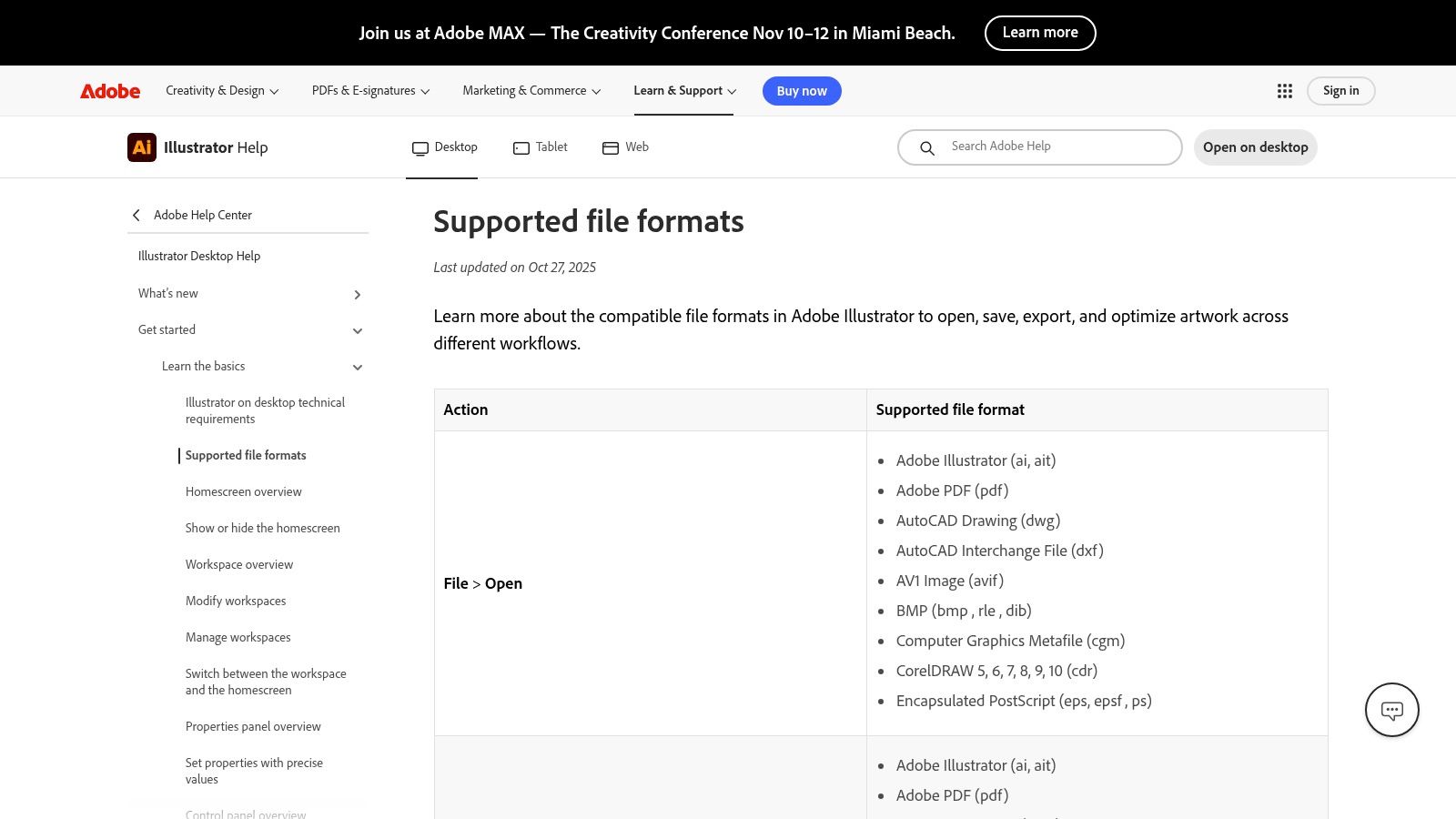
Once the SVG is prepared, open it directly in Illustrator rather than placing it into an unrelated document and assuming the result will behave the same. Illustrator supports SVG as an open format and AI as a native save format (Adobe’s supported file formats).
Import, inspect, then save
Use File > Open and select the prepared SVG. If Illustrator presents import options, review them rather than clicking through automatically. The available choices can vary with the file, so check the artwork in the document itself before committing to a save.
Inspect the result at 100% zoom to catch visible changes in type, edges, and effects. Switch to Outline mode to check whether expected vector objects remain paths or whether parts of the design have become raster content. Also confirm the artboard bounds, clipping, and overall placement.
When the artwork looks right, use File > Save As or File > Save a Copy, then select Adobe Illustrator (*.AI). Set the document’s color space intentionally, check the artboard dimensions and bleed, and decide whether linked images should be embedded. The choice depends on how the file will be handed off, not just on whether it saves successfully.
Choose PDF compatibility for the next application
Illustrator AI files can contain PDF and PGF representations. Adobe explains that enabling Create PDF Compatible File adds PDF syntax that applications recognizing PDF can read. Leave it enabled when the file needs to be inspected, placed, or opened in other Adobe applications or third-party tools. Disabling it can reduce file size, but it limits interoperability (Adobe’s explanation of PDF-compatible AI files).
| Use Case | PDF Compatible | Embed Fonts | Notes |
|---|---|---|---|
| Logo used only in Illustrator | Optional | Not a substitute for outlining locked artwork | Keep the original text editable if future copy changes are expected. |
| Artwork placed in InDesign or a PDF workflow | Enabled | Embed if permitted, outline critical text when necessary | Test the saved file in the actual destination application. |
| File shared with a third-party design or print workflow | Enabled | Confirm font permissions, or outline final text | Preserve a separate editable master when possible. |
Close the file and reopen the saved AI. Check for warnings, font substitutions, collapsed layers, and linked assets that no longer resolve. A reopen test catches problems that a successful Save dialog won’t.
Handling Text, Fonts, and Effects for Editability
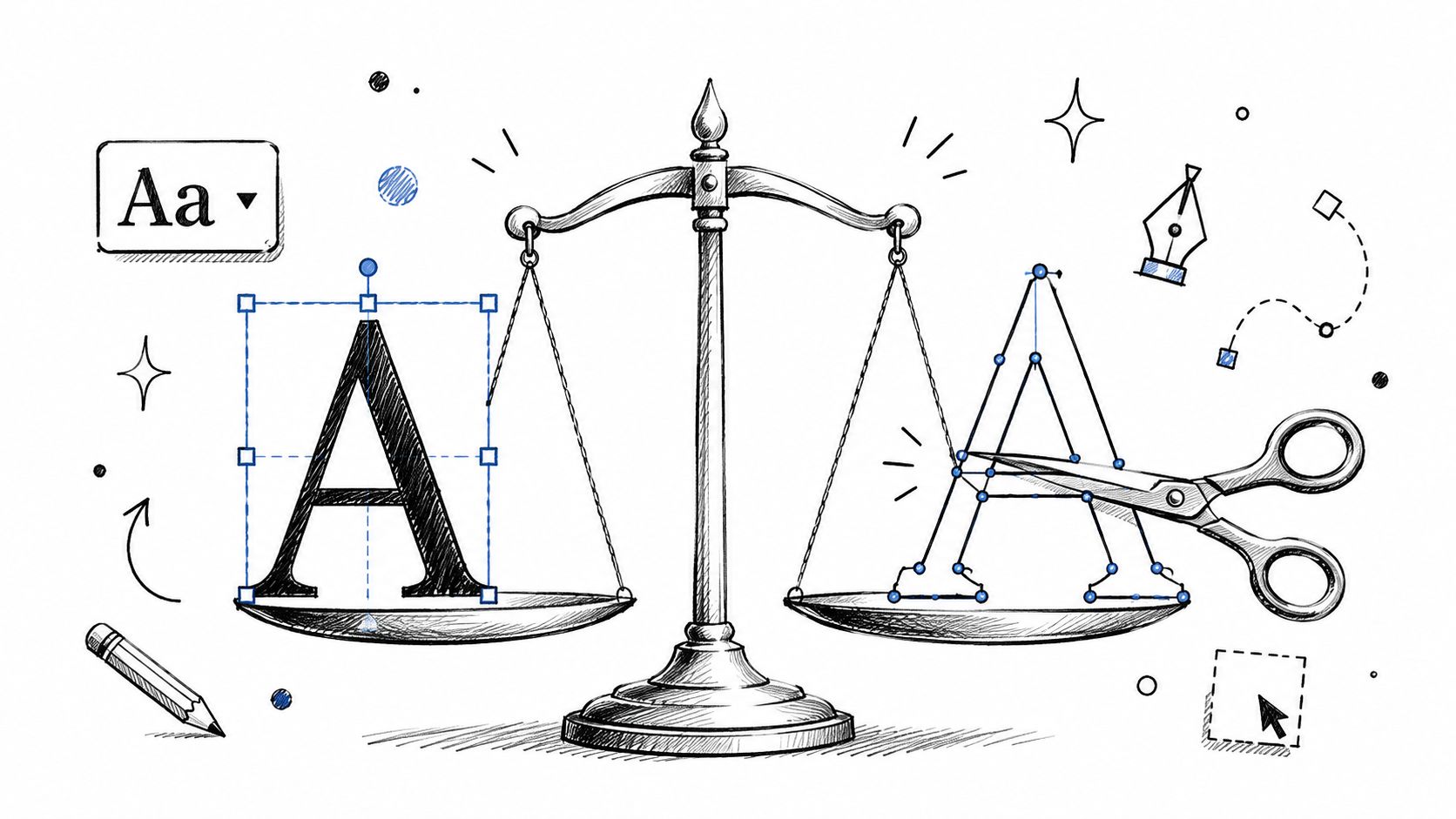
Text is often the hardest trade-off in an SVG-to-AI job. Live text stays editable, but its appearance depends on the font and styling being available. Outlined text preserves letter shapes more reliably, but it stops behaving like text: you can’t revise the wording as easily, and the text no longer carries the same accessibility or search value.
Keep text live or create outlines
Keep text live when the file is an internal template and someone will need to edit the copy. Before saving, make sure the intended fonts are installed and inspect the text in Illustrator. A font that exists in a browser environment may not be available on the production computer, and PDF compatibility doesn’t guarantee every font can be embedded.
For a finished logo or locked production artwork going to a print vendor, outlining is often safer. Select the text and choose Type > Create Outlines. The glyphs become vector shapes, so the design no longer relies on a font being installed at the destination. The cost is clear: future copy changes mean rebuilding the lettering or returning to the live-text master.
| Decision | Best fit | Trade-off |
|---|---|---|
| Keep text live | Templates, working files, designs that need copy edits | Appearance can change if the font or CSS styling is unavailable. |
| Create outlines | Final logos, locked production artwork, font-sensitive handoffs | Text becomes shapes and loses straightforward text editing. |
Preserve effects or expand them
The same judgment applies to effects. Keeping effects live can preserve editability, but a complex effect may render differently after import or in another application. When an effect must remain visually fixed for handoff, select the relevant artwork and use Object > Expand Appearance where appropriate. Then inspect the result, because expanding can change the object structure and make later edits less convenient.
Don’t expand everything by reflex. An in-house design file benefits from editable effects; a production file may benefit from stable appearance. Keep a separate working copy before outlining text or expanding appearances. That gives the production version a predictable finish without sacrificing the ability to revise the original design.
For a locked logo, prioritize consistent rendering. For a reusable template, preserve editability and document the font and effect dependencies.
Verifying Layers, Styles, and Visual Fidelity
A conversion isn’t finished when the AI file appears on screen. Check the saved version against the source, then inspect the objects that are most likely to change. Compare the rendered artwork at the intended output size, and inspect the file’s structure separately. A close visual match doesn’t prove that layers, text, or effects remain editable.
Inspect the render and the objects
At 100% zoom, compare the AI file with the source SVG. Look closely at gradients, masks, transparency, clipping, and fine edges. Check stroke widths and fill colors, then switch to Outline mode to see whether the geometry matches what you expect. If the artwork contains text, confirm the font and line breaks after saving and reopening.
Review the Layers panel and confirm that the groups or named layers you need are still available. A file may render correctly even if Illustrator has merged or rearranged its contents. If downstream editing depends on individual components, select representative objects and verify that they can still be edited as intended.
Images deserve their own check. Confirm that embedded or linked assets appear correctly and retain transparency where required. If an image’s alpha channel is missing, the result may look different against a colored background. For complex SVGs, check whether any effect or mesh-like element has become raster content.
Use a repeatable acceptance checklist
For production work, compare a rasterized view of the source and AI at the intended output size, then review the objects manually. A successful save isn’t enough: the file should open without warnings, render consistently in the target application, and retain the editability the handoff requires.
- Appearance: Compare colors, gradients, masks, transparency, clipping, and artwork bounds.
- Structure: Confirm required layers, groups, paths, and editable objects remain available.
- Typography: Check live text for font substitution, or confirm that intentionally outlined text retains its shapes.
- Assets: Verify linked or embedded images, including transparency and placement.
- Reopen test: Close and reopen the AI, then repeat the visual and structural checks.
- Source retention: Keep the original SVG alongside the AI rather than treating the conversion as an archival replacement.
Adobe’s SVG guidance recommends returning to the original Illustrator document for future editing instead of reopening exported SVG as a working source. That’s a useful reminder that conversion shouldn’t erase the path back to the authoring file. Preserve the source, the converted AI, and any linked assets needed to reproduce the design.
When to Skip the Conversion Entirely
Sometimes the safest way to get an editable AI file is to avoid converting the SVG. If the original designer or tool can provide the native Illustrator document, ask for it. That source may preserve layers, effects, and other authoring details that the SVG was never designed to carry.
If the SVG came from another design application, check whether that application can export AI directly. A direct export may still need inspection, but it can avoid an unnecessary intermediate translation. For simple artwork, rebuilding a few shapes in Illustrator may also be more reliable than trying to rescue a complex SVG with fragile fonts, filters, masks, or external dependencies.
Conversion remains reasonable when the SVG is the only available source and the artwork’s requirements are clear. Define success as both visually faithful and structurally editable where the workflow requires editability. For batch work, test representative files by complexity, including paths, filters, masks, images, and text. Don’t assume one successful file proves that every file in a folder will convert the same way.
If someone asks for a quick “open and save” conversion, explain what the handoff needs: an accurate appearance, editable components, or both. Then verify those requirements after saving. That’s a more dependable promise than calling any AI file lossless.
ConvertHEICto helps people turn HEIC and HEIF photos into widely supported image formats or PDFs, with processing done locally in the browser. If you also need to make iPhone or iPad photos easier to share alongside design files, visit ConvertHEICto and choose the output format that fits your workflow.