
Preview can export a HEIC to PDF on any Mac since macOS High Sierra 10.13 in 2017: File, Export, PDF, Save. You don’t need another app when one photo has to leave the phone as a document.
You’re looking at an iPhone shot of a receipt, a rental form, or a pile of job-site photos. The portal, the insurer, or a colleague on Windows won’t open a HEIC. They asked for a PDF. Treat that PDF as a document, not a renamed picture. Pick a method that matches the job, export in Preview, then set A4, US Letter, or fit to photo only when the form demands a paper size Preview cannot choose.
Table of Contents
- Pick the Right HEIC to PDF Method on Mac
- Convert One HEIC to PDF in Preview
- Build a Multi Photo PDF and Set Page Size
- Batch Convert with Shortcuts or Automator
- Fix Large Files Wrong Order and Missing PDF
- Save a Local PDF When Preview Is Not Enough
Pick the Right HEIC to PDF Method on Mac
The usual reason to convert HEIC to PDF on Mac is compatibility, not a better picture. Apple’s HEIF guidance places the rollout with iOS 11 and macOS High Sierra in 2017, and it says HEIF and HEVC media may need a manual export when the other side can’t read them. On a Mac, Photos or Preview can write those images out as JPEG or PNG. A PDF is the better handoff when several shots should arrive as one file instead of a stack of HEIC attachments.
That 2017 switch is why a photo opens on your phone and fails in an older app, a website, or email. HEIF was built for efficient storage, and support wasn’t universal when Apple made it the default camera format. Apple’s own advice is to export when you need a different format. Keep the original HEIC as the archive, and send the PDF.
If you want the container idea behind the filename, this short note on what a HEIC file is is the plain version. Three jobs cover almost every handoff:
| Method | Best for | Setup | Page control | Where files stay |
|---|---|---|---|---|
| Preview | One photo or a small checked set | Built in since macOS 10.13 | Quartz filter and encryption; page size is not a dedicated control | On the Mac |
| Shortcuts or Automator | A repeated folder of many HEICs | Built in; one shortcut to save | One PDF per image unless you add a combine step | On the Mac |
| In-browser converter | One multi-page PDF with a chosen paper size | No install; works in Safari | A4, US Letter, or fit to photo; one PDF or one per photo | In the browser on the device, if the tool does not upload |
Preview is the default when you can see the photos and put them in order. Shortcuts or Automator fits a folder you’ll convert the same way next week. A browser tool is for one multi-page PDF with an explicit paper size, when you’d rather not assemble pages by hand. Preview can also encrypt a PDF and apply a Quartz filter, so the native path covers both compatibility and basic document control.
If you have about one to twenty photos open right now, stay in Preview.
Convert One HEIC to PDF in Preview
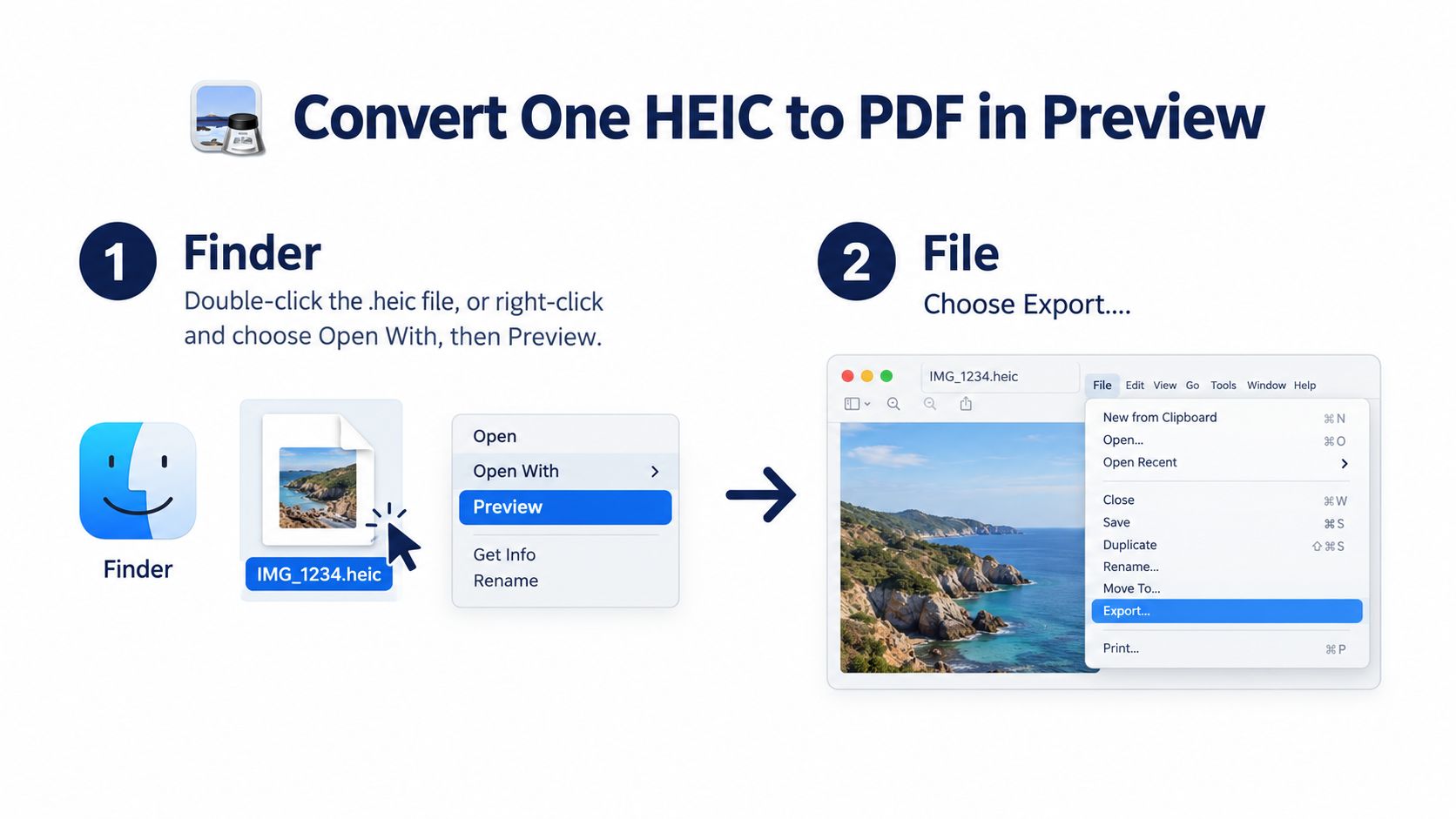
One receipt, one screenshot, one signed page: that is the case for doing the job inside Preview. Treat the PDF as a document you are issuing, not just a picture with a new extension. Apple’s Preview export guide documents the path: open the image, choose File > Export, pick PDF in the Format menu, then decide whether the copy needs a Quartz filter or a password before you name it and save.
Open the file and export a copy
- In Finder, double-click the
.heicfile. If another app grabs it, right-click, choose Open With, then Preview. - Choose File, then Export. Export writes a new file. Save keeps the current format and can overwrite the HEIC you still want.
- In the export sheet, open the Format menu and choose PDF.
- Open Quartz Filter only if you need it. Reduce File Size shrinks a full-resolution iPhone shot for email. Leave the filter off when fine print or a signature must stay sharp.
- For a tax form or an ID photo, open the security options and set a password if the PDF will leave the Mac. Skip this when nobody asked for a password.
- Pick Documents or Downloads, name the file with a date, and click Save.
- Open the PDF and view it at 100 percent. Check that the text is readable and the photo is upright.
Practical rule: Export, don’t Save, until the PDF is the file you meant to create.
Apple lists PDF alongside JPEG, PNG, TIFF, HEIC, JPEG 2000, and OpenEXR as Preview export formats, so this path is supported, not a workaround. If Preview can open the HEIC normally, the export sheet is usually enough for a single file.
One limit matters before you send anything: this sheet chooses the format, not the paper size. Preview writes the PDF from the image in front of it. When a form or portal specifies A4, US Letter, or fit to photo, that is a separate document decision, not a reason to repeat this export.
Build a Multi Photo PDF and Set Page Size
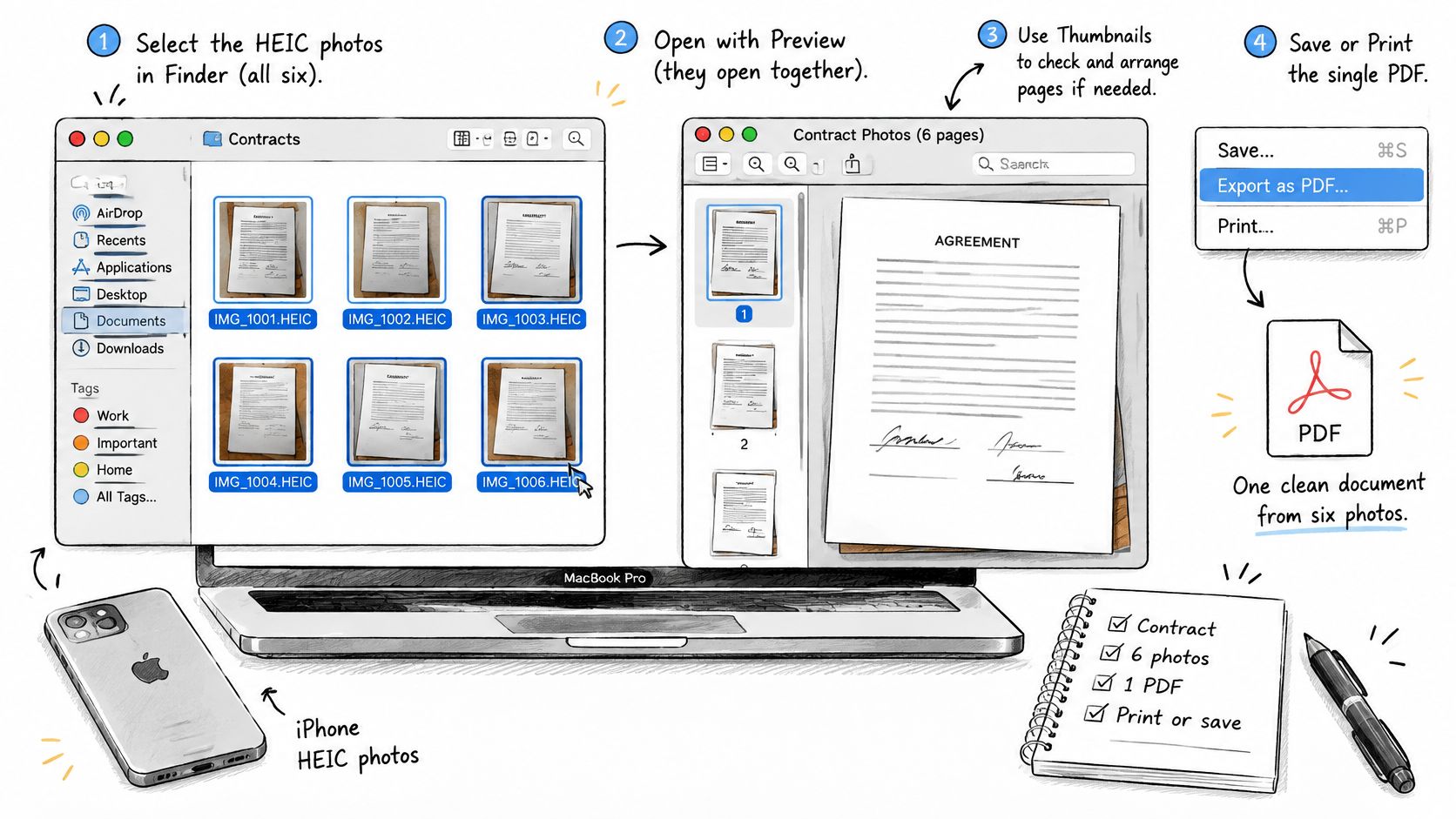
Take six iPhone photos of a signed contract that must arrive as one file. Open them together, set the reading order, then export. Paper size is a separate decision from how heavy the file is.
Put the pages in reading order
- Select the HEICs in Finder and open them together in Preview so they share one window.
- Choose View, then Thumbnails. Drag thumbnails into the order a reader expects. Page 1 of the form comes before the signature photo.
- Select the thumbnails you want, then use File, Export, and PDF. If Preview writes separate PDFs, export each one, open the first PDF, and drag the others into its sidebar to combine them.
- Duplicate the finished PDF in Finder before you rearrange anything else. Apple’s Preview getting-started guide warns that edits may be saved automatically. Once you close the window, there isn’t a separate untouched original.
- Decide the page. A portal that prints on office paper wants US Letter in the United States or A4 elsewhere, with the photo fitted inside the margins. A photo that should fill the page with no paper border wants a page the size of the image, often called fit to photo.
The Export sheet has no US Letter or A4 menu, so size is mostly whatever the image exports as. A Quartz Reduce File Size filter changes weight, not paper. Full-resolution iPhone images can produce large PDFs, and a Quartz filter may cut that size at the cost of sharpness or color.
Open the result at 100 percent. Check order, rotation, color, and whether small type survived the filter. If a site rejects the file, export again with a Quartz filter or split the set into two PDFs. Apple documents thumbnail reordering, Finder drag-and-drop, and combining PDFs in that same sidebar.
A short walkthrough of the same Preview clicks is here if you want to watch the menus once:
Duplicate the good PDF in Finder before you drag a single thumbnail. Auto-save doesn’t ask twice.
Batch Convert with Shortcuts or Automator
This path is for expense photos that land in the same folder every week. You want the same PDF settings without opening Preview each time. A naive loop makes one PDF per photo, not one bound contract. That’s fine for receipts and wrong for a six-page form.
Shortcuts on a current Mac
On macOS Ventura or later, Shortcuts is the one to build:
- Create a shortcut. Add Select Files, or a Folder action limited to images.
- Add Repeat with Each.
- Inside the loop, convert or open the image, use Make PDF, then Save File to a chosen folder. Name it from the original file name so you can match them later.
- Run it once on two test HEICs. Open both PDFs before you point it at the whole folder.
- Add the shortcut to the Finder Quick Actions menu if you want a right-click on selected files.
Keep the HEIC originals in a separate folder. A bad run then can’t replace them.
Automator on an older Mac
If the Mac is still on Automator:
- Choose New Quick Action. Set the workflow to receive image files in Finder.
- Add Get Selected Finder Items if the action doesn’t already receive the selection.
- Add a convert or render step that outputs PDF. Use Run Shell Script only if you already know the command. Otherwise stay with the built-in actions.
- Save the Quick Action and enable it under System Settings, Extensions, Finder.
A codec the installed macOS doesn’t understand fails the whole file. You don’t get a half-written PDF you can patch. Test two files, then the folder.
If the portal wants one document with a named paper size, this loop isn’t the finish. It only replaces the open-and-export click.
Fix Large Files Wrong Order and Missing PDF
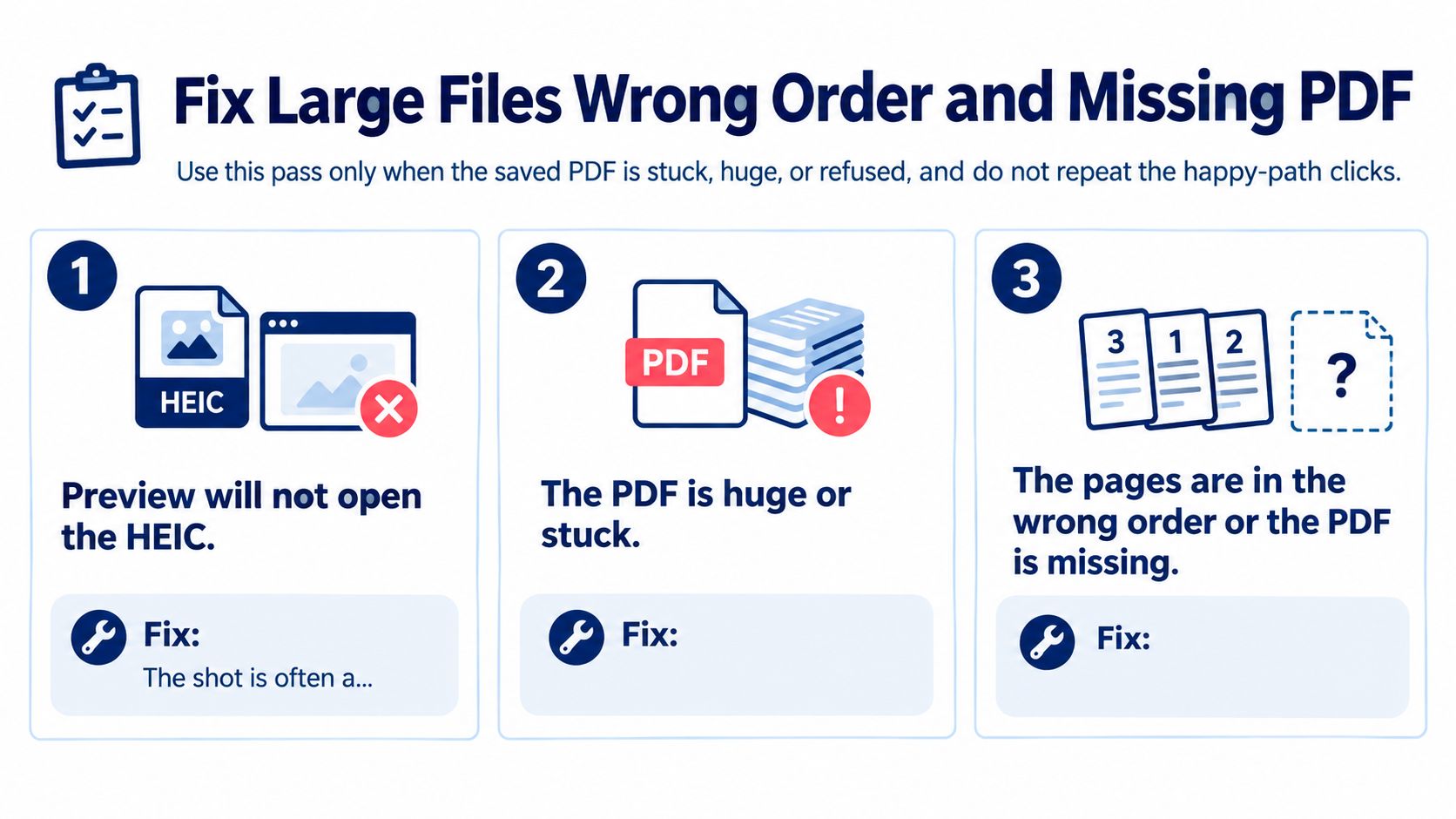
Use this pass only when the saved PDF is stuck, huge, or refused. Don’t walk the happy path again.
Three failures with their own fix
Preview won’t open the HEIC. The shot is often a newer iPhone HEIF or HEVC codec on a Mac that never received it. Update macOS, quit Preview, and open the same file again before you try another app.
One page is sideways even though the phone showed it upright. Preview ignored the rotation flag. Select that thumbnail, rotate it, and export the page again.
The recipient gets a password prompt you didn’t intend. Encryption was left on. Export a new copy with security off unless the portal asked for a password.
If you’d rather send a JPEG for a form that rejects PDF too, the same Mac can convert HEIC to JPG without a new app.
| What you see | Usual cause | What to do |
|---|---|---|
| PDF missing in Format | Extra formats hidden | Hold Option and open Format again |
| Preview cannot open the HEIC | macOS older than the photo codec | Update macOS, then retry Preview |
| Pages in the wrong order | Finder selection order | Reorder thumbnails, then export or merge |
| Photo sideways in the PDF | Rotation flag not applied | Rotate in Preview and export again |
| PDF too large to email or upload | Full-resolution images, no filter | Quartz Reduce File Size, or split into smaller PDFs |
| Fine print looks soft | Reduce File Size filter | Export again with no Quartz filter |
| Edits replaced the only PDF | Preview auto-save | Duplicate in Finder before reordering |
| Recipient asked for A4 or Letter | Export has no paper-size menu | Use a tool that sets A4, Letter, or fit to photo |
If the file already opens, the page count matches the photos, and the site still demands A4 or US Letter, stop retuning Quartz. Set the paper size in the next step.
Save a Local PDF When Preview Is Not Enough
Stop if Preview or Shortcuts already produced a PDF that opens, is in order, and meets the size limit. Open a browser only for the gap those tools leave: a named paper size.
We built ConvertHEICto after iPhone photos wouldn’t open anywhere else, and after online converters asked people to upload personal pictures to a server they knew nothing about. It runs in Safari on the Mac. Photos are converted inside your own browser on your device. There’s no upload step and no server that keeps a copy.
- Open the page.
- Drag in the six signed-contract photos, or the single receipt.
- Choose PDF.
- Set the page to US Letter for a United States office portal, A4 for most other print forms, or fit to photo when the image should fill the page with no paper border.
- Choose one multi-page PDF when the portal wants a single file, or one PDF per photo when each shot is its own attachment.
- Download to Documents or Downloads.
- Open the result at 100 percent. Confirm page count, order, upright photos, and readable small type.
Leave the original HEIC folder untouched. If one file fails, note the Mac, the browser, and the message shown, then retry that file alone. Preview stays the quick local export. Shortcuts stays the repeated folder. This page-size step is only the assignment Preview cannot finish.
When a form needs one PDF on A4, US Letter, or a page that fits the photo, ConvertHEICto does that conversion in your browser without an upload. It can bind every shot into one document or write one PDF per photo, which is the handoff Preview’s export sheet doesn’t offer. Open ConvertHEICto and drop in the photos you need to send.