
You’ve got an iPhone photo ready for a website, a work document, or a Windows PC, and the HEIC file won’t open where you need it. PNG can solve the compatibility problem, but converting formats isn’t the same as renaming a file. The right choice depends on what the image contains and where it’s going next.
Table of Contents
- Why HEIC and PNG Behave So Differently
- Converting HEIC to PNG in a Private Browser Tool
- Choosing Between Lossless PNG and Other Output Formats
- Controlling Quality, Resize, and Metadata
- Batch Conversions and PDF Workflows
- A Quick Pre-Convert Checklist for Any HEIC File
Why HEIC and PNG Behave So Differently
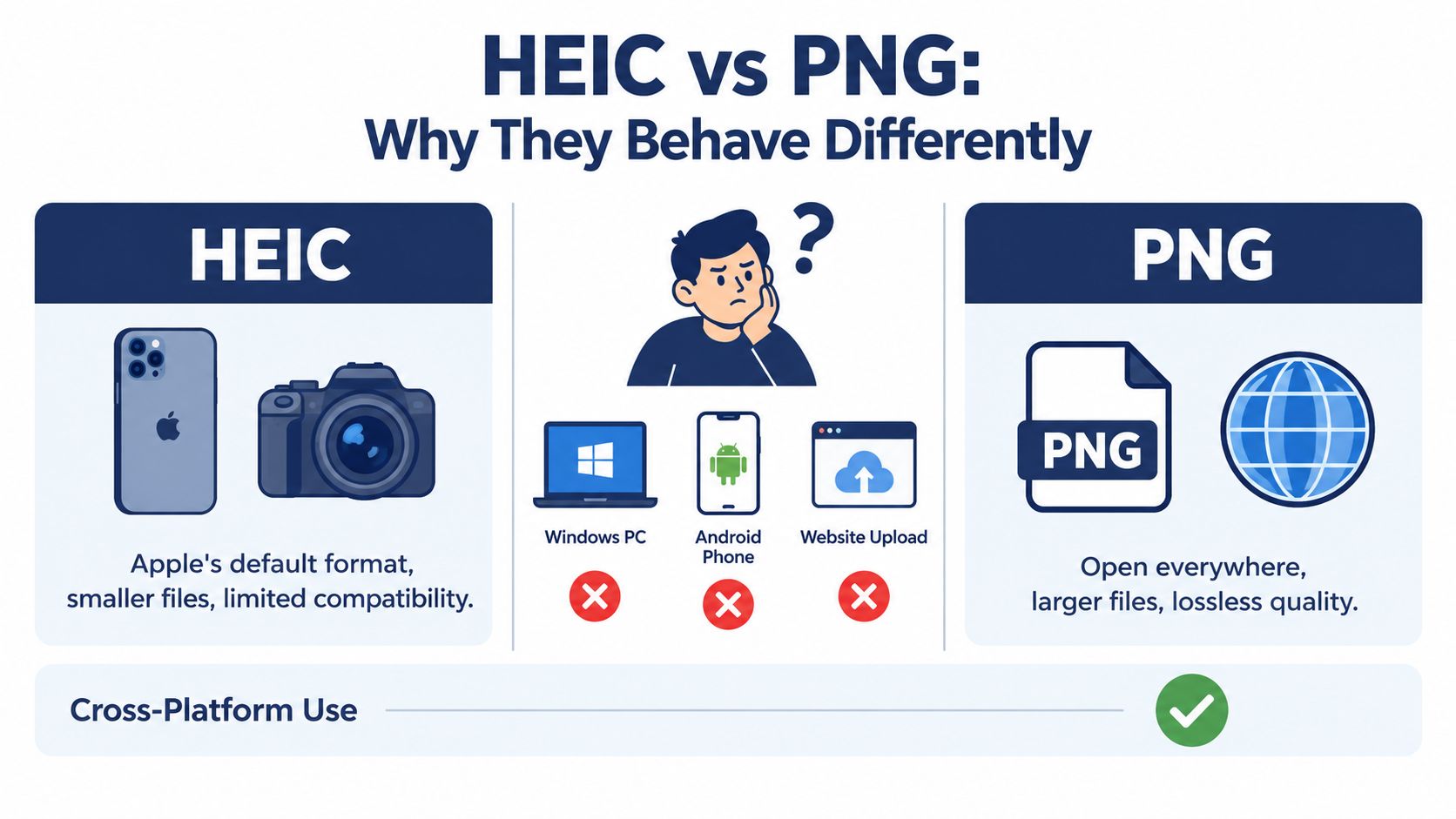
HEIC is designed to store photographs efficiently. PNG is a widely documented raster format that many browsers, design applications, and document workflows can handle. That difference is useful when an iPhone image reaches a device or upload form that doesn’t accept HEIC, but it also means a conversion changes how the image is encoded and may change its color handling.
PNG was developed as a royalty-free alternative to GIF after concerns about licensing fees for GIF’s patented LZW compression. Its first draft, then called Portable Bitmap Format, appeared on January 4, 1995. PNG became a W3C Recommendation on October 1, 1996, and was later standardized internationally as ISO/IEC 15948:2003, milestones that help explain why it remains a dependable, openly specified format (PNG format history and specifications).
Compression is only part of the decision
PNG uses lossless compression. That means encoding the decoded image as PNG doesn’t intentionally discard pixel data. It doesn’t mean conversion can restore details that were already lost when the image was encoded as HEIC, and it doesn’t guarantee that every color or HDR property will carry over unchanged.
The file-size trade-off can be substantial. HEIC is designed to store photographic images efficiently, while PNG is often larger for photographs. One comparison estimates that HEIC files can be 8–15 times smaller at visually similar quality (HEIC and PNG comparison). That’s not a promise for every image, but it’s a useful reason to check the exported file before sending or uploading it.
Compatibility isn’t the same as image fidelity
A PNG may be easier to open or submit, but compatibility alone doesn’t tell you whether it’s the best delivery format. Think about whether the file is a photograph, a screenshot, a logo, or an image that needs transparency. For a broader introduction to the source format, see what a HEIC file is and how it works.
Converting HEIC to PNG is a deliberate change in storage and sharing format, not a rename. Once you identify the image’s destination and the qualities you need to preserve, you can choose settings that fit the job.
Converting HEIC to PNG in a Private Browser Tool
A browser-based converter can be convenient when you need a PNG without installing an application. For private images, the key question isn’t just how to start the conversion. It’s where the processing happens.
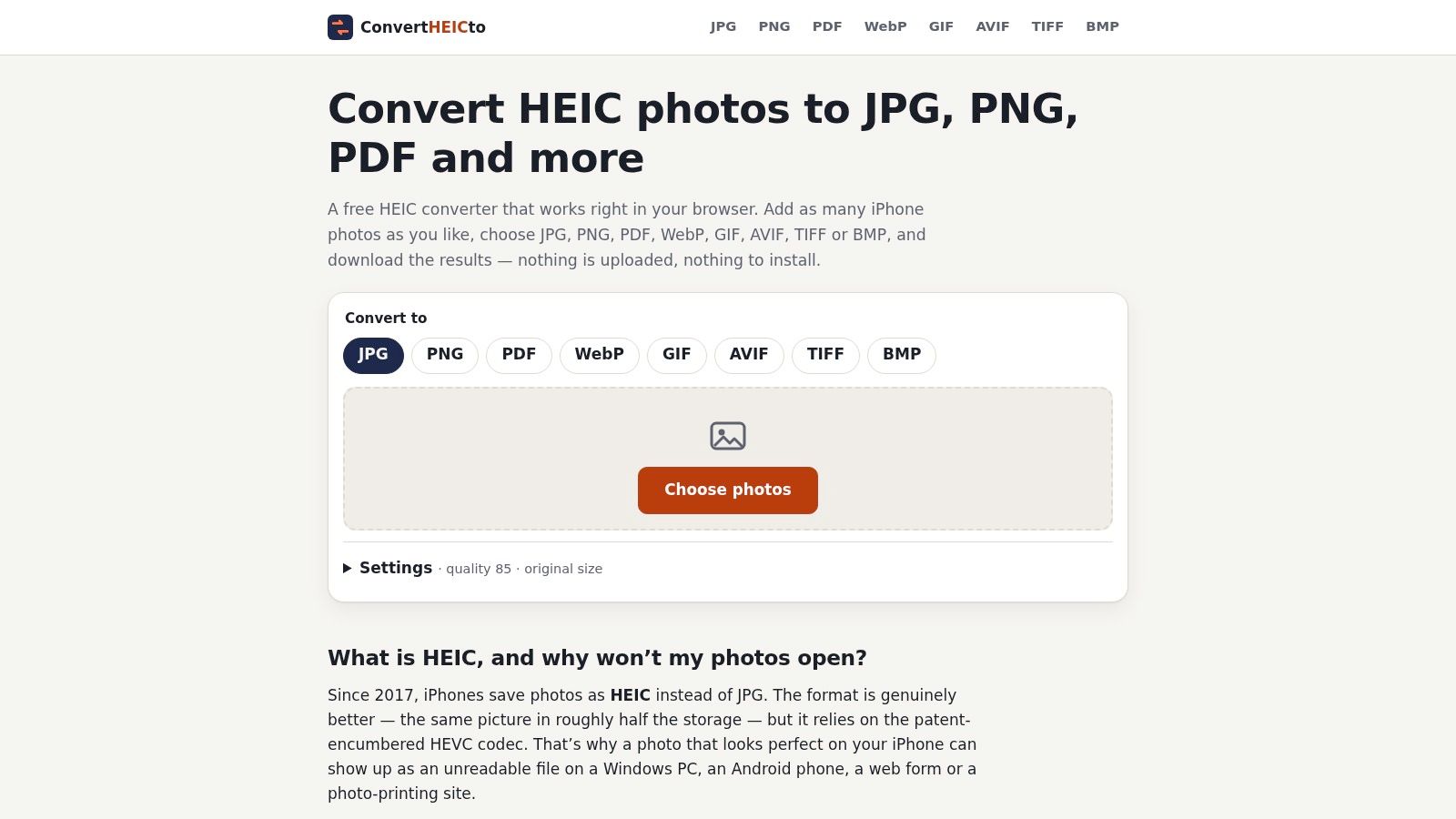
This conversion runs on your device using libheif and codecs compiled to WebAssembly. The files are processed locally rather than uploaded to a server, so there’s no server copy to retain or access. That can matter for personal photos, client work, or documents containing sensitive information.
Follow the conversion flow
-
Open the converter in your browser. Use a current desktop or mobile browser and open the page before choosing files. Since processing stays on your device, your browser handles the conversion work.
-
Add the HEIC files. Drag files into the drop area, or use the file chooser. You can select one image or add multiple files when you’re preparing a batch.
-
Choose PNG as the output. Check the format control before starting. If the tool offers a lossless PNG setting, leave it enabled when you want PNG encoding that doesn’t intentionally discard decoded pixel data.
-
Review the preview and orientation. A preview gives you a chance to catch an image that appears sideways or otherwise wrong before saving. Orientation correction should be applied before export so the saved file opens upright in other software.
-
Convert and download. Save the individual PNG or download the batch as a ZIP if that option is available. The original HEIC remains on your device; conversion creates an output file rather than replacing the source.
Privacy check: Local processing means there’s no server upload for the converter to store. It doesn’t change what happens if you later share the exported PNG through email, cloud storage, or another service.
A preview that looks right is a useful first check, not a substitute for reviewing the downloaded file in its intended application. For work that depends on color, transparency, or metadata, inspect those properties after conversion as well.
Choosing Between Lossless PNG and Other Output Formats
PNG earns its place when the destination demands it: a screenshot dropped into a design file, a logo that needs transparency, an asset headed for further edits. A photograph bound for email or a CMS usually doesn’t. Pick the format from the receiving workflow, then convert.
The trade-off most guides skip is bit depth. HEIC can store 10-bit HDR color, while standard PNG output is commonly 8-bit, a gap covered in the format comparison earlier in this article. Moving between them involves tone mapping, which compresses highlight and wide-gamut information into a narrower range. “Lossless” describes how the decoded pixels are compressed, not a promise that HDR properties survive. That distinction decides the format before you ever touch a converter. Gradients show the damage first: smooth skies and soft shadows can pick up visible banding once the extra bit depth is gone.
| Format | Compression | Best For | Watch Out For |
|---|---|---|---|
| PNG | Lossless | Screenshots, graphics, transparency, and editing workflows | Photographs can produce much larger files than HEIC |
| JPEG | Lossy | Photo sharing, email attachments, and broad compatibility | Re-encoding can discard image data |
| WebP | Supports lossy and lossless options | Web images where browser delivery and size matter | Check whether the destination supports it |
| AVIF | Supports efficient lossy and lossless options | Modern web delivery and compact image assets | Compatibility varies by destination |
| TIFF | Depends on compression settings | Editing, archiving, and print workflows that request TIFF | Can create large files and may be unnecessary for casual sharing |
Match the format to the job
Choose PNG for a screenshot with crisp interface text, a graphic with transparency, or an image that will be edited in Photoshop, Figma, or Sketch. For photographs going to the web, WebP or AVIF often deliver smaller files at comparable visible quality if the publishing platform accepts them. JPEG stays practical for ordinary photo sharing where size matters more than lossless encoding.
Print is its own case. If a print team requests TIFF, send TIFF, because a lossless PNG is not an interchangeable substitute in a color-managed print pipeline. For the conversion itself, use a HEIC-to-PNG converter, then confirm the output meets what the destination asked for.
Practical rule: Choose PNG because the workflow needs PNG, not because “lossless” sounds like the safest setting.
Controlling Quality, Resize, and Metadata
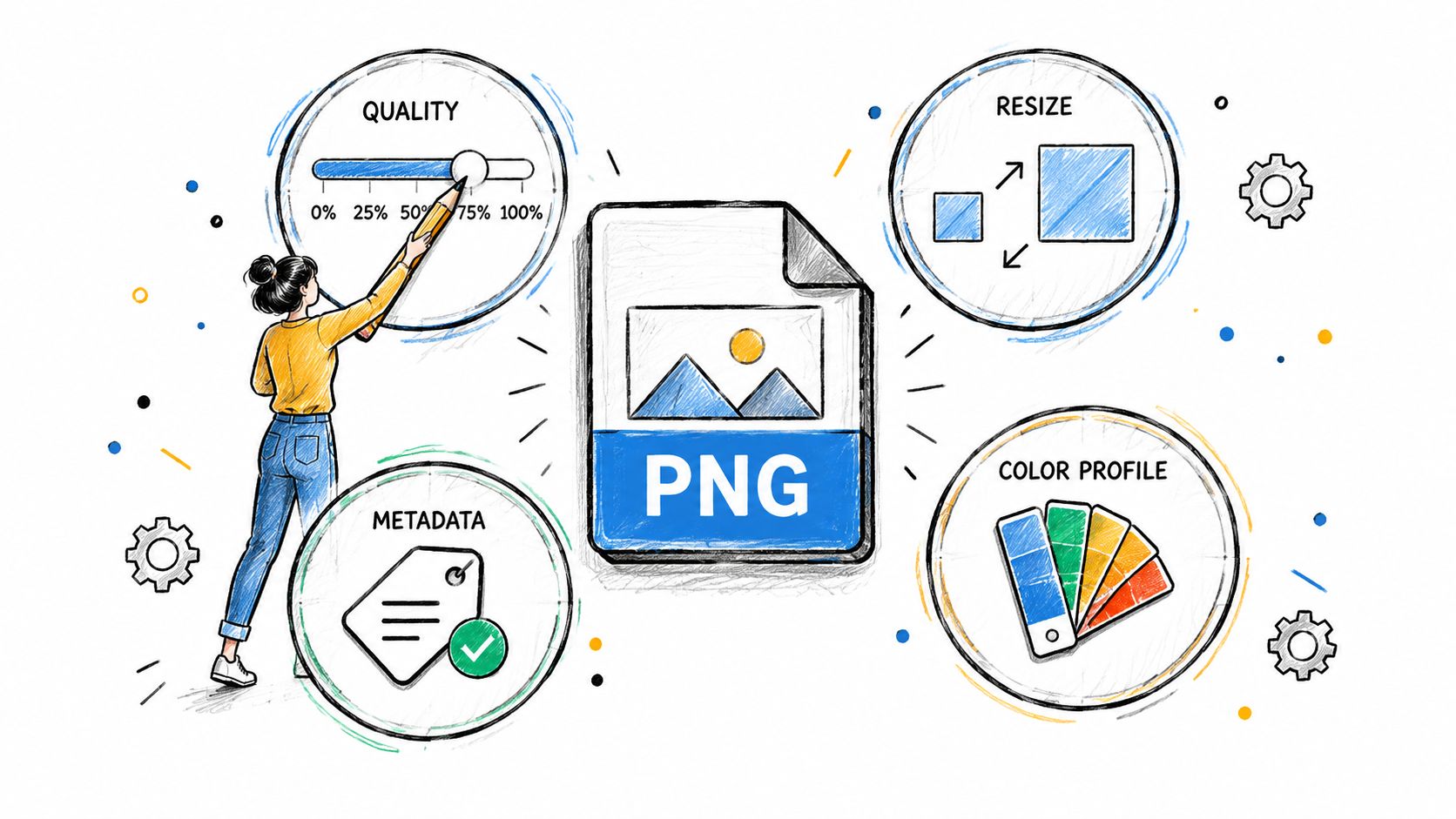
Once PNG is the right destination, check the options that affect the exported file. A lossless PNG quality slider shouldn’t behave like a JPEG quality slider: PNG compression doesn’t trade pixel fidelity for a smaller file in the same way. If a PNG is too large, resizing is a more direct way to reduce its dimensions and the resulting file size.
Resize for the actual destination
Keep the original dimensions if the image needs to be retained for editing or a high-resolution workflow. For a form, web page, or document that doesn’t need the full image, choose a maximum edge that fits the use. For example, reducing an image from 4096 px to 640 px can make sense for a small preview or thumbnail, but it’s not a good choice for a file intended for detailed print or later cropping. Those are example settings, not universal requirements.
Color profile choice can be more consequential than a compression setting. Display P3 can be appropriate when the receiving design or print workflow supports it. sRGB is generally the safer choice for broad web and office-software interoperability, where a file with an unsupported profile may display differently than expected.
Decide what metadata to keep
Metadata can include the date taken, camera details, and GPS location. For an archive, retaining the capture date and camera EXIF may help you organize or identify the original. Before sharing a personal image, consider removing location data.
- For editing or archival work: Keep useful capture information and check that the receiving application reads the color profile correctly.
- For public sharing: Remove GPS location unless the location is intentionally part of the image.
- For uploads: Use the color profile that the receiving service or team expects, and resize only if the destination calls for a smaller image.
Orientation correction should happen before saving, so the exported file appears upright even in software that doesn’t interpret the original orientation metadata. After conversion, open the PNG in the application that matters for the job and check for unexpected color or rotation changes.
Batch Conversions and PDF Workflows
Processing multiple files isn’t just the same task repeated. A batch needs a consistent output format, predictable filenames, and a download that keeps the results together. For a folder of receipts, client images, or travel photos, confirm the output settings before you start so every file follows the same choices.
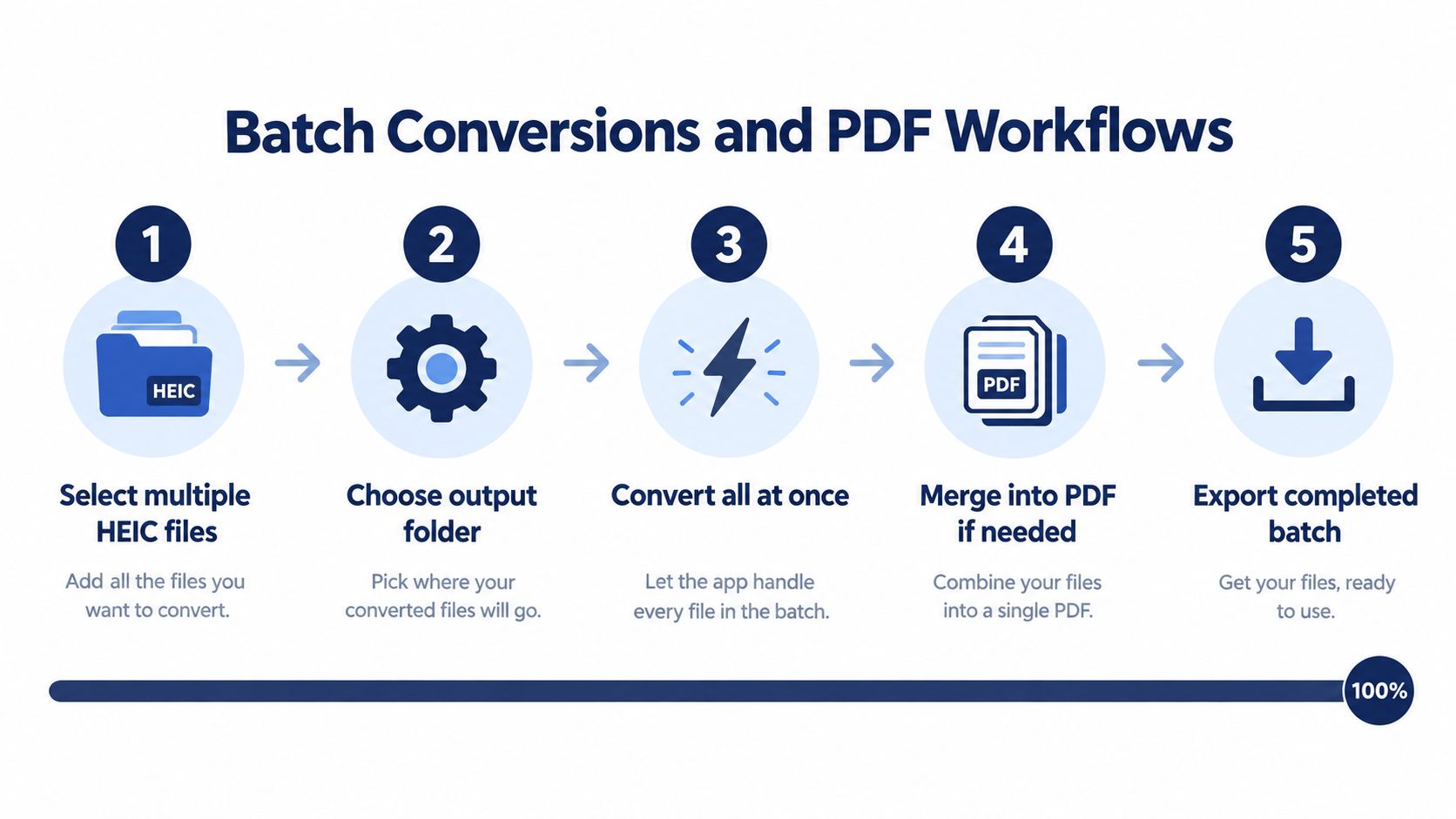
Select the HEIC files together, check the output format and any resize or metadata choices, then run the batch. Background-thread processing can help keep a browser responsive while it works, particularly on a phone. When the conversion finishes, download the images individually or as a ZIP archive, depending on what’s easier to move into the next step.
A batch doesn’t have to end as a collection of image files. If you’re preparing documentation, a combined PDF can be easier to submit or review than separate photos. Choose a single multi-page PDF when the images belong together, or create one PDF per photo when each image needs its own document.
For page layout: Choose a page size the recipient expects, such as A4 or US Letter, then use fit-to-photo behavior when you want the full image placed on the page without cropping. This is especially useful when portrait photos need to sit on a landscape page.
The process is straightforward: select the HEIC files, set the output, convert, and export the resulting images or PDF. For a separate workflow focused on JPEG batches, see how to batch convert HEIC to JPG.
A Quick Pre-Convert Checklist for Any HEIC File
Before converting, decide what the image needs to do after it leaves your device. These questions help avoid the common mistake of choosing PNG first and thinking about the destination later.
- Do you need PNG’s lossless encoding? Use it when you need a compatible raster image for graphics, screenshots, or editing. If you’re sharing an ordinary photograph, consider whether a smaller, accepted format would work better.
- Does the destination need a smaller image? Resize to the required dimensions rather than exporting the full-size image by default.
- Which color profile fits the workflow? Keep Display P3 when the receiving process supports it; choose sRGB when broad compatibility matters more.
- Should the file retain location information? Keep useful capture metadata for your own records, but remove GPS before sharing if the location isn’t meant to be public.
- What are you delivering? Decide whether you need one PNG, a ZIP of converted images, or a combined PDF.
PNG is often the wrong call for a web hero image, a social media upload, or a large email attachment if the destination accepts a more compact photo format. In those cases, check the platform’s requirements and choose an output that balances visual quality, file size, and compatibility.
ConvertHEICto offers in-browser conversion from HEIC and HEIF to PNG and other formats, with local processing and controls for color, resizing, and metadata. Try ConvertHEICto to convert a single iPhone photo or prepare a batch for your next upload or document.