

You’ve got a video that won’t upload, won’t play on someone else’s phone, or needs a quick trim before sharing. A short social clip calls for a simple converter. A large archive, confidential recording, or video destined for an older device needs more careful handling.
The best free online MPEG4 converter depends on the file’s size, the output settings you need, and whether you’re comfortable sending the footage to another company’s servers. Don’t upload first and investigate limits afterward. Check whether the free allowance covers your file and whether the service offers the controls your destination requires.
There’s also a technical distinction worth knowing: MPEG-4 is a family of standards, while MP4 is a container, not a guarantee of a particular video codec, as the MPEG-4 standards overview explains. Changing the filename isn’t enough to fix playback.
Practical rule: Choose the converter for the destination and the privacy requirements, not just because its output menu includes MP4.
Start with FreeConvert for adjustable output, CloudConvert for mixed-format work, or Zamzar for a straightforward occasional conversion. Choose VEED when editing matters, and consider Online Video Converter when upload size is the main obstacle. For confidential footage, use local processing instead of treating a deletion promise as permission to upload.
Table of Contents
- 1. FreeConvert, MP4 Converter
- 2. CloudConvert, Video Converter
- 3. Convertio, Video Converter
- 4. Online-Convert, Convert Video to MP4
- 5. Zamzar, Video Converter
- 6. VEED, Video Converter
- 7. Media.io, Online MP4 Converter
- 8. 123apps, Video Converter
- 9. Online Video Converter
- 10. Aconvert, Video Converter
- Top 10 Free Online MPEG-4 Converters Compared
- Choose by File Size, Control, and Privacy
1. FreeConvert, MP4 Converter
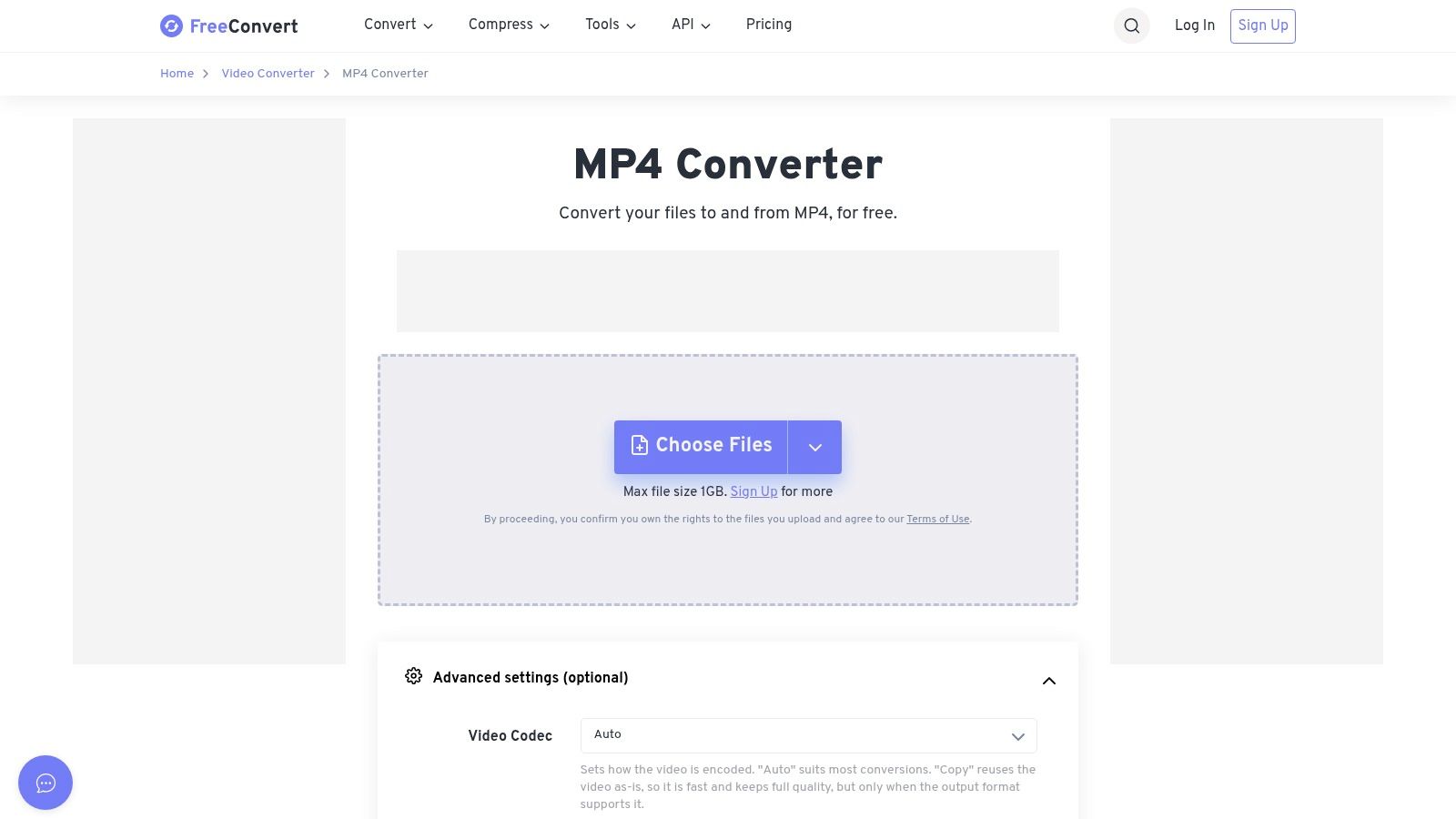
Choose FreeConvert when you need to adjust the output rather than change formats. Its codec, resolution, and frame-rate controls make it a sensible starting point for a clip that a website or device rejects.
The service accepts files from your device, cloud-storage accounts, or a URL, and supports batch processing. That’s useful when your source material is already in Dropbox, Google Drive, or OneDrive, but importing from cloud storage still means authorizing another service to process it.
Best for controlled, occasional conversions
FreeConvert’s MP4 converter offers 20 conversion minutes per day, with a five-minute processing limit per file on its free tier. Treat that as a processing allowance, not a promise that every video of a particular duration will finish successfully.
- Main advantage: Adjust settings to match a destination instead of accepting a generic preset.
- Free-tier constraint: Batch support doesn’t remove the shared processing allowance.
- Privacy tradeoff: Conversion happens in the cloud, so your footage leaves your device.
Basic free use doesn’t require an account, which suits an occasional task. My recommendation is to keep the original, change only the settings necessary, and inspect a downloaded result before submitting a batch. Skip this option for sensitive recordings unless its current privacy terms meet your requirements.
2. CloudConvert, Video Converter
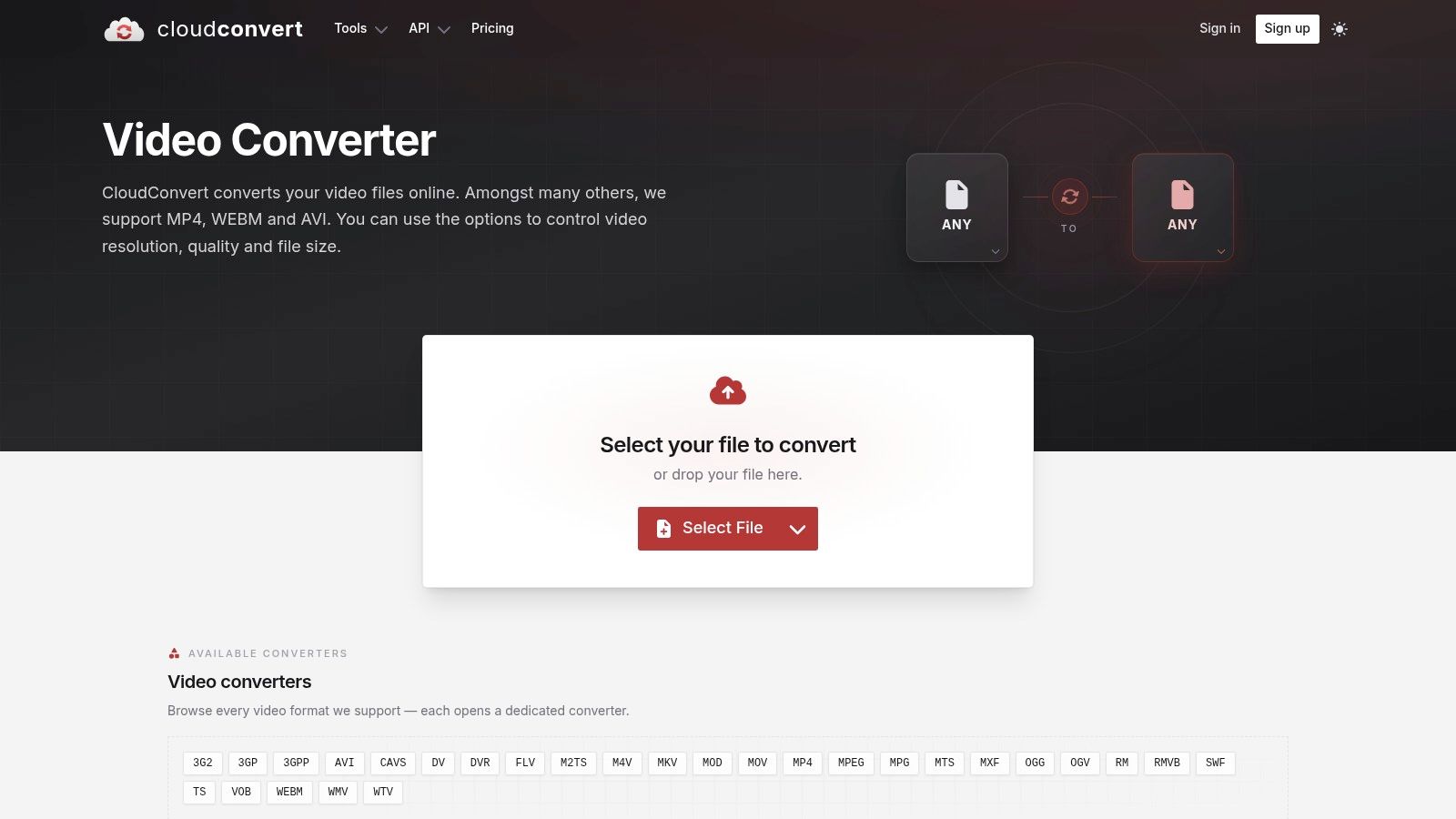
A folder containing MOV, AVI, MKV, and WebM files calls for more than a narrowly focused MP4 page. CloudConvert is my pick for mixed-format conversion, especially when you want configurable tasks without installing converter software.
Its video converter supports those formats alongside MP4 and MPEG. Use it when the challenge is handling different source files consistently, rather than adding captions or building a social-media edit.
Watch credits and processing priority
CloudConvert’s video conversion service lists 10 daily free conversion credits, a 1 GB maximum file size, and a five-minute free processing limit. Free tasks also receive low processing priority, so don’t build a time-critical publishing workflow around immediate completion.
Credits, upload capacity, and processing time are separate constraints. A file can fit the upload allowance while still being unsuitable for the available processing budget.
A generous upload allowance doesn’t guarantee that a demanding conversion will finish within a free processing limit.
CloudConvert processes files remotely. That keeps you from having to run an installed encoder, but it doesn’t remove upload time or the need to approve third-party handling.
Choose it for varied, nonconfidential source material and occasional configurable jobs. If your main need is trimming or captions, an editor-focused service is a better fit than a conversion task interface.
3. Convertio, Video Converter
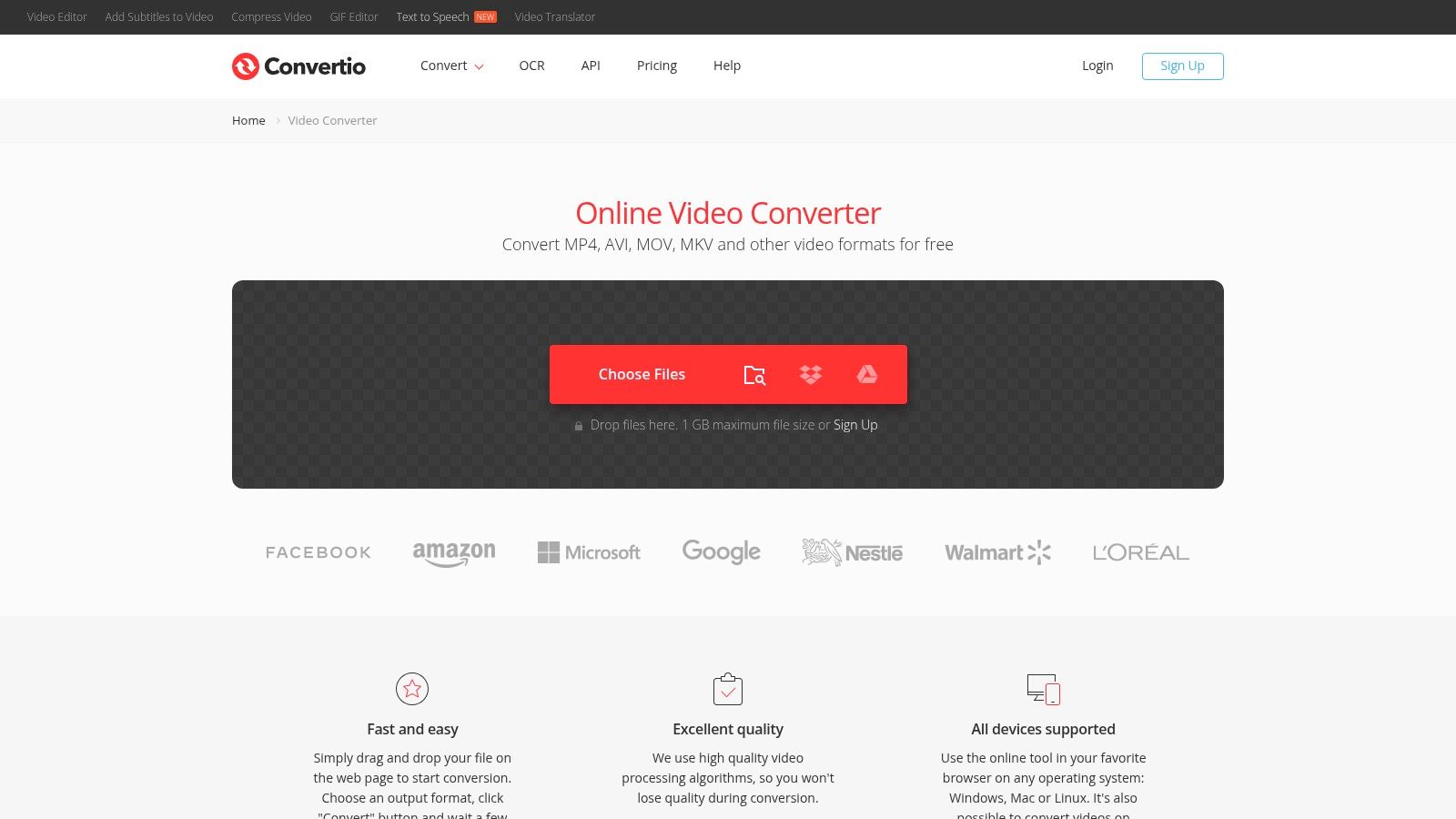
Convertio suits a clip that needs both format conversion and a basic visual correction. Its settings include codec, quality, resolution, aspect ratio, rotation, and flipping, so you can address an orientation problem during the same workflow.
Through Convertio’s video converter, you can import from a device, Google Drive, Dropbox, or a URL. It supports common formats including MP4, MOV, AVI, MKV, and WebM, and the service says converted files are available without watermarks.
- Choose it for: A short clip that needs rotation, aspect-ratio adjustment, or output-quality control.
- Check before uploading: The current free file-size and usage allowances.
- Expect a paid boundary: Higher limits and priority processing require a paid plan.
Convenience isn’t local processing
Convertio works in desktop and mobile browsers, but a browser interface doesn’t mean the conversion stays on your phone. Your upload still needs to be acceptable under your personal or workplace privacy requirements.
I’d choose Convertio over a bare format selector when correcting the picture matters. I wouldn’t choose it merely to chase the highest quality setting, because the useful output is the one that meets your destination’s needs without unnecessary file growth.
Download the result and check the entire frame. Rotation and aspect-ratio controls deserve particular attention when text or important details sit near the edges.
4. Online-Convert, Convert Video to MP4
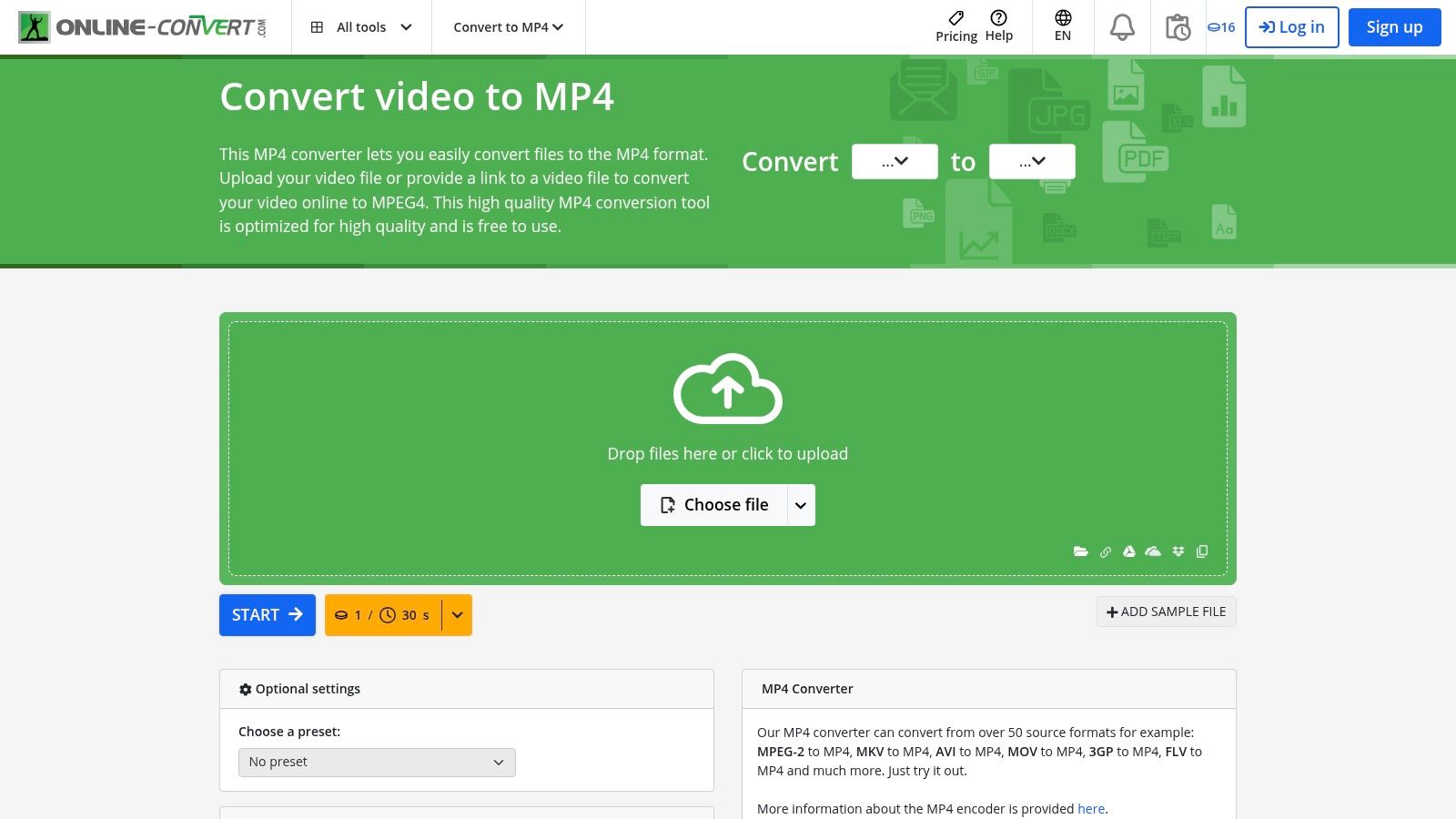
A submission form asks for MP4 at a set resolution, bitrate, and maximum size, while your source is a MOV that will not pass. Reach for Online-Convert when the destination publishes a spec and you need to hit it exactly.
Its dedicated MP4 conversion page puts resolution, bitrate, frame rate, codec, and target file size beside trimming, rotation, and mirroring, with uploads or file links and inputs such as MKV, AVI, MOV, and MPEG. That depth is useful for compliance uploads, yet it also means more ways to create a worse file. Change the fields named in the requirement, then stop. For a plain one-off conversion, those controls are more responsibility than help.
Treat it like a controlled handoff. Confirm the current free limits before sending a large source, keep the original for a retry, and download enough of the result to check edges, audio sync, and size. If the footage is private, the upload decision comes before the encoder settings.
5. Zamzar, Video Converter
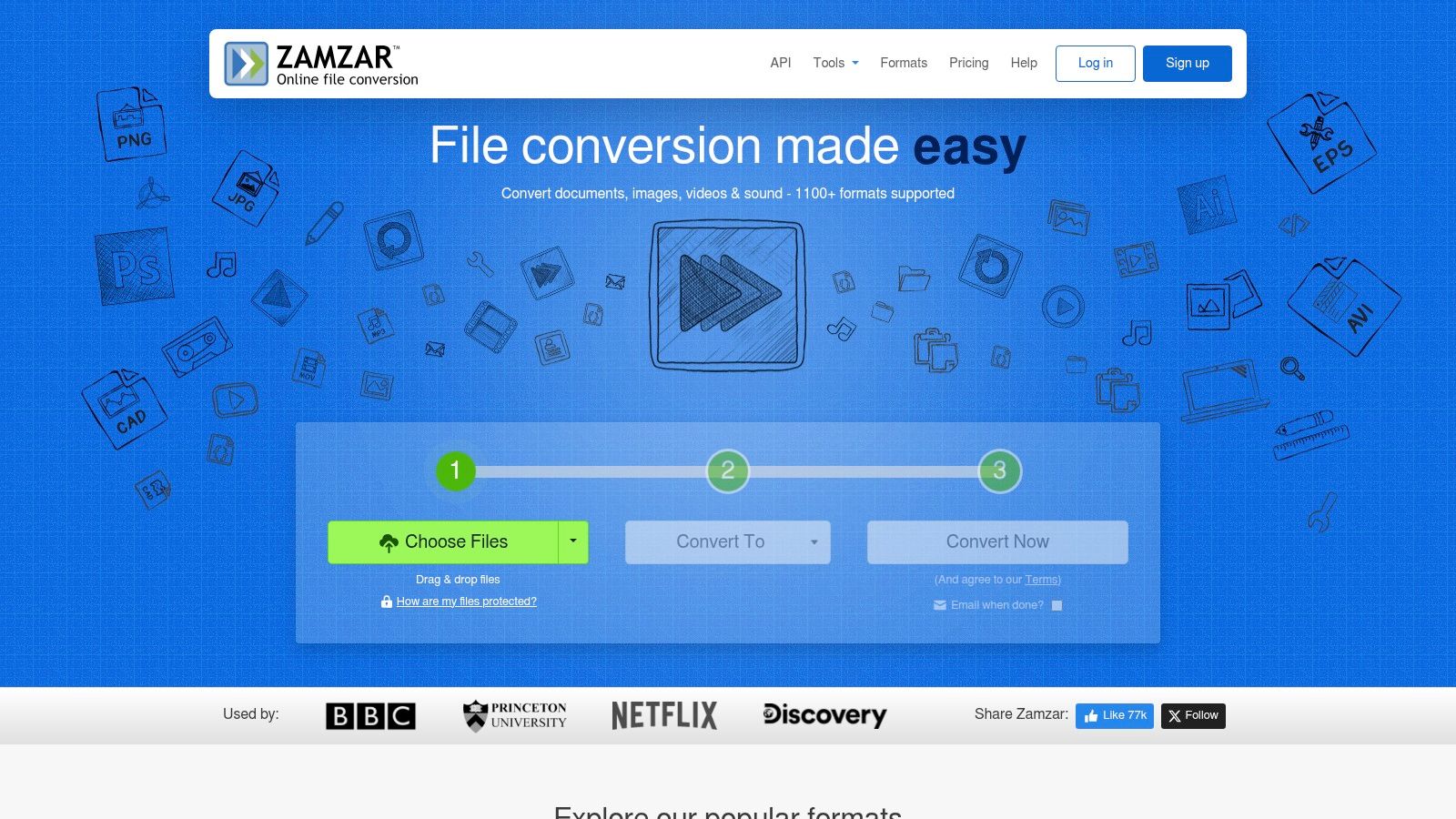
Zamzar earns its place for one reason: it asks the least of you. Upload the file, pick MP4, convert. No encoder settings to compare, no account to create, no software to install. For an occasional short clip, that’s the right amount of friction.
Zamzar’s free service generally permits two files per 24 hours, with uploads usually capped at 50 MB and converted files stored for up to 24 hours, subject to the service’s exceptions. Read that allowance before committing a source. Those numbers define the whole tool: a batch of recordings or a long video hits the ceiling fast, and there’s no bitrate or frame rate control to help you squeeze under it.
The format coverage runs wider than video. Documents, images, and audio all convert through the same three-step workflow, so Zamzar works well as a general-purpose converter you already have bookmarked. That breadth adds convenience, not depth.
On privacy, the trade is easy to weigh. Files are uploaded, and converted copies can be deleted before their normal expiry, but automatic expiry still means a copy sits on someone else’s server for a stretch of time. For a clip you’d happily share anyway, that’s a fair price for zero setup. For footage you’d rather keep local, the upload itself is the dealbreaker, not the retention window.
Keep Zamzar for small, infrequent, nonconfidential conversions. Once playback requirements or file volume enter the picture, move to a converter with real settings.
6. VEED, Video Converter
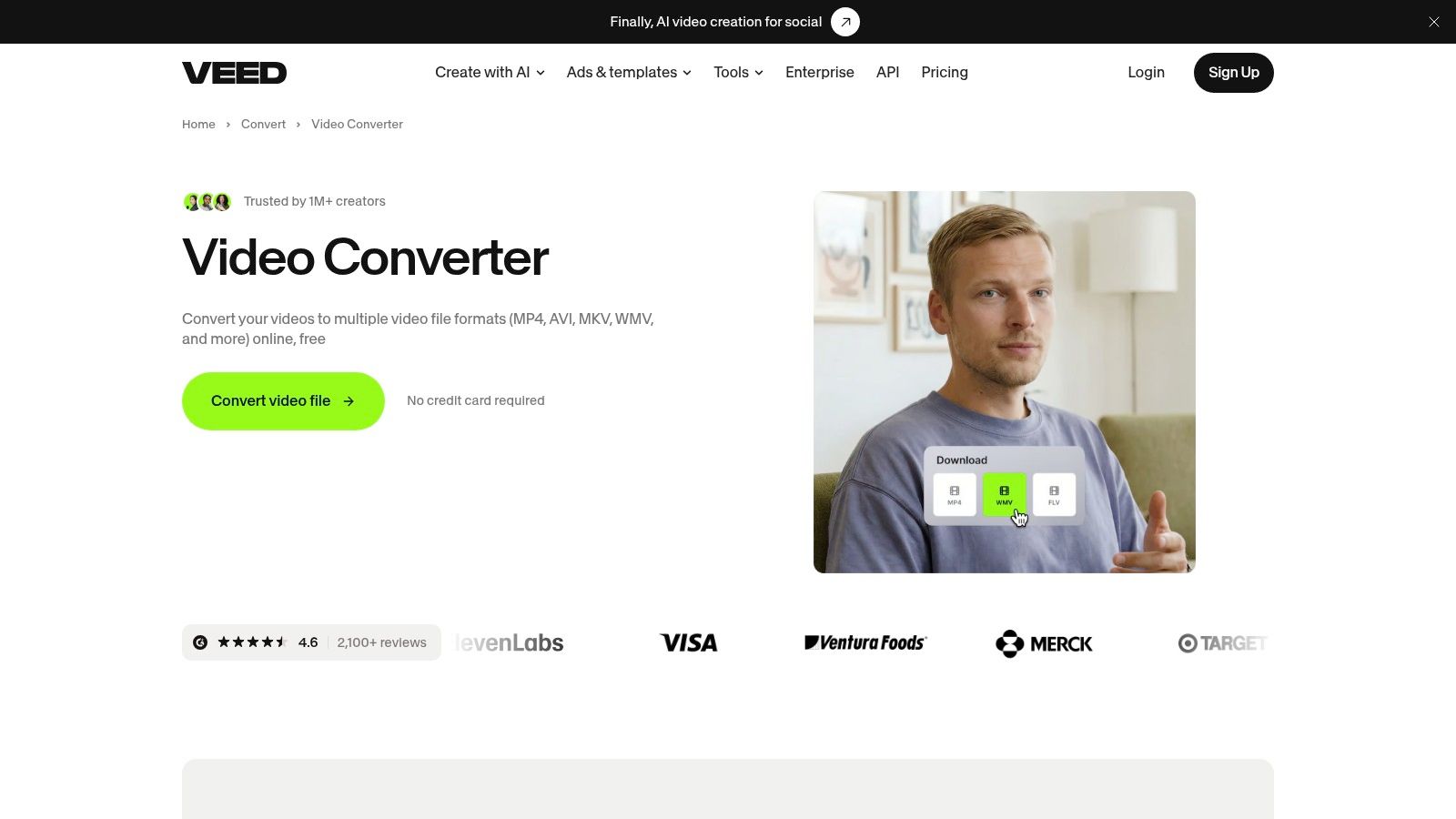
A clip needs captions, a tighter cut, and a vertical crop before it goes out. Pick VEED when conversion is only one step in that prep work; a plain format switcher is the faster choice when the video is already finished.
VEED’s video converter handles MP4, AVI, MKV, WMV, MOV, and FLV, and its free-plan documentation lists a 1 GB file limit with free editor exports capped at 720p. Treat the converter and the editor as separate gates: upload size may clear while export resolution still falls short of the target.
Check the export path before you edit.
Watermark rules, account prompts, and resolution limits decide whether the project stays free. The upload is also part of the price, so skip VEED for confidential workplace footage unless approval is already in place; browser access on desktop and mobile does not change that.
For iPhone stills in the same publishing batch, use the HEIC-to-GIF guide for the image side while keeping video export settings separate.
7. Media.io, Online MP4 Converter
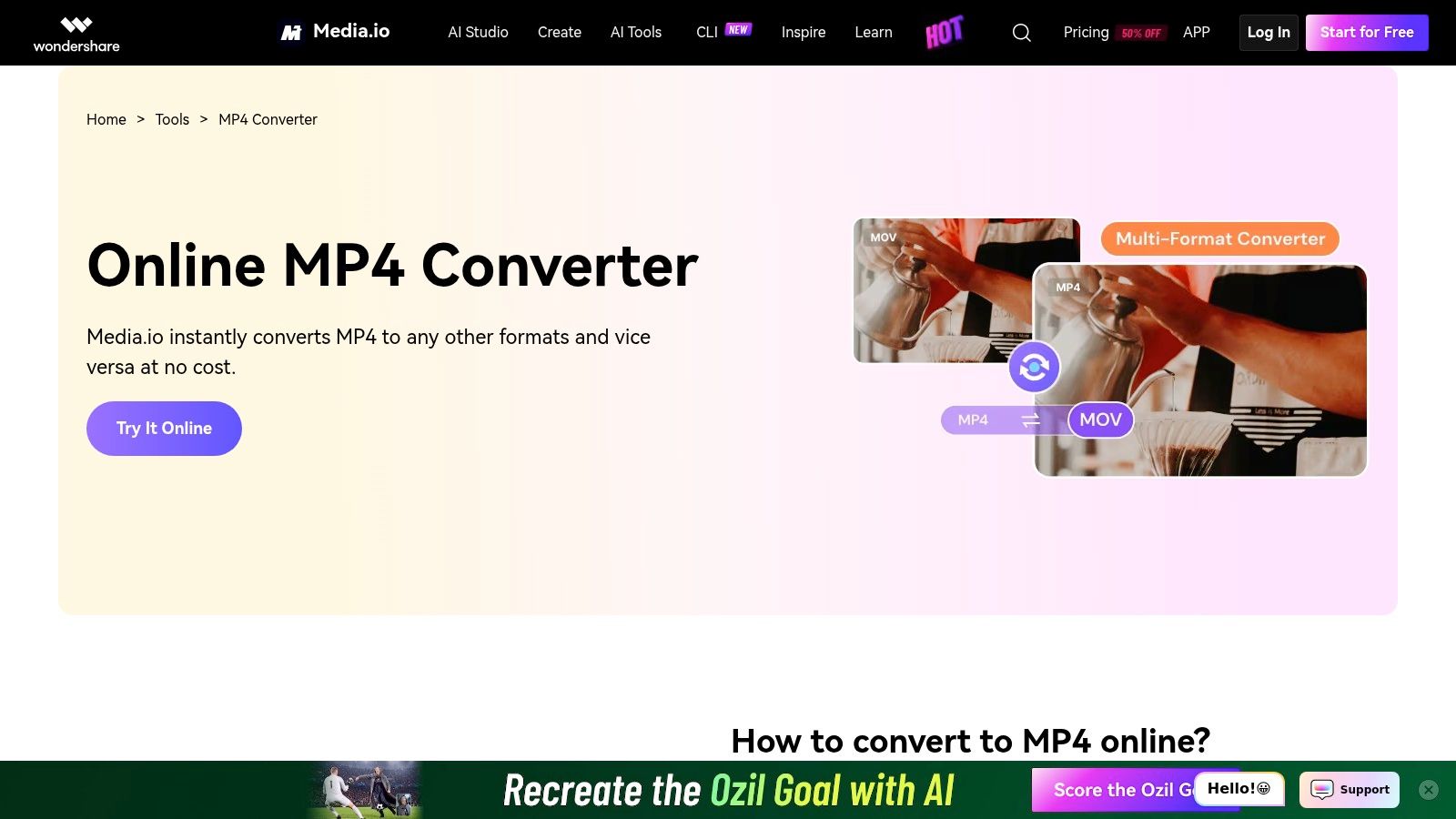
Media.io is a good fit for someone who wants a guided conversion process. Its step-by-step approach and related audio and video tools suit occasional media preparation without requiring a settings-heavy interface.
The Media.io MP4 converter lists a 100 MB per-file free limit, alongside daily conversion caps. It supports conversion to and from MP4, cloud-storage saving options, and browser use on desktop and mobile; the service also says it doesn’t add watermarks to converted videos.
Read the terms for the actual tool
Media.io’s privacy and retention statements vary across its service pages. Review the terms associated with the converter you’re using rather than relying on a promise attached to a different feature.
Privacy distinction: Deleting a server copy after processing is different from never uploading the file.
Choose Media.io for a modest, nonconfidential clip when you value a guided interface. Check registration requirements and the daily allowance before uploading several files, and don’t assume related tools share identical free access.
For accompanying website images, the HEIC-to-WebP guide covers a separate photo-format workflow. That can help keep image preparation focused while you use Media.io specifically for the video task.
My recommendation is convenience first, but only after confirming that the current converter-specific limits and retention terms are acceptable.
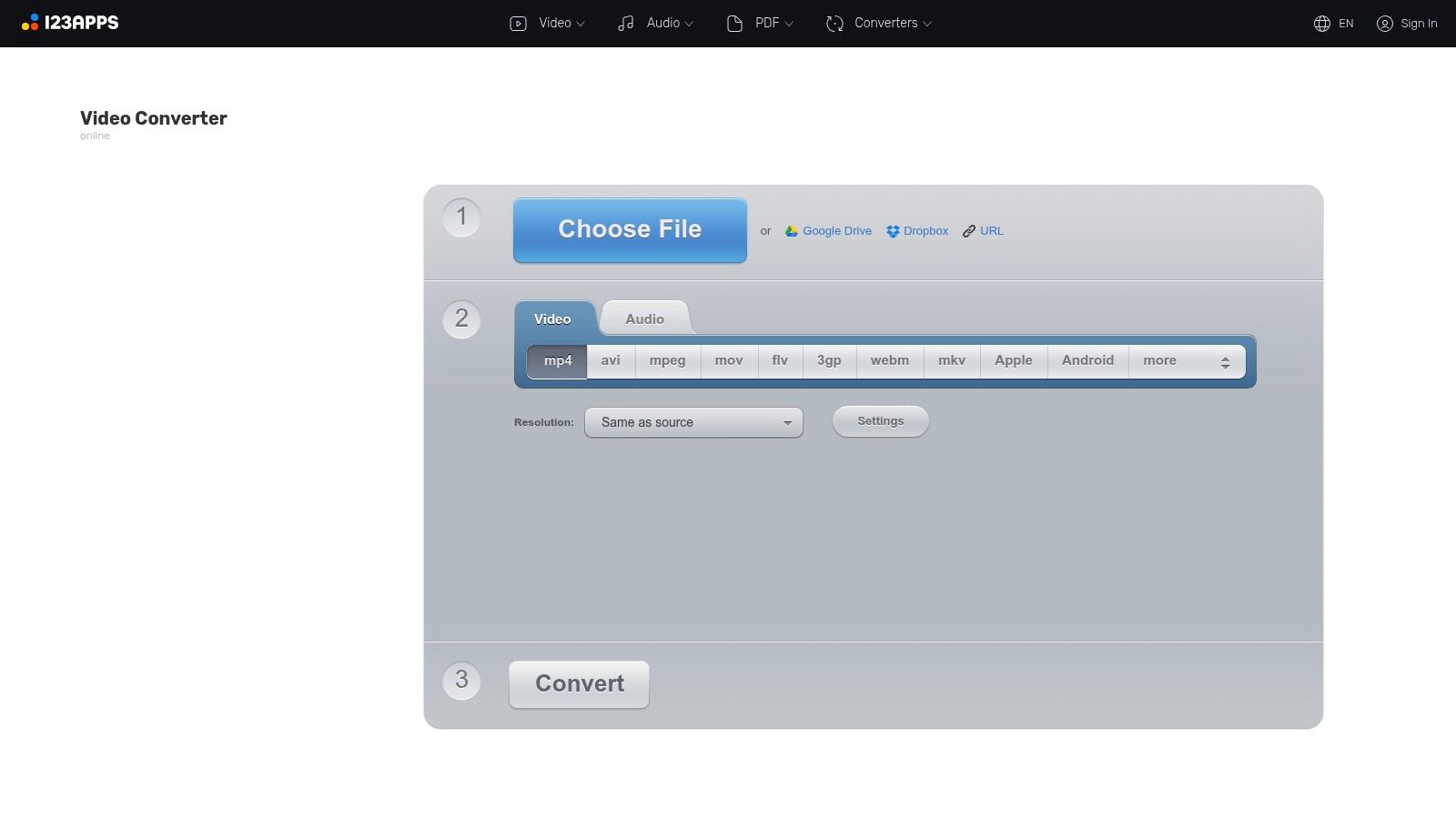
8. 123apps, Video Converter
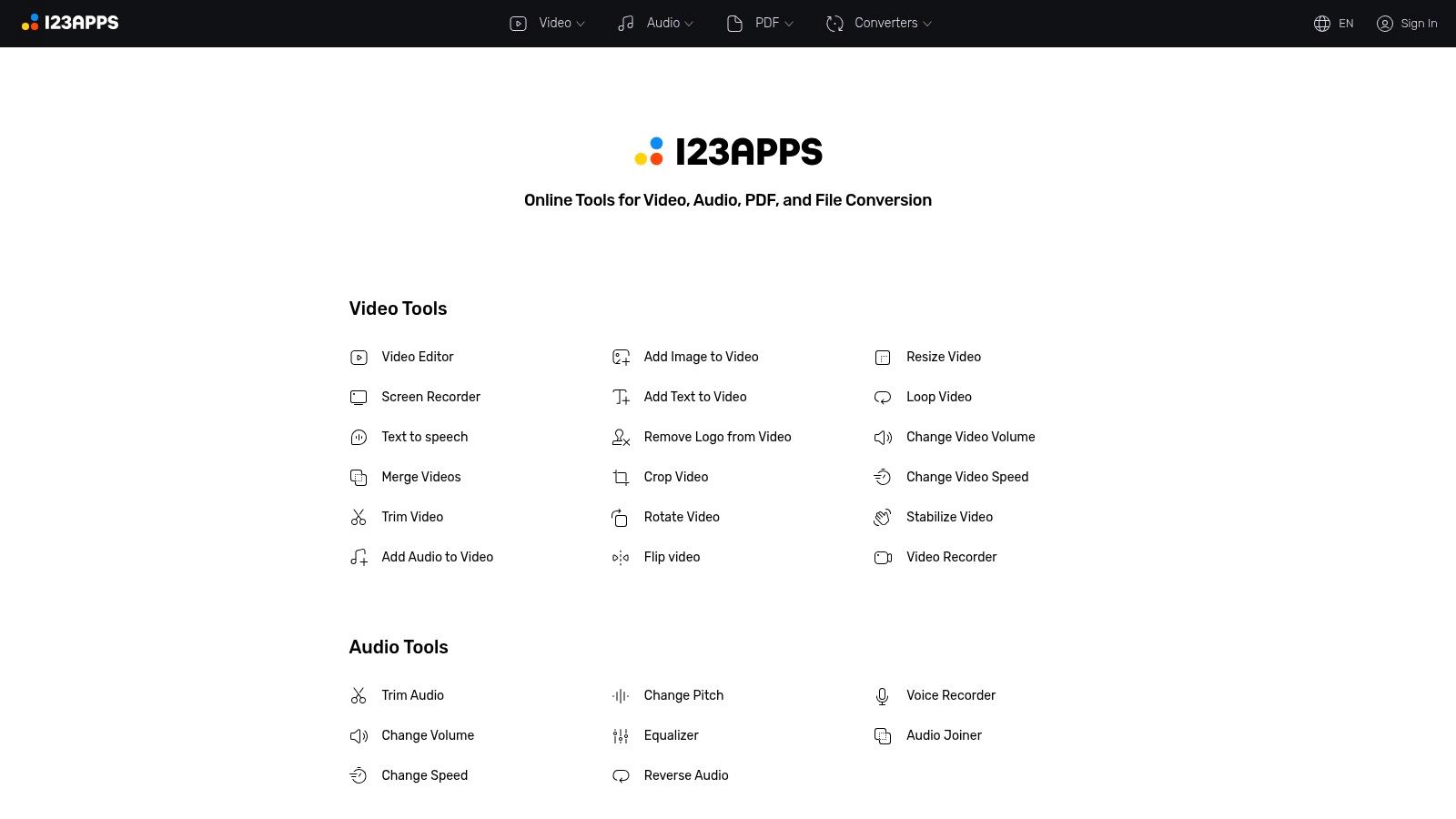
Need to convert a clip, rotate it, and perhaps trim it afterward? 123apps suits occasional jobs that involve several basic media tasks. Its collection brings a video converter together with related editing tools.
123apps’ web-tool collection offers free access limited to five files per day and 500 MB per file, with advertisements on the free tier. A premium plan provides larger allowances, but the free option is intended for bounded, occasional use.
- Choose it for: Basic conversion alongside trimming, rotation, or resizing.
- Watch the workflow: Confirm how separate tools count toward the daily allowance.
- Check privacy separately: Running in a browser doesn’t establish that a particular operation is processed locally.
Useful tools, but plan the sequence
Decide which changes you need before starting. If conversion and editing require separate steps, inspect each result so an unwanted crop or orientation change doesn’t carry into the final file.
For photo attachments alongside the clip, the guide to converting HEIC to PNG addresses image compatibility rather than video encoding. Use the tool appropriate to each file instead of trying to solve every upload issue through the video converter.
I’d choose 123apps for a small collection of ordinary clips with simple editing needs. For confidential footage, verify the processing location and relevant policy before opening the file in any of its tools.
9. Online Video Converter
Use it when the clip is too large for the smaller free tiers and ordinary enough to leave your machine. I would not make it the default converter.
Online Video Converter advertises files up to 4 GB, no registration, automatic deletion a few hours after processing, and output controls for resolution and target size across MP4, MPEG, AVI, MOV, WebM, and MKV. That combination solves one problem well: getting an oversized source into MP4 without installing software.
Capacity changes the bottleneck more than it removes it. A near-limit upload still has to travel to the server, wait for encoding, and come back as a download, so a 4 GB ceiling is a fallback for long recordings rather than an invitation to send the biggest file you own. Check the result for bitrate starvation, audio sync, and cropped or resized output before deleting the local original.
Privacy is the deciding constraint. The deletion window is a provider policy, not local processing, so keep client interviews, family footage, work recordings, and anything permission-sensitive off the queue unless you have approval. Pick this service for size and basic control; pick a desktop converter when confidentiality or transfer time matters more than convenience.
10. Aconvert, Video Converter
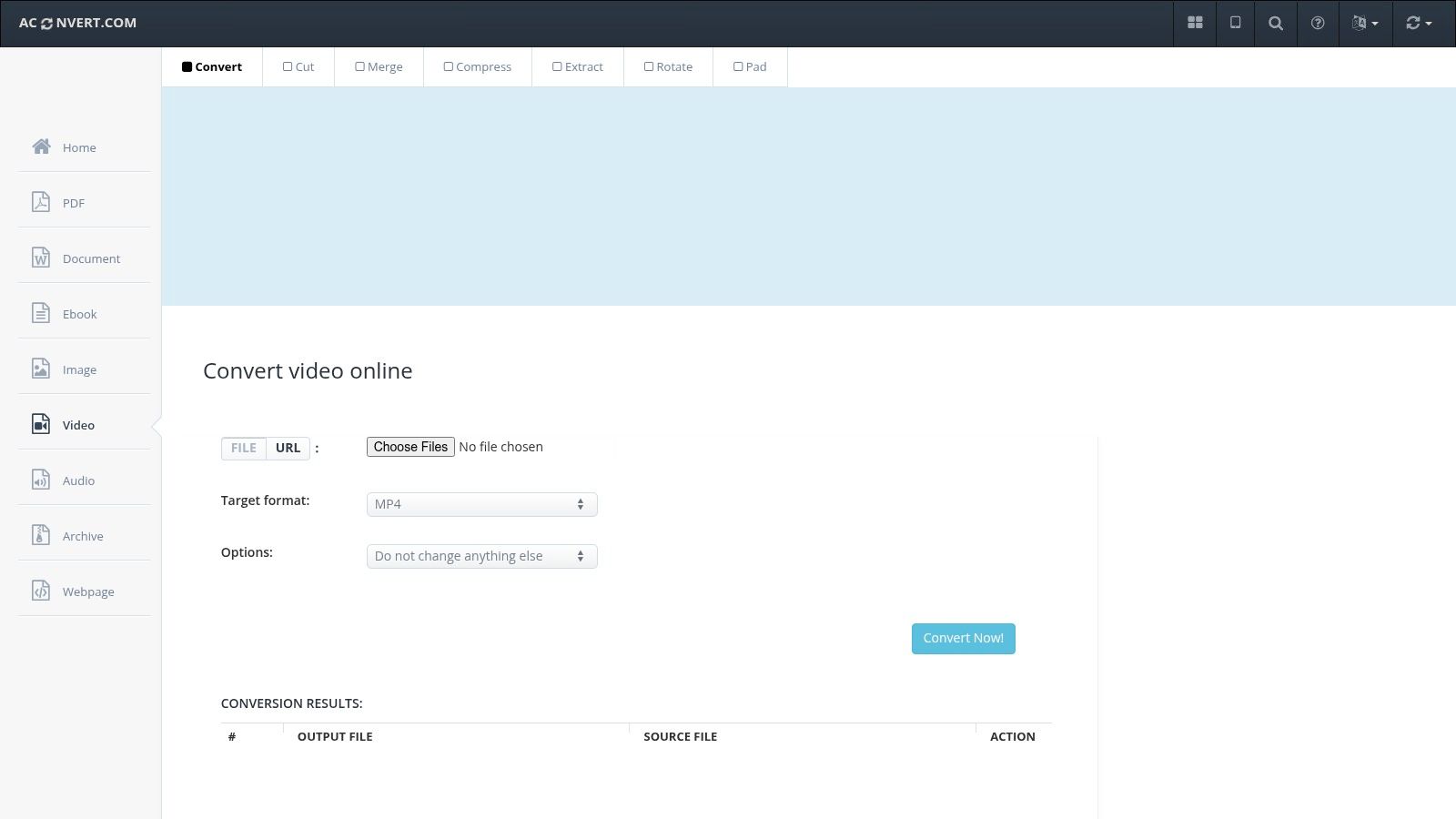
Say you have an MKV that plays fine on your laptop but refuses to attach to an email. A converter that exposes every knob is exactly what you want here, and that is the trade Aconvert makes: maximum control in exchange for zero hand-holding. Beginners should look elsewhere in this list.
Aconvert’s video converter gives you direct access to video size, bitrate, frame rate, and aspect ratio, plus batch conversion, URL input, cloud-storage saving, and a source-analysis tool. It lists a 200 MB upload limit for video and audio, and it handles MP4, AVI, FLV, MPG, MKV, WebM, and MOV.
The analysis feature is the reason to pick this service. Run it on your source before touching anything, then change only the setting that fixes the actual problem:
| Control | Change it when |
|---|---|
| Bitrate | The file is too large or looks blocky |
| Video size | The output must fit a specific dimension |
| Frame rate | Motion stutters or the target device demands a fixed rate |
| Aspect ratio | The video plays stretched or letterboxed |
Batch conversion is convenient, but verify one output before committing the whole queue. Sources with the same extension can behave differently.
Aconvert processes everything on its servers, so apply the same rule as with any online tool: keep confidential footage off it, and use it only when you can explain what each setting does.
Top 10 Free Online MPEG-4 Converters Compared
| Tool | Media & Formats | Controls & Workflow | Privacy & Access | Price & Limits | Best For |
|---|---|---|---|---|---|
| ConvertHEICto | HEIC/HEIF/HIF photos → JPG, PNG, PDF, WebP, GIF, AVIF, TIFF, BMP | ✨ Batch conversion, quality, resizing, color, metadata, orientation, and PDF options | 🏆 Local browser processing; no uploads; works on iOS and desktop | 💰 Free; ad-supported | 👥 iPhone/iPad users converting private photos |
| FreeConvert, MP4 Converter | Video conversion to and from MP4 | Codec, resolution, frame rate, batch conversion; device and cloud imports | Cloud processing; browser-based | 💰 Free: 20 conversion minutes/day; 5-minute file limit | 👥 Users needing MP4 conversion with cloud imports |
| CloudConvert, Video Converter | Broad video format support, including MP4, MOV, AVI, WebM, MKV | Configurable conversion tasks | Cloud processing; browser-based | 💰 Free: 10 credits/day; 1 GB and 5-minute limits; low priority | 👥 Users converting mixed video formats |
| Convertio, Video Converter | MP4, MOV, AVI, MKV, WebM, and more | ✨ Quality, codec, aspect ratio, rotation, and flipping controls | Cloud uploads; desktop and mobile browsers | 💰 Free with usage and file-size limits; paid plans offer higher limits | 👥 Users wanting format and output controls |
| Online-Convert, Convert video to MP4 | Various video formats → MP4 | ✨ Bitrate, resolution, frame rate, trimming, rotation, and mirroring | Cloud uploads; file uploads or links | 💰 Free; limits may vary | 👥 Users targeting MP4 with simple editing |
| Zamzar, Video Converter | Video plus document, image, and audio formats | Simple upload–select–convert workflow | Cloud uploads; files stored up to 24 hours on free tier | 💰 Free: up to 2 files/day; generally 50 MB per upload | 👥 Occasional users converting different file types |
| VEED, Video Converter | Common video formats, including MP4, AVI, MKV, and MOV | ✨ Conversion plus trimming, captions, and social resizing | Cloud uploads; browser-based | 💰 Free plan; 1 GB file limit noted; editor exports up to 720p | 👥 Users combining conversion with light editing |
| Media.io, Online MP4 Converter | MP4 and other video formats; related audio tools | Guided conversion workflow; cloud saving | Cloud-based; privacy and retention details vary by page | 💰 Free: 100 MB/file and daily limits; some features may require payment | 👥 Users seeking a simple media-conversion workflow |
| 123apps, Video Converter | Video conversion with related editing tools | ✨ Convert, trim, rotate, or resize in one tool collection | Browser-based | 💰 Free: 5 files/day, up to 500 MB; ads; premium expands limits | 👥 Occasional users wanting basic editing too |
| Online Video Converter | Common video formats; advertises files up to 4 GB | Resolution and output-size settings | Cloud uploads; says files are deleted a few hours after processing | 💰 Free; no registration required according to the service | 👥 Users with large files and a strong connection |
| Aconvert, Video Converter | MP4 and other formats, including AVI, FLV, MKV, WebM, and MOV | ✨ Batch conversion, technical output settings, URL input, source analysis | Online processing; cloud-save options | 💰 Free; video/audio uploads up to 200 MB | 👥 Users needing batch conversion and detailed settings |
Choose by File Size, Control, and Privacy
Start with the constraint that matters most. Use Zamzar for an occasional small clip, FreeConvert or Online-Convert for output control, CloudConvert for mixed formats, and VEED when editing is part of the job. Consider Online Video Converter when upload capacity is the deciding factor, but don’t confuse capacity with convenience.
Before uploading, confirm the current file-size cap, processing allowance, account requirements, watermark policy, and deletion terms. Free access can be sufficient for an isolated task without being suitable for repeated work. Avoid spending time editing a clip before you know whether the final export meets your needs.
Specify the output beyond MP4
For general playback, choose an MP4 container with H.264 video and AAC audio. Mozilla’s media-container guidance identifies this combination as a practical compatibility target across modern browsers, with operating-system codec support relevant to Firefox.
Don’t choose HEVC or another codec merely because it appears newer. Mozilla’s video-codec guide explains the compatibility considerations behind codec selection, so match the output to the devices and applications your audience will use.
- For a portal: Follow its specified format, dimensions, and file-size requirements.
- For a shared clip: Prioritize predictable playback over advanced output options.
- For an archive: Keep the original rather than treating a converted delivery copy as its replacement.
Decide whether uploading is acceptable
For confidential footage, use a local or browser-local converter unless the cloud service’s terms are acceptable to everyone responsible for the recording. The privacy-focused video conversion guidance highlights the difference between third-party uploads and no-upload processing.
Local browser processing also deserves realistic expectations. An academic evaluation of WebAssembly performance demonstrates that browser execution shouldn’t be assumed to match native software, so consider device capability as well as privacy.
Finally, download the result and test it where it will be used. Check playback, orientation, audio sync, resolution, and any subtitles, then inspect scenes containing movement or small text. Keep the original until the converted file passes that check, and share the tested download rather than assuming a successful conversion message proves the job is finished.
For iPhone and iPad photos that need the same compatibility-first approach, visit ConvertHEICto to convert HEIC and HEIF images into widely supported formats with control over quality and metadata. Its processing runs locally in your browser without uploading your photos, making it a practical companion for preparing private images alongside your converted videos.