
You’ve copied a folder of iPhone photos onto a Windows laptop, but the previews won’t load. Then the school portal rejects the same pictures, even though they open perfectly on your phone. Renaming the files from .heic to .jpg won’t fix this. You need to convert the image data, not just change the extension.
HEIC exists for a useful reason. Apple adopted HEIF with iOS 11 for more efficient photo storage, with images using up to 50% less storage than equivalent JPEGs at comparable visual quality, according to 9to5Mac’s explanation of Apple’s rollout. That efficiency doesn’t guarantee the receiving computer or upload form can read the files.
A HEIC to JPG batch converter solves the folder problem, but the important difference is where your pictures go. Some tools process them inside your browser, some use installed desktop software, and others upload everything to a server.
Start with privacy: Choose where your photos can be processed before comparing quality sliders or download buttons.
The ranking below groups local-browser tools first, desktop apps next, and upload-based services last. Within those groups, the useful distinctions are folder handling, batch restrictions, metadata controls, resizing, and whether you can download everything together.
Table of Contents
- 1. ConvertHEICto
- 2. HEIC.dev
- 3. iMazing Converter
- 4. XnConvert
- 5. HEICtoJPG.com
- 6. HEIC.online
- 7. FreeConvert
- 8. CloudConvert
- 9. Convertio
- 10. Zamzar
- How the batch HEIC to JPG converters compare on processing location, batch limits, formats, and setup
- Choosing a Batch Converter Based on Where Your Photos Go
1. ConvertHEICto
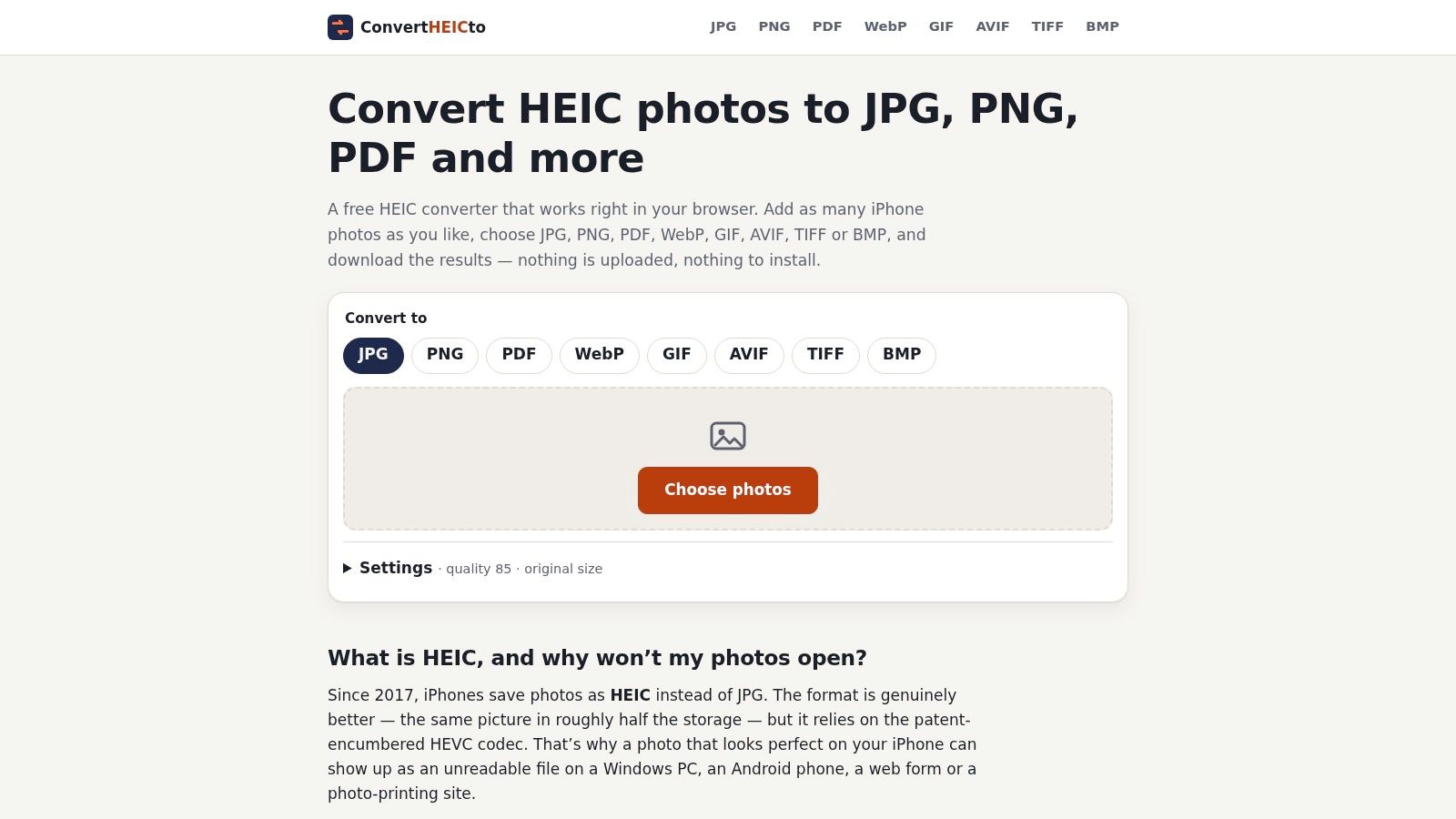
Best for private photos when you don’t want to install software. ConvertHEICto processes images locally in your browser using WebAssembly. There’s no upload step, account requirement, or server-stored copy of your pictures.
Add HEIC, HEIF, or HIF files, choose your export settings, then download individual results or the complete batch as a ZIP. Our converter is free and ad-funded, with output to JPG, PNG, PDF, WebP, GIF, AVIF, TIFF, and BMP. It works in desktop and mobile browsers, including Safari on iPhone and iPad.
Controls that matter for a real folder
The useful controls go beyond choosing JPG. You can adjust quality and compression, retain original dimensions or resize, and preserve capture dates and camera details while removing GPS information by default.
- Color and orientation: Profile-aware handling and rotation correction help prevent shifted colors and sideways exports.
- Documentation: Combine photographs into a multipage PDF or create separate PDFs, with A4, US Letter, or fit-to-photo layouts.
- Batch capacity: There’s no stated daily conversion allowance, but available device memory still matters.
Where it causes problems: A browser tab isn’t a substitute for unlimited computing resources. Large originals and extensive batches can take time, particularly on a phone with limited available memory.
I’d start with a representative selection, check the exports, and then process the remaining folder in manageable groups. This is the strongest fit when privacy and output control matter more than having an installed folder-management application.
2. HEIC.dev
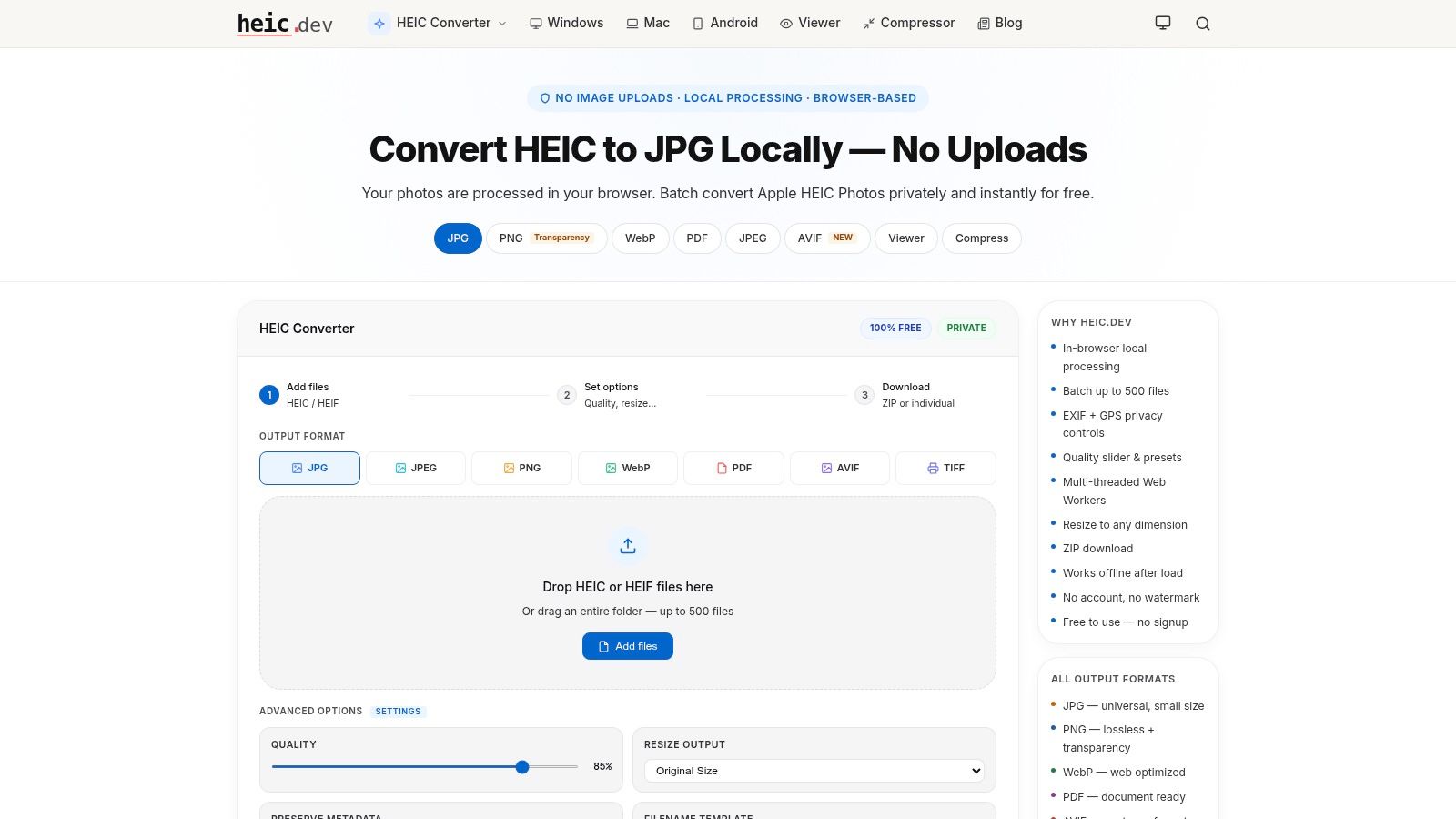
HEIC.dev suits large browser-based batches, especially when adding a folder is easier than selecting scattered files. HEIC.dev processes images locally and offers JPG, PNG, WebP, PDF, AVIF, and TIFF exports, alongside quality, resizing, and metadata settings.
Its folder support and individual-or-ZIP downloads make it a practical alternative to uploading photographs to a conversion service. It’s also free, without an account or watermark requirement.
A selection limit isn’t a speed guarantee
A tool’s advertised file capacity tells you what it accepts, not how quickly your particular computer will finish. The large-scale WebAssembly evaluation found meaningful performance differences between browser and native execution, so local-browser processing shouldn’t be treated as automatically equivalent to a desktop application.
For a large folder, watch whether conversion keeps progressing and whether the browser remains responsive. Avoid starting another memory-heavy task while the batch is running.
Choose it for folder selection, local processing, and flexible export formats. Choose something else for recurring conversion jobs that you’d rather manage outside a browser tab.
The practical restriction is your device, not just the advertised batch allowance. If a large selection struggles, reduce the batch instead of repeatedly submitting the same folder unchanged.
3. iMazing Converter
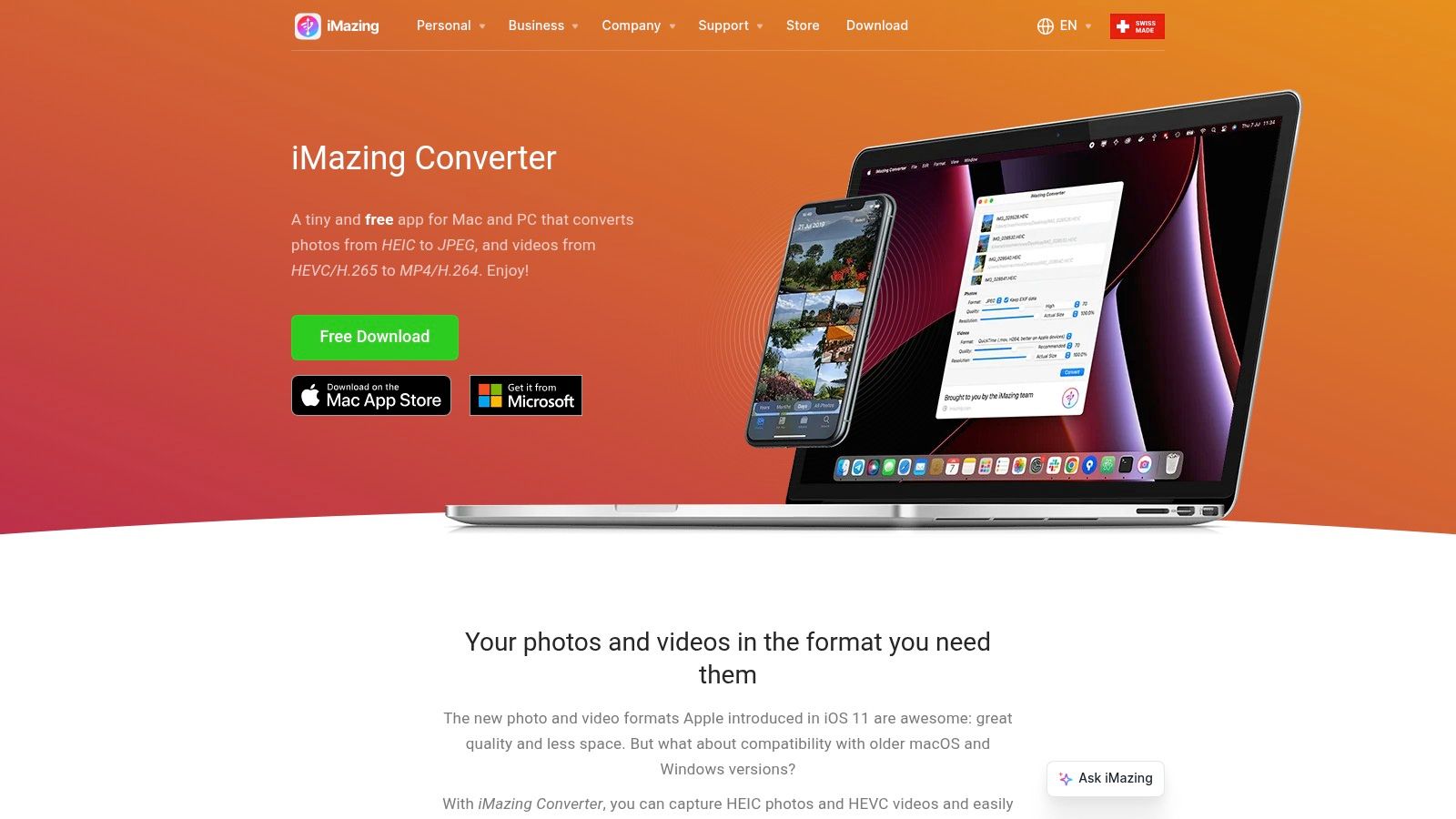
If converting iPhone folders is a recurring job, an installed application can be less fiddly than a browser workflow. iMazing Converter is a free Mac and Windows app that converts HEIC photographs to JPEG or PNG without uploading them to a conversion website.
Drag in files or folders, set quality and resolution, and choose how to handle EXIF information and color profiles. The narrower output selection is useful if you need photographs that open on the receiving computer.
- Good fit: Routine folder conversion on a personal Windows PC or Mac.
- Useful controls: Quality, resolution, EXIF handling, and wide-gamut color-profile options.
- Main compromise: JPG and PNG exports, rather than a broader publishing or document workflow.
Installation is the obstacle on a school laptop, managed office computer, or borrowed machine. It also isn’t the right choice when the deliverable is a combined PDF rather than separate image files.
Keep the destination folder separate from the originals. That makes it easier to identify missing exports, compare filenames, and avoid mixing completed JPGs with source HEIC files.
I’d choose iMazing over a general-purpose conversion suite when the task is repetitive but simple. There’s little benefit in configuring an elaborate processing pipeline if you only need compatible copies.
4. XnConvert
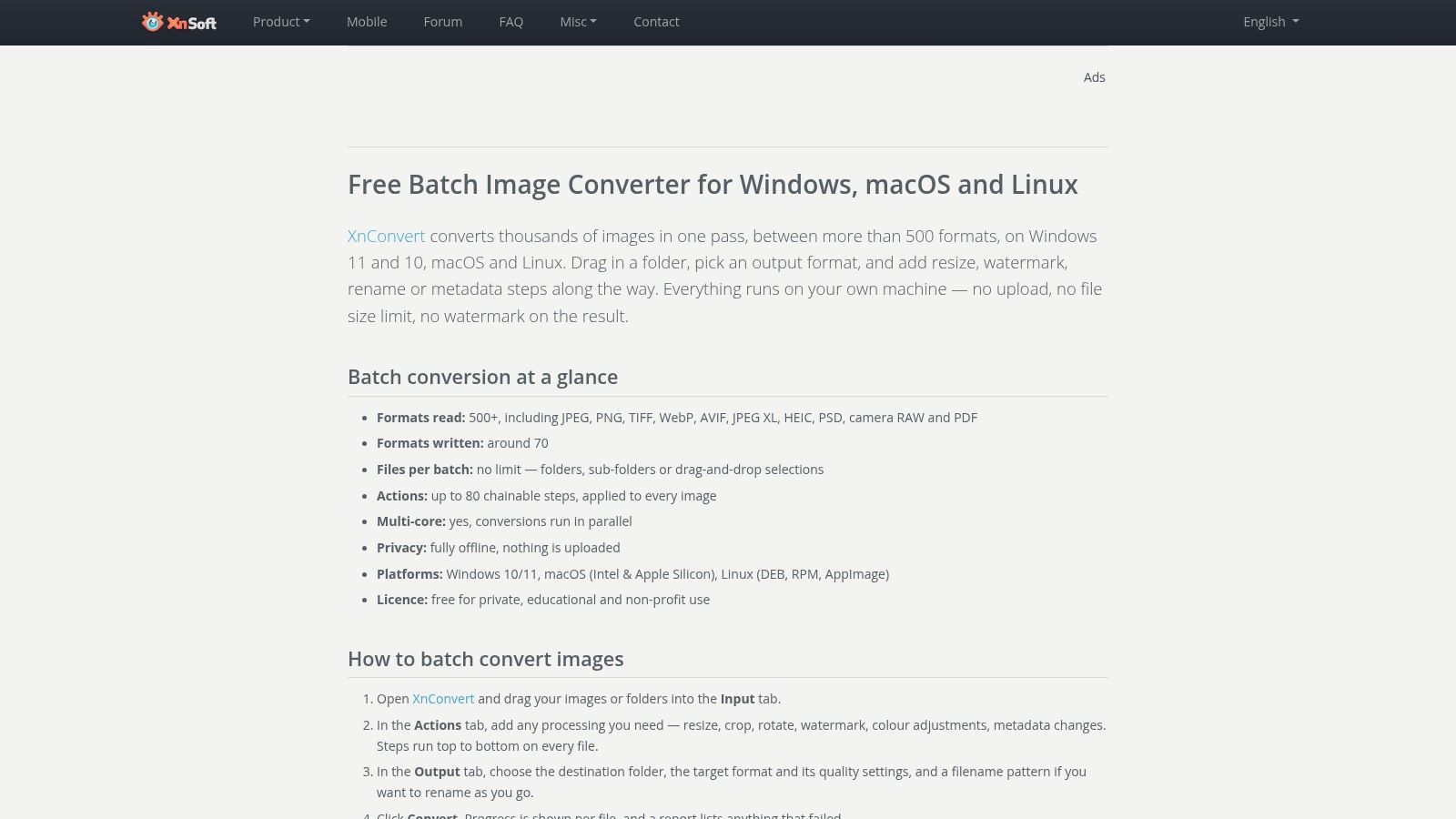
XnConvert is the desktop choice for conversion plus housekeeping. XnConvert runs on Windows, macOS, and Linux, and supports batch image-processing and file-renaming workflows alongside format conversion.
That matters when a folder needs more than a new extension. A website editor may need JPG output, consistent dimensions, and filenames that make sense outside the original camera roll.
Build the processing order deliberately
Start with the output requirements, then add only the operations you need. For straightforward JPG conversion, an unnecessary crop or resize step can damage an otherwise usable export.
The batch HEIC-to-JPG workflow guide is useful for planning the sequence before running the full folder.
A repeatable processing recipe is useful only after you’ve checked its output. Save the settings after the sample passes, not before.
Where it works: Repeated multi-step jobs, mixed image folders, and users who want conversion and naming in the same application. Where it causes problems: Occasional conversions where the settings take longer to understand than the task itself.
Confirm HEIC support and any dependencies for your installation before committing to a large job. Check the licensing terms for your intended use, particularly in a business setting, rather than assuming every use falls under the same free license.
5. HEICtoJPG.com
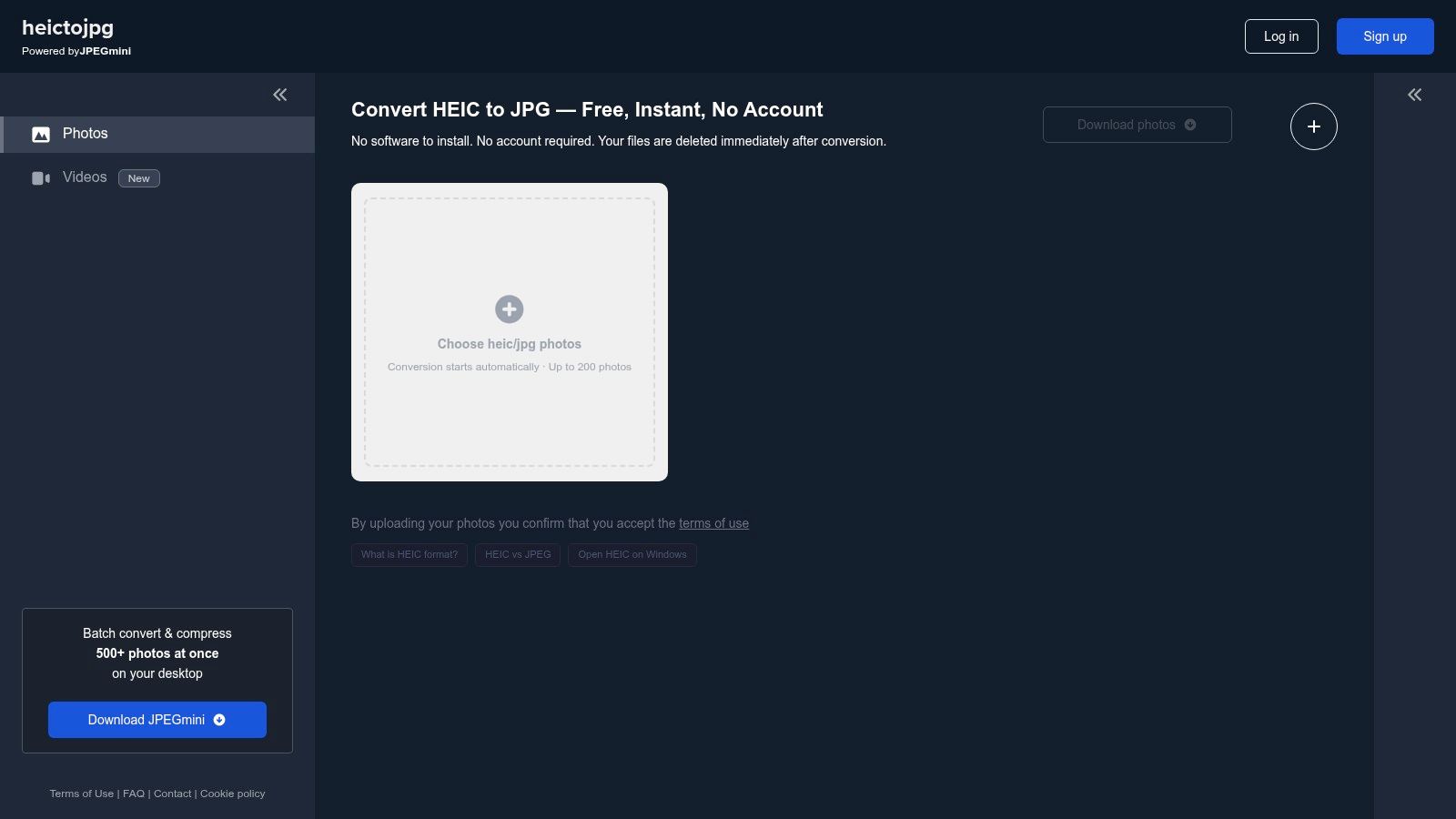
HEICtoJPG.com prioritizes a short upload-and-download workflow. At HEICtoJPG.com, you select or drop photographs and conversion starts automatically, without an account.
This is the first upload-based option in the ranking. Your photos leave the device for processing, so convenience needs to justify that transfer.
Useful when the pictures aren’t sensitive
The service suits public-facing photographs that only need JPG copies. Think product pictures already intended for publication, rather than family photos, identity documents, or school records.
- Strength: Few setup steps and an advertised large batch allowance.
- Weakness: Fewer advertised output adjustments than the more configurable alternatives.
- Boundary: Uploading requires both permission to share the files and a connection capable of transferring them.
Check the current batch allowance before selecting an entire folder. Even an accepted selection can be inconvenient if you have to upload large originals over a slow connection.
The HEIC versus JPG comparison explains the underlying trade-off: compatibility is the reason to convert, not a guarantee of smaller files.
I’d use this service for uncomplicated, non-sensitive image handoffs. I wouldn’t make it the default for a personal camera roll just because the interface asks fewer questions.
6. HEIC.online
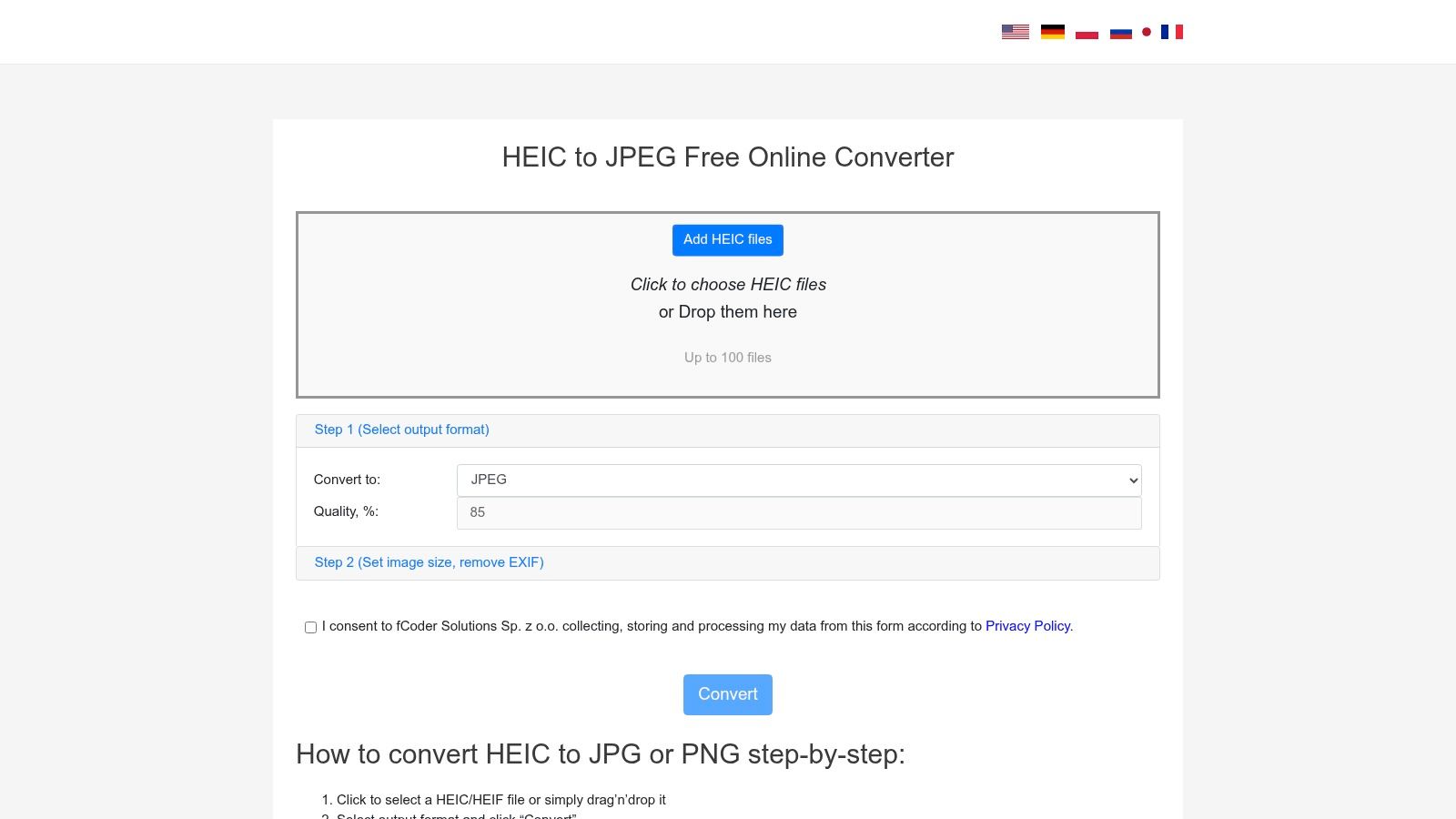
A portal may accept JPG but still reject a photograph because its dimensions or file size are unsuitable. HEIC.online is more useful than a bare conversion button when you need to adjust the export.
HEIC.online offers JPG and PNG output with quality, resizing, cropping, compression, and EXIF controls. It also provides cloud-storage and QR-code download options, which can help when the converted images need to move between devices.
More adjustments, but still an upload
The service processes uploaded files rather than keeping conversion entirely on your device. Its stated deletion policy doesn’t change that distinction: temporary server storage is still server storage.
The practical advantages are output adjustments and flexible delivery. The practical drawbacks are a capped batch allowance, the upload requirement, and temporary retention.
Be cautious with a crop applied across an entire folder. A setting that suits wide photographs may cut off names, signatures, or document edges in portrait images.
For paperwork, preserve the complete image first and reduce dimensions only when the destination requires it. Use cropping when you’ve checked the framing, not as a general fix for upload errors.
This service suits non-sensitive batches needing browser-based adjustments. It’s a weaker fit for private records or a large library that would need repeated upload sessions.
7. FreeConvert
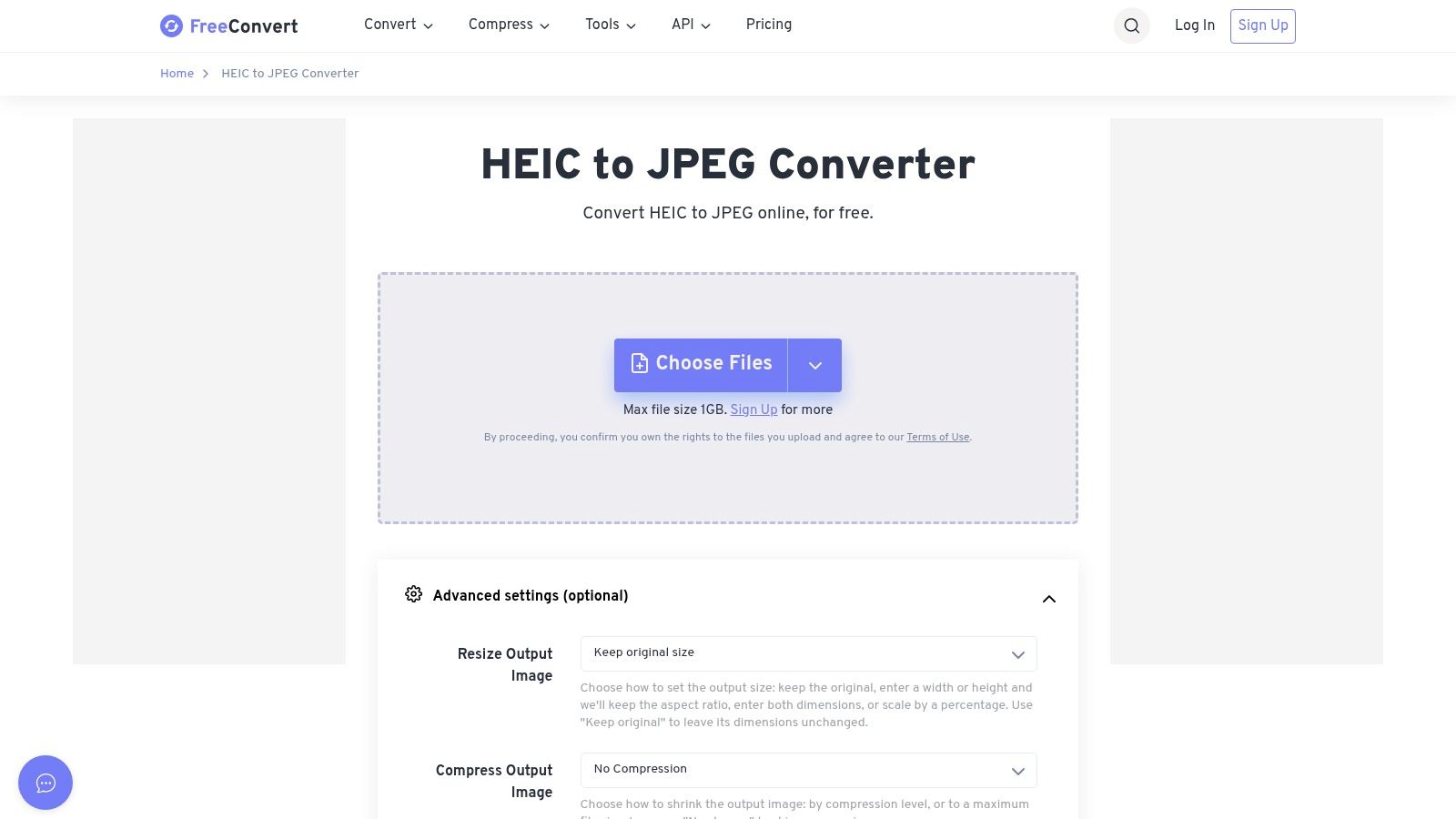
FreeConvert offers useful controls, but its free allowance is a processing budget, not an unlimited folder pass. FreeConvert’s HEIC-to-JPEG converter accepts device, cloud-storage, and URL inputs, with resizing, compression, auto-orientation, and metadata-stripping options.
That combination suits a non-sensitive batch with specific delivery requirements. You can address file dimensions and metadata during conversion instead of opening the JPGs in another application afterward.
- Watch the quota: Free usage is metered by conversion time and subject to a per-file processing cap.
- Separate the limits: A generous file-size ceiling doesn’t remove processing-time restrictions.
- Account for transfer: Files are uploaded, and the service states that it deletes them after a retention period.
The distinction between file size and processing allowance is important. A file can be small enough to upload yet still encounter another limit during conversion.
I’d use FreeConvert when the input source and adjustment controls save meaningful work. I wouldn’t choose it solely because a large maximum upload size looks reassuring.
For a substantial folder, inspect the current allowance before starting. If you hit the quota midway, keep completed downloads separate so you don’t waste the next allowance reconverting files you already have.
8. CloudConvert
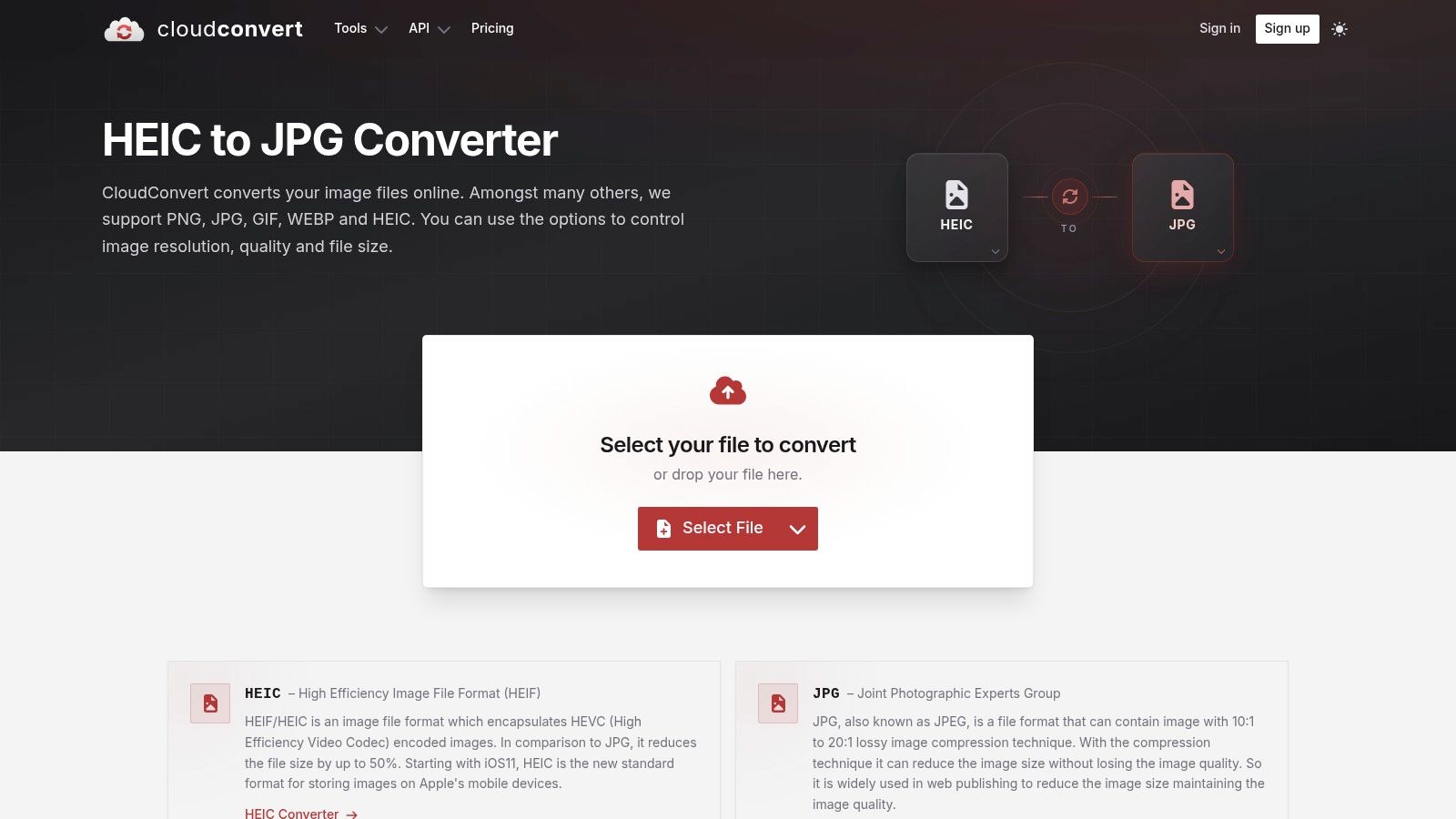
CloudConvert makes most sense when you already need a general file-conversion service. CloudConvert’s HEIC-to-JPG tool offers resolution, quality, and file-size controls, alongside support for other conversion tasks.
For a website editor handling several file types, that consistency may be more useful than a dedicated HEIC-only interface. For a private photo folder, it doesn’t outweigh the fact that processing happens online.
Decide the output before spending the allowance
The free plan has a daily conversion allowance and a maximum processing time per file. That makes it less suitable for a substantial camera-roll export than for occasional, targeted conversions.
Don’t spend a limited conversion allowance making the wrong format. Check what the destination accepts before uploading.
JPG is a sensible choice for photographic compatibility. PNG may suit graphics, screenshots, or an editing workflow where avoiding another lossy JPEG encode matters; the HEIC-to-PNG guide explains that alternative.
Choose CloudConvert for non-sensitive files, controlled exports, and mixed-format work. Avoid it for large private batches or jobs that need to finish without daily quota constraints.
A file-size target also needs visual checking. Meeting an upload limit isn’t useful if text becomes unreadable or important image detail disappears.
9. Convertio
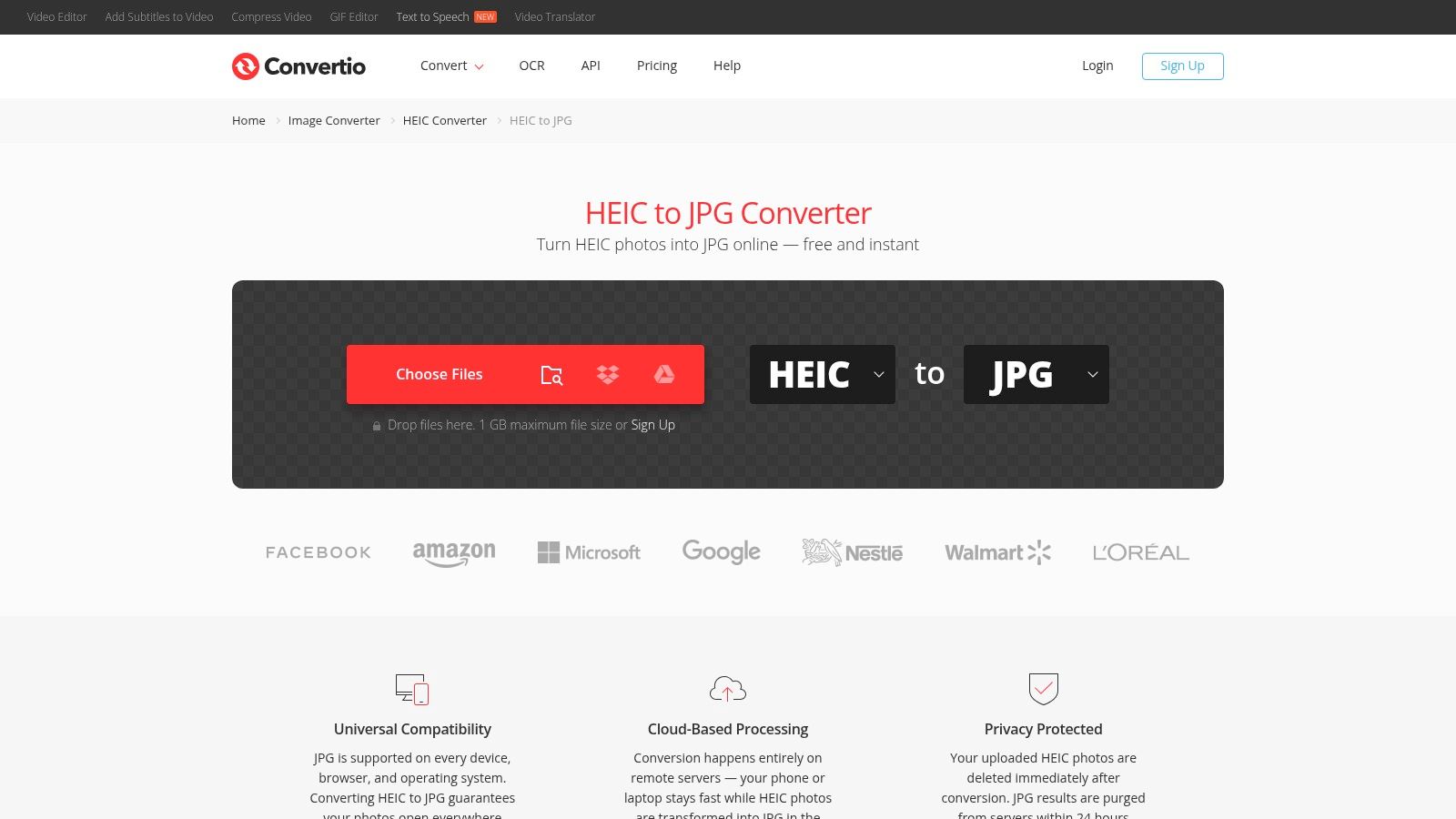
If the source photographs already sit in Google Drive or Dropbox, Convertio can reduce manual file handling. Convertio accepts files from those services, a computer, or a URL, and supports HEIC-to-JPG alongside other output formats.
That convenience doesn’t make the conversion local. The service still processes the images in the cloud, even when you don’t manually download and re-upload them yourself.
Concurrent jobs aren’t the total allowance
Convertio distinguishes simultaneous processing from conversion credits. Its free tier has a limited credit allowance, so being able to queue or process files together doesn’t mean an entire folder will fit within free usage.
- Best situation: Non-sensitive images already stored in a supported cloud account.
- Likely frustration: A large folder that exhausts credits before completion.
- Privacy consideration: Connecting cloud storage adds a service relationship, not just a format change.
Before authorizing access, check that you’re selecting the intended account and files. Cloud convenience is less useful if work images and personal photographs are mixed together.
I’d choose Convertio for a small, defined cloud-storage task rather than as the default destination for a camera roll. For recurring bulk conversion, local browser processing or an installed desktop app avoids managing a credit allowance alongside the actual images.
10. Zamzar
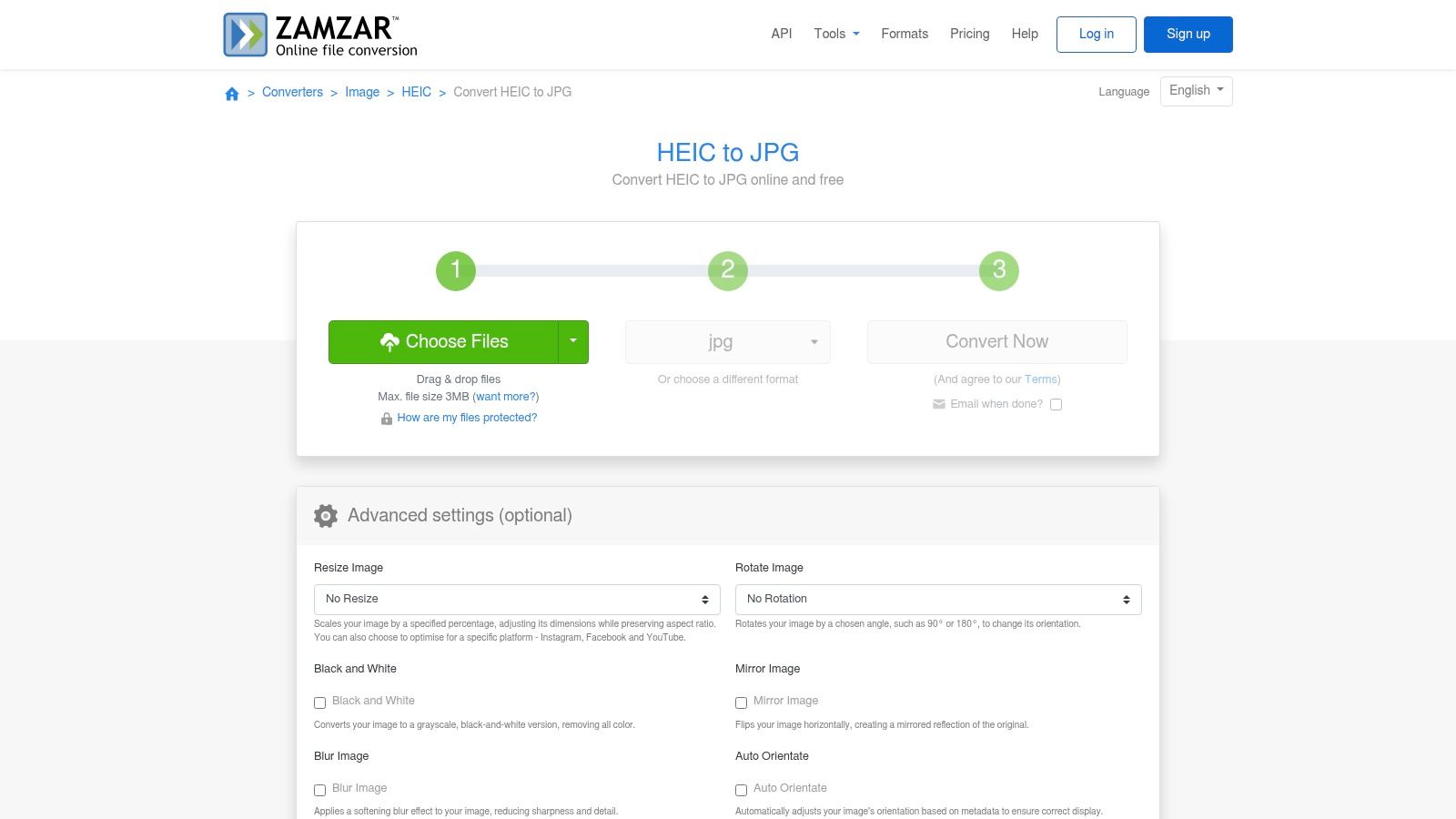
Zamzar is better for occasional conversions than free bulk photo work. Zamzar’s HEIC-to-JPG converter supports batch uploads, resizing, and auto-orientation, with inputs from a device and supported cloud services.
Its straightforward workflow will appeal to people who already use Zamzar for documents or other file types. Familiarity can be useful when you only need a compatible copy and don’t want to learn another interface.
The free restrictions matter more than the interface
Zamzar’s free tier has restrictive daily conversion and total upload allowances. Paid plans raise limits, but the existence of batch upload shouldn’t be confused with a generous free batch workflow.
It suits occasional, non-sensitive files and existing users who understand their plan. It causes problems when someone expects to convert a complete photo folder without paying or returning later.
Files are uploaded and retained temporarily, so this isn’t an alternative to on-device processing for private records. Auto-orientation and resizing are helpful controls, but they don’t change where processing happens.
Before paying for additional capacity, compare the work involved with installing a desktop converter. If you regularly receive HEIC folders, a local application may be the simpler long-term choice, especially when you don’t need Zamzar’s broader file-conversion capabilities.
How the batch HEIC to JPG converters compare on processing location, batch limits, formats, and setup
| Item | Where Files Are Processed | Stated Batch Limit | Output Formats | Account or Install Needed |
|---|---|---|---|---|
| ConvertHEICto (recommended) | Locally in your browser | Batch conversion; no numeric limit stated | JPG, PNG, PDF, WebP, GIF, AVIF, TIFF, BMP | No account or installation |
| HEIC.dev | Locally in your browser | Up to 500 files | JPG, PNG, WebP, PDF, AVIF, TIFF | No account; browser-based |
| iMazing Converter | On your desktop | Batch files and folders; no numeric limit stated | JPG, PNG | Installation required |
| XnConvert | On your desktop | Batch conversion; no numeric limit stated | Around 70 formats | Installation required |
| HEICtoJPG.com | Online service; files are uploaded | Up to 200 photos | JPG | No account; browser-based |
| HEIC.online | Online service; files are uploaded | Up to 100 files | JPG, PNG | No registration; browser-based |
| FreeConvert | Online service; files are uploaded | Batch conversion; no numeric limit stated; free tier has daily and per-file time limits | JPEG | Browser-based; account requirement not stated |
| CloudConvert | Online service; files are uploaded | Free plan: 10 conversions per day; 5 minutes maximum per file | JPG | Browser-based; account requirement not stated |
| Convertio | Cloud processing; files are uploaded | Up to 10 concurrent conversions; 10 free credits per 24 hours | JPG and other formats | Browser-based; account requirement not stated |
| Zamzar | Online service; files are uploaded | Free tier: 2 conversions per 24 hours; under 50 MB total | JPG | Browser-based; account requirement not stated |
Choosing a Batch Converter Based on Where Your Photos Go
Choose the processing location first. For personal photographs, identity documents, school records, or private client material, use an on-device converter. For recurring folder work, a desktop application such as iMazing Converter or XnConvert gives you a dedicated workspace without uploading images to a conversion website.
Use an upload-based service when the images aren’t personal or confidential and you’re authorized to send them to that service. Compare the current batch allowance, file-size ceiling, processing quota, and retention policy separately, because none of those limits substitutes for the others.
Match the export to the destination
JPG is usually the practical choice for email, older applications, and upload forms expecting photographs. But compatibility depends on the receiving software, not just the filename; Apple’s HEIF support guidance explains the format’s compatibility considerations and conversion options.
- For a portal: Follow its accepted formats, dimensions, and file-size requirements.
- For a website: Use the format your publishing system supports, rather than automatically converting everything to JPG.
- For documentation: Consider whether the recipient needs separate images or an ordered PDF.
- For editing or print: Preserve dimensions and check color handling before reducing quality.
Don’t convert an entire archive merely because some recipients need JPG. Keep the efficient originals and create compatible copies for the task at hand.
Check the result where it will actually be used
A successful download isn’t the final test. Open representative exports on the receiving device, inspect portrait orientation and fine detail, and try an upload to the actual portal before processing the remaining folder.
Check filenames and completeness as well as appearance. A ZIP can contain usable images while still missing a failed conversion, so reconcile the results with the source selection.
Keep the original HEIC files until the exports have passed those checks. If a file fails, record the device, browser, and exact error message, then isolate the troublesome image rather than repeatedly rerunning everything.
For problems with our converter, email hello@convertheicto.com with those details. That gives us something specific to investigate while you retain an untouched original and a clear record of what failed.
ConvertHEICto lets you batch-convert iPhone and iPad photos locally, adjust quality and metadata, and download the results together as a ZIP without uploading your pictures. Visit ConvertHEICto, try a representative selection, and check the JPGs on your receiving device or portal before converting the rest.