
A .heic photo can look blank when you open it on Windows, attach it to a web form, or send it to an Android phone. The image may be fine; the receiving app may not support the format. JPEG, by contrast, is widely understood by cameras, browsers, email, and upload forms. JPEG development began in the mid-1980s, reached technical stability around 1990, and was approved as the ITU-T T.81 recommendation in September 1992, with the matching ISO/IEC standard approved in 1994, as an ITU journal article on JPEG-1 records. HEIF, the container behind HEIC, only became an ISO standard in the 2010s, long after JPEG was established, and that gap is why a HEIC to JPG free converter is still a normal step before you send photos, not a niche trick.
This roundup compares ten free tools on three practical points:
- Whether the photo leaves your device: Browser-local conversion keeps it on your phone or computer. Upload-based tools send it to a server.
- What output controls you get: Quality, resizing, orientation, color, and GPS settings affect whether the JPG suits its destination.
- Where free use runs out: File caps, daily limits, and batch ceilings can turn a quick conversion into a slower job.
A single snapshot for a form may be fine to process with an upload-based tool. For IDs, children’s photos, client work, or a whole camera roll, keeping files on your device is the safer choice. Local conversion avoids uploads, but speed and batch size depend on your browser and device.
Table of Contents
- 1. ConvertHEICto
- 2. Adobe Express
- 3. CloudConvert
- 4. Convertio
- 5. FreeConvert
- 6. iLoveIMG
- 7. Online-Convert
- 8. Zamzar
- 9. HEICtoJPG.com
- 10. HEIC.dev
- All 10 HEIC to JPG free converters at a glance
- Which Converter Should You Actually Use?
1. ConvertHEICto
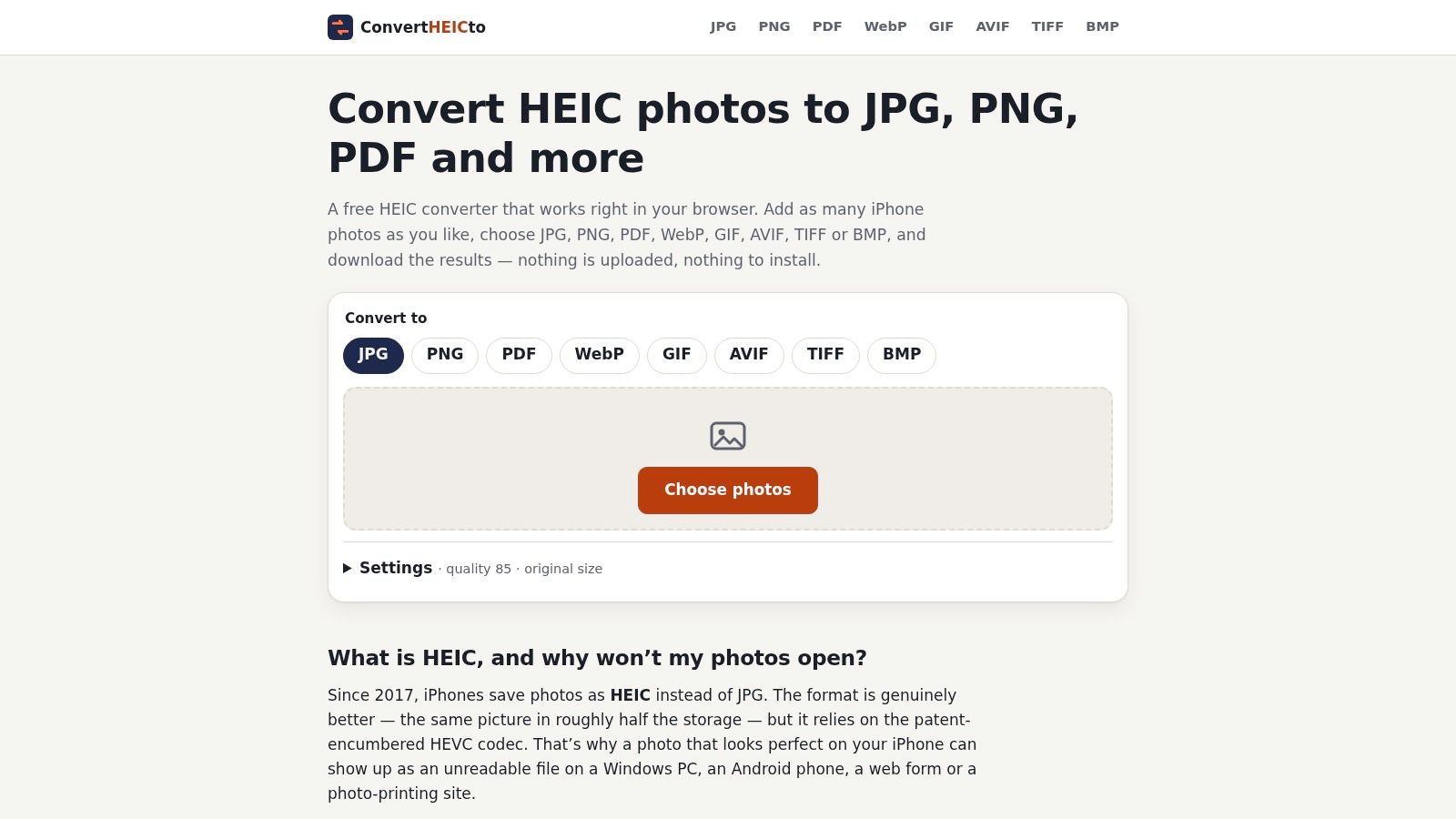
ConvertHEICto is the one I reach for when the photo should never leave the machine. You drop in .heic, .heif, or .hif files, including a batch, and the page decodes them in the browser with libheif compiled to WebAssembly. There is no upload step and no server copy. The site stays free and is funded by a small number of clearly labeled ads. No account.
That architecture isn’t optional window dressing. A maintained image-processing project notes that HEIC needs an operating-system codec on macOS or Windows and is unavailable in its browser and WebAssembly build, which is why a serious page has to ship its own decoder, as the Image project README documents. Encoding in a worker keeps a 12 to 48 megapixel iPhone frame from freezing the tab. I still cap the long edge on huge batches, because peak memory is your device’s problem, not a queue on someone else’s box.
Apple’s own notes explain why you have these files at all. Apple Support says HEIF and HEVC compress better than JPEG and H.264, using less device and iCloud storage at comparable visual quality. Consumer capture arrived with iOS 11 in 2017, and HEIF encoding then needed at least an A10 Fusion chip, such as the iPhone 7. Newer phones shoot HEIC by default. Windows forms, Android chats, and older editors often still want JPG.
Quality, GPS, and the free ceiling
You get a real quality control, including a value of 85 and a lossless option meant for graphics. Resize runs from keeping the original down through fixed max edges. JPG is re-encoded with MozJPEG. You can also leave as PNG, WebP, AVIF, GIF, TIFF, BMP, or a PDF. PNG and TIFF stay lossless. WebP is the small web file. AVIF lands at about half the size of JPG when you want a modern web copy instead. PDF can merge every photo into one A4 or US Letter document, or make one PDF per photo.
Metadata is the part most “free converters” hide. Date taken and camera EXIF can stay. GPS comes off by default, with a switch to keep location when a job needs it. In a survey of 414 participants, GPS coordinates were the most privacy-sensitive metadata: 91.1% rated them at least somewhat private and 60.4% called them completely private, according to a USEC privacy metadata paper. Orientation is applied before save, so you don’t ship a sideways JPG and then strip the tag that would have fixed it. Color can stay in Display P3 when the format allows it, or move to sRGB when it doesn’t.
Downloads are one file or a ZIP of the set. It runs in desktop browsers and in Safari on iPhone and iPad. Personal and commercial use are both allowed. There is no paid tier to bump you into, and also no published customer testimonials or awards to lean on. Speed and how many files fit in one sitting depend on your RAM. If a file fails, the practical move is to note device, browser, and the error. Keep every original HEIC. The tool is provided as is, and not every odd file will convert cleanly.
Practical rule: Convert one photo, open the JPG, check upright orientation and color, then run the batch.
2. Adobe Express
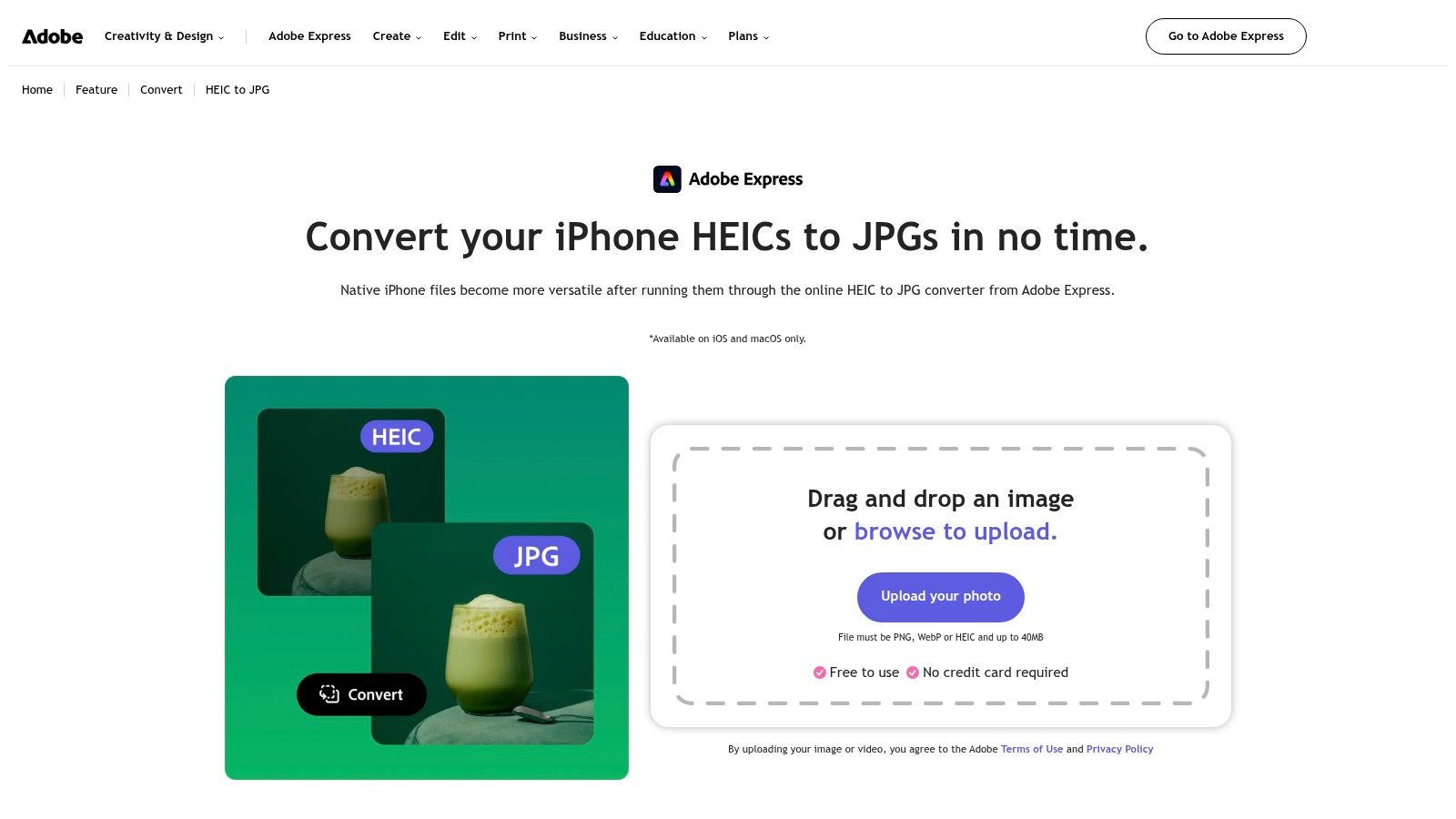
Adobe Express is the familiar-name path when you already live in Adobe’s browser tools. You upload a HEIC, it comes back as JPG, and you can keep editing in Express without a card on file. The documented ceiling is 40 MB per file. That’s enough for a normal iPhone still and tight for a huge export or a stitched frame.
The photo does leave your device. Quality knobs are thin compared with a dedicated encoder. The documented flow is one image at a time, so a folder of vacation shots turns into a lot of clicking. I use it when the next step is cropping or a quick social layout, not when I need GPS stripped and a ZIP of 40 files.
If you’re comparing design-suite converters, the same upload question shows up in our note on a Canva HEIC to JPG workflow. Brand comfort isn’t the same thing as on-device processing.
3. CloudConvert
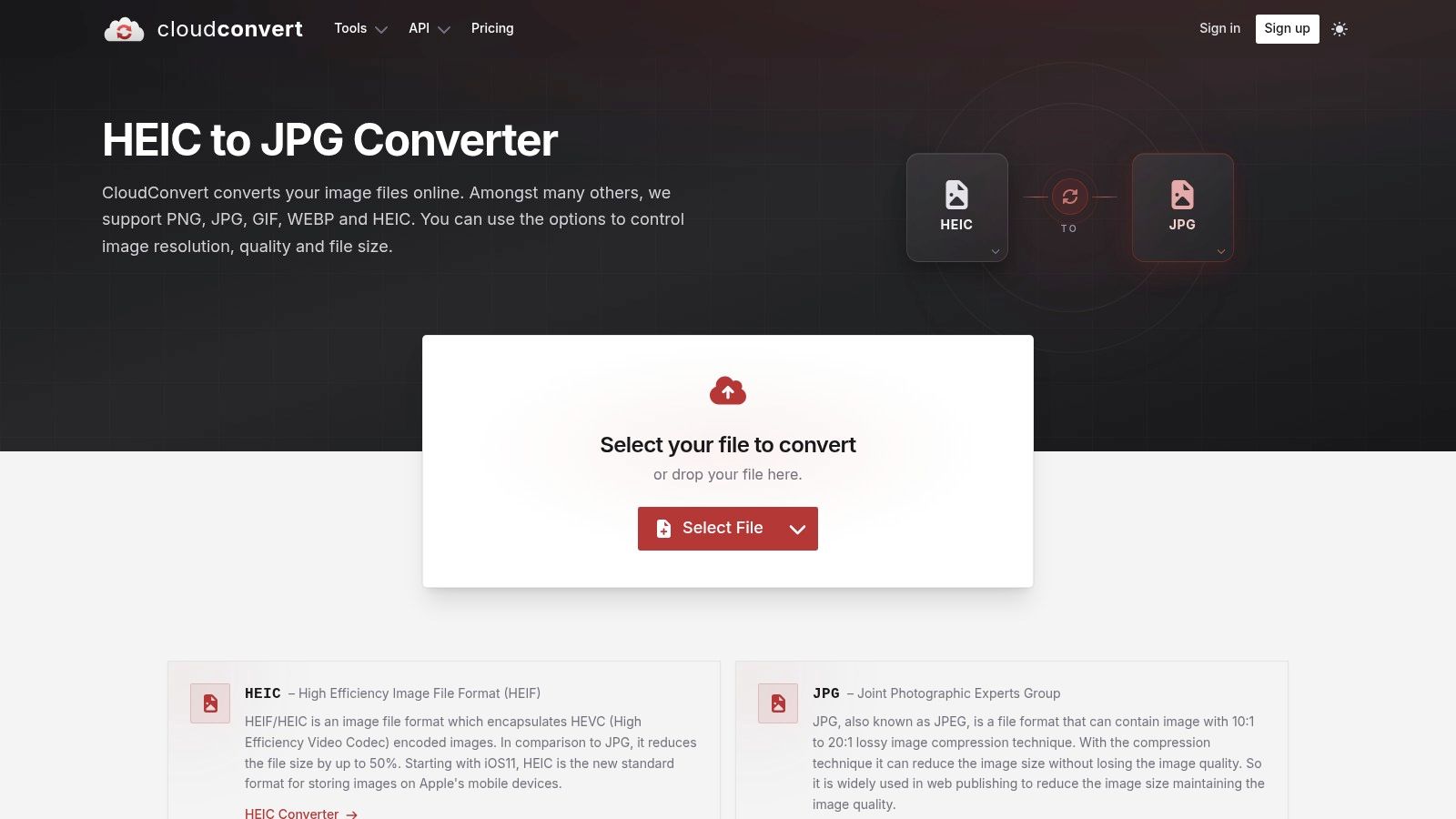
CloudConvert is a general file shop with a real HEIC-to-JPG page, not a one-trick form. You can set resolution, quality, and output size, which already beats the “upload and pray” tools. The same account also chews through office files and video if that’s your week.
Files are processed on their servers. Free use has caps that bite once you convert often or push large originals. I don’t have a single published number I’d trust across their plans, so check the meter before you queue a client folder. For a handful of web-bound photos where you want the JPG smaller than the source, the controls are worth the upload. For anything you’d rather not put on a third-party disk, skip it.
A quality slider only helps if you open the result. A default “high” setting can still balloon a storage-efficient HEIC into a heavy JPG.
4. Convertio
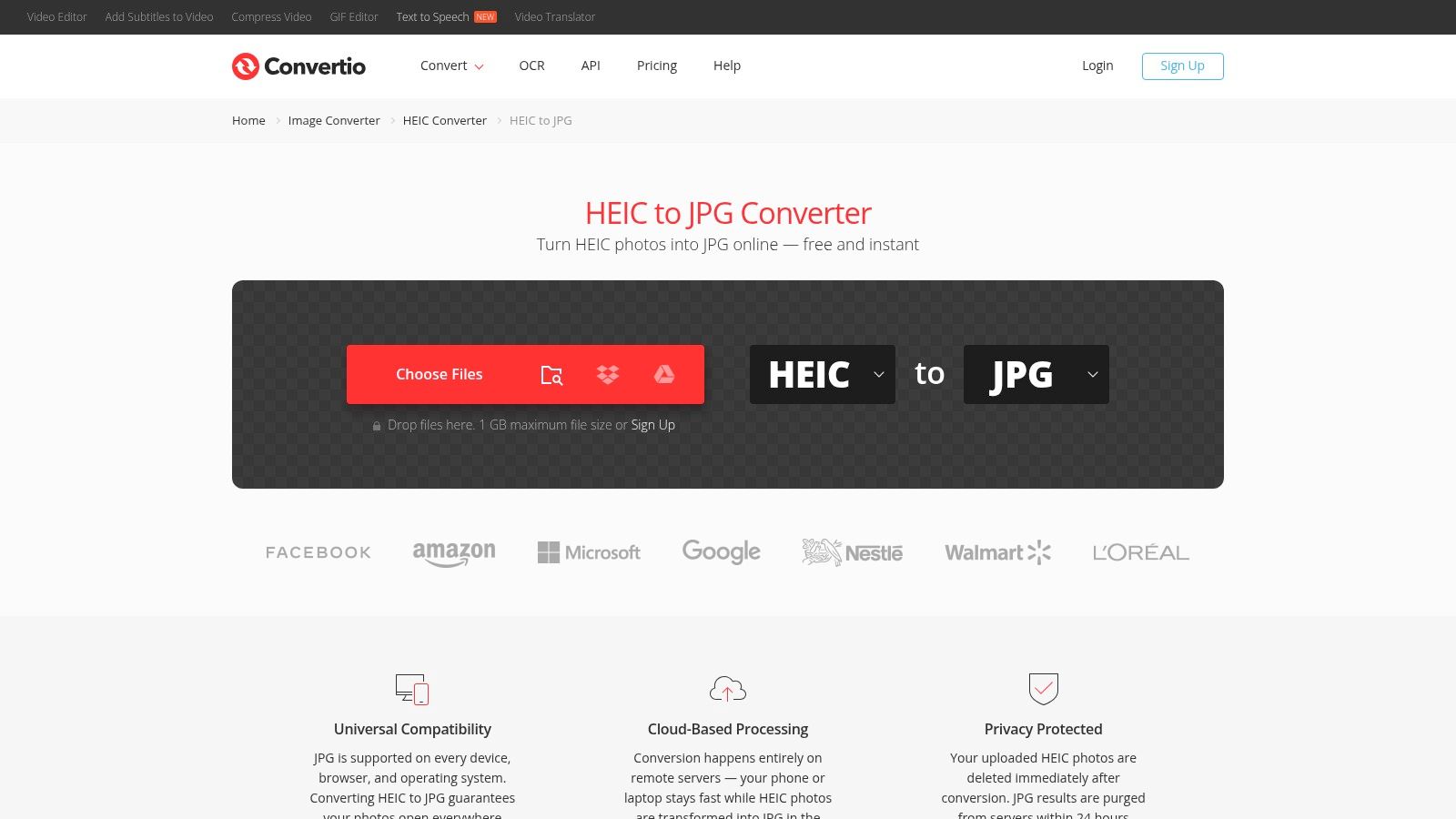
Convertio is built for people whose files already sit in Google Drive or Dropbox. You can also pick from the device, convert a batch, and jump between a long list of formats. The free tier doesn’t require an account. Convertio says source images are deleted after conversion and results are removed within 24 hours.
That’s a retention promise, not the same as never uploading. Your photo still crosses the network and sits on their side until that cleanup runs. Published free limits on size, concurrency, and daily allowance don’t match cleanly across terms and help pages, so the cap you hit may not be the cap you read yesterday.
I use Convertio when the file is already in Drive and the content isn’t sensitive. I don’t use it as the default for a camera roll. Output settings are broader than a toy converter and still lighter than a print workflow that needs DPI and color space spelled out.
5. FreeConvert
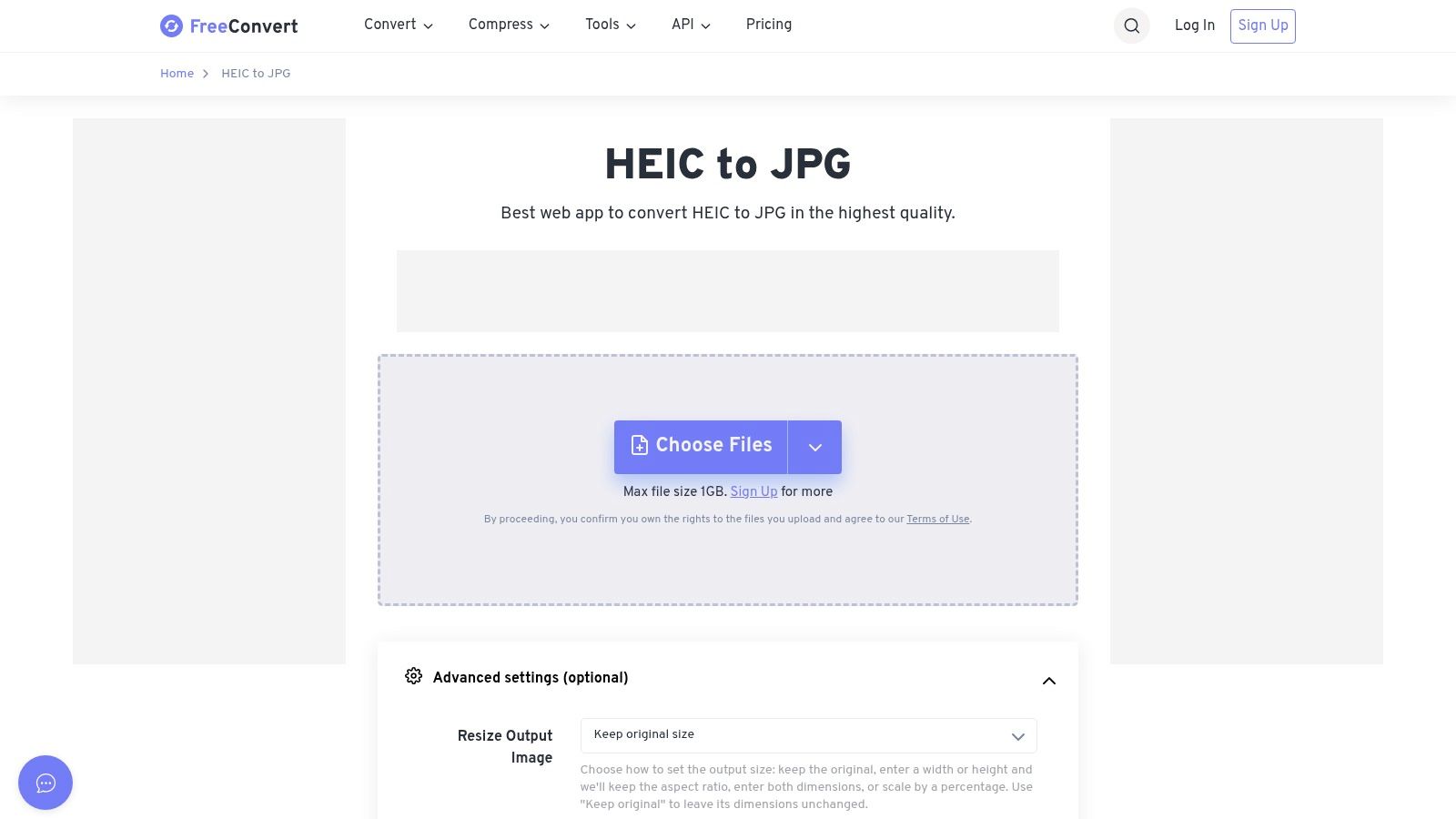
FreeConvert is the upload tool I mention when someone wants knobs and accepts the server. You can resize, compress, auto-orient, and strip metadata. Files can come from the device or supported cloud folders. The free workflow lists a 1 GB maximum file size, which sounds generous until you read the clock.
Free use is 20 conversion minutes per day, and each file gets five minutes. A single phone photo finishes fast. A sloppy batch of large HEICs can burn the day before the folder is done. Basic conversion is on the free tier. The photos are still uploaded.
If the job is “make this set smaller and upright, and drop location,” these controls match the task better than a bare convert button. For how batch jobs usually fail, see this walkthrough of a HEIC to JPG batch converter. Start with two files, confirm EXIF behavior, then spend the rest of the minutes.
6. iLoveIMG
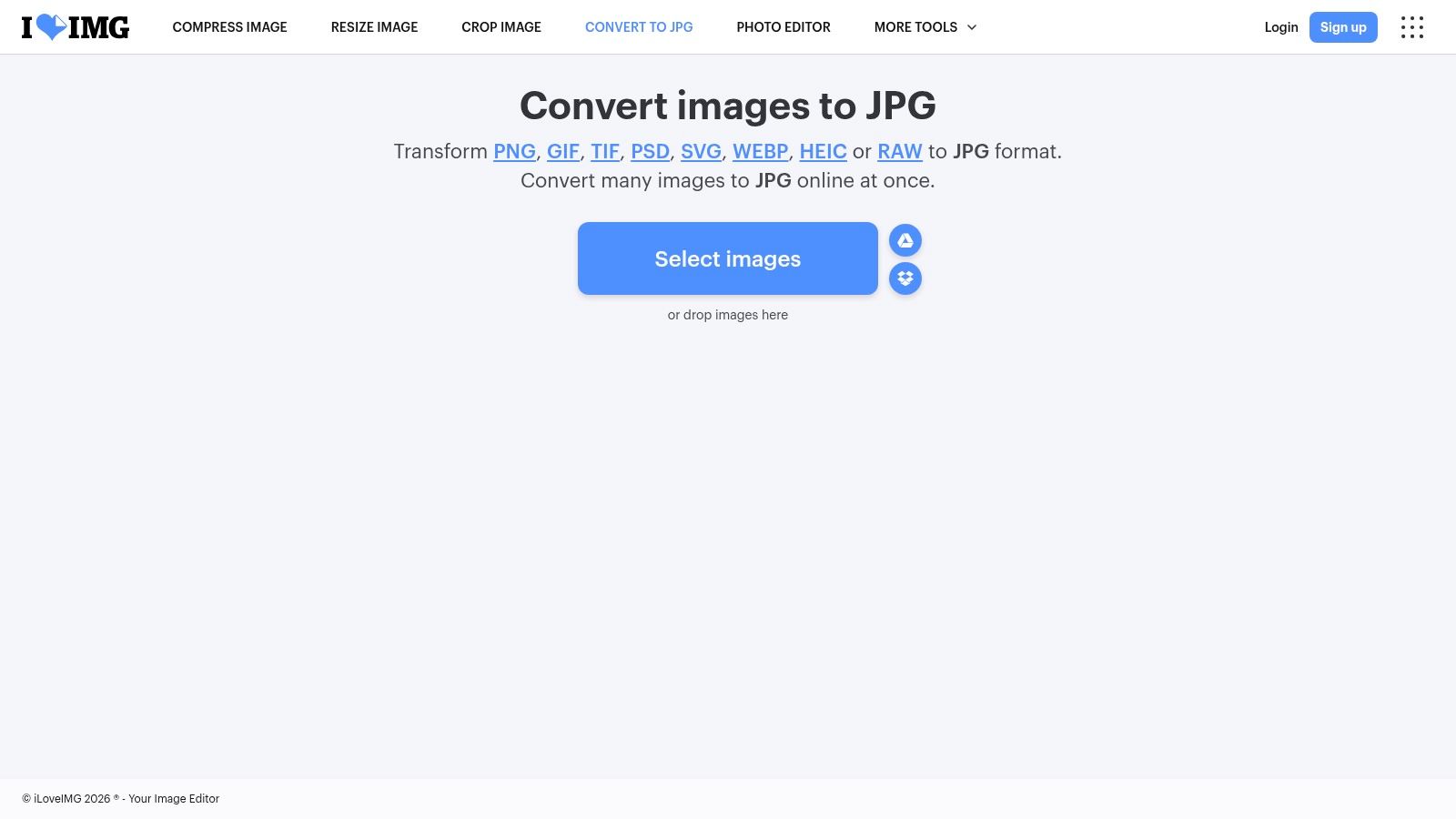
iLoveIMG combines image conversion with tools for resizing, compression, and rotation. Its Convert to JPG tool accepts HEIC, PNG, GIF, TIFF, WebP, and RAW files, including batches. Cloud storage options suit users who already keep files online. The Basic plan is free; paid plans raise the usage limits.
On the free Basic plan, the iLoveIMG Convert to JPG page caps each conversion task at 30 files, so split larger photo sets into several tasks. Files are uploaded for processing, so choose another option if you need photos to stay on your device. The available details here do not establish how color profiles or GPS metadata are handled, so check those requirements before converting client images.
Choose iLoveIMG when you want to resize or compress in the same workflow and are comfortable uploading the photos. For a larger library, the per-task cap means repeating the conversion and download process.
7. Online-Convert
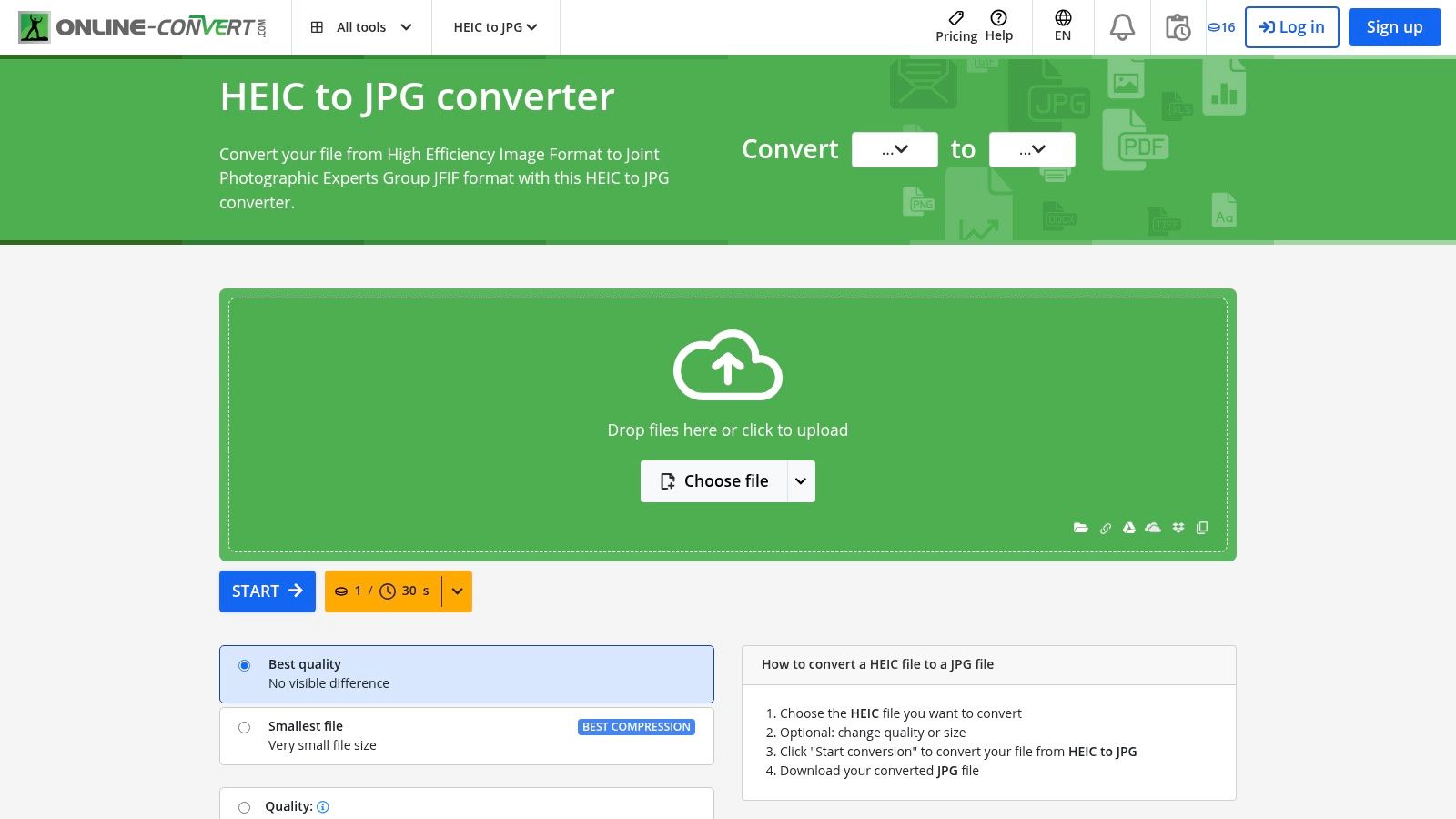
Online-Convert is the pick when a printer or a CMS asks for more than “a JPG.” You can set quality and dimensions, plus DPI, color space, and filters. The service lists a 100 MB upload limit per image. That covers typical iPhone HEICs with room to spare and still blocks a pathological export.
The control panel is the pro and the con. For a one-off web form it’s slower than a two-click tool. For a file that must land in sRGB at a set DPI, it’s one of the few free pages that even asks. Files are uploaded. Free access and whether you need an account follow whatever plan rules are live, so don’t assume yesterday’s guest mode still exists.
I open the advanced section only when the destination named a spec. Otherwise the extra filters are a way to make a decent photo worse.
8. Zamzar
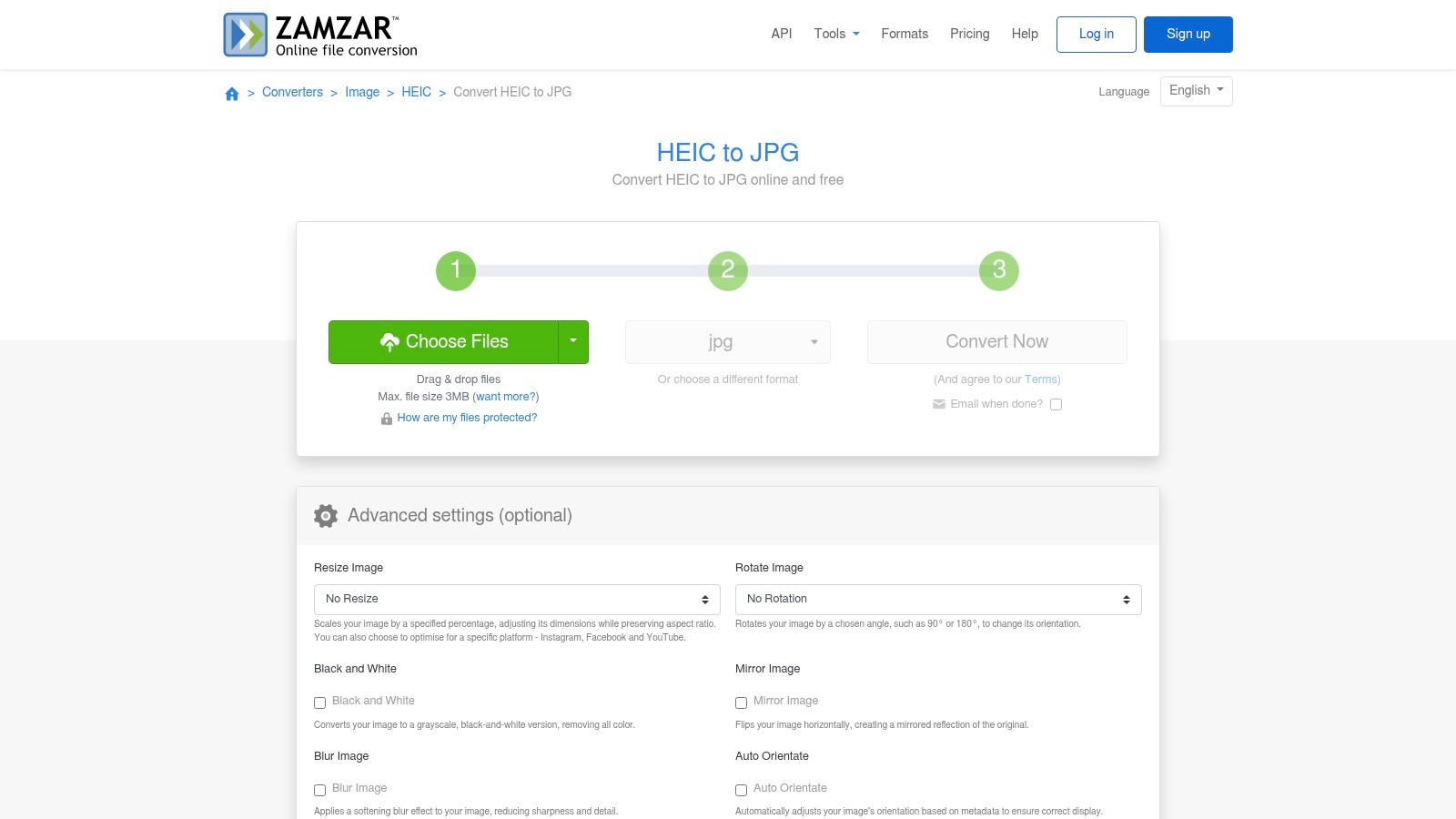
Zamzar has been doing “upload, pick a format, download” for years. The HEIC-to-JPG path doesn’t require an account for the basic web flow. The catalog covers far more than photos. Separate desktop and API products exist if a team later wants the same conversions off the website.
Photos still go to their servers. Free usage is limited, and the site is a poor fit for large or frequent batches. Quality and metadata controls are not the reason you’d choose it. Reliability of a simple pipeline is.
I keep Zamzar for the odd file that isn’t a photo at all, then use the same habit for one HEIC when I’m already there. I don’t point a folder of family pictures at it. If you need offline and repeatable, their desktop app is a different product decision than the free web form.
9. HEICtoJPG.com
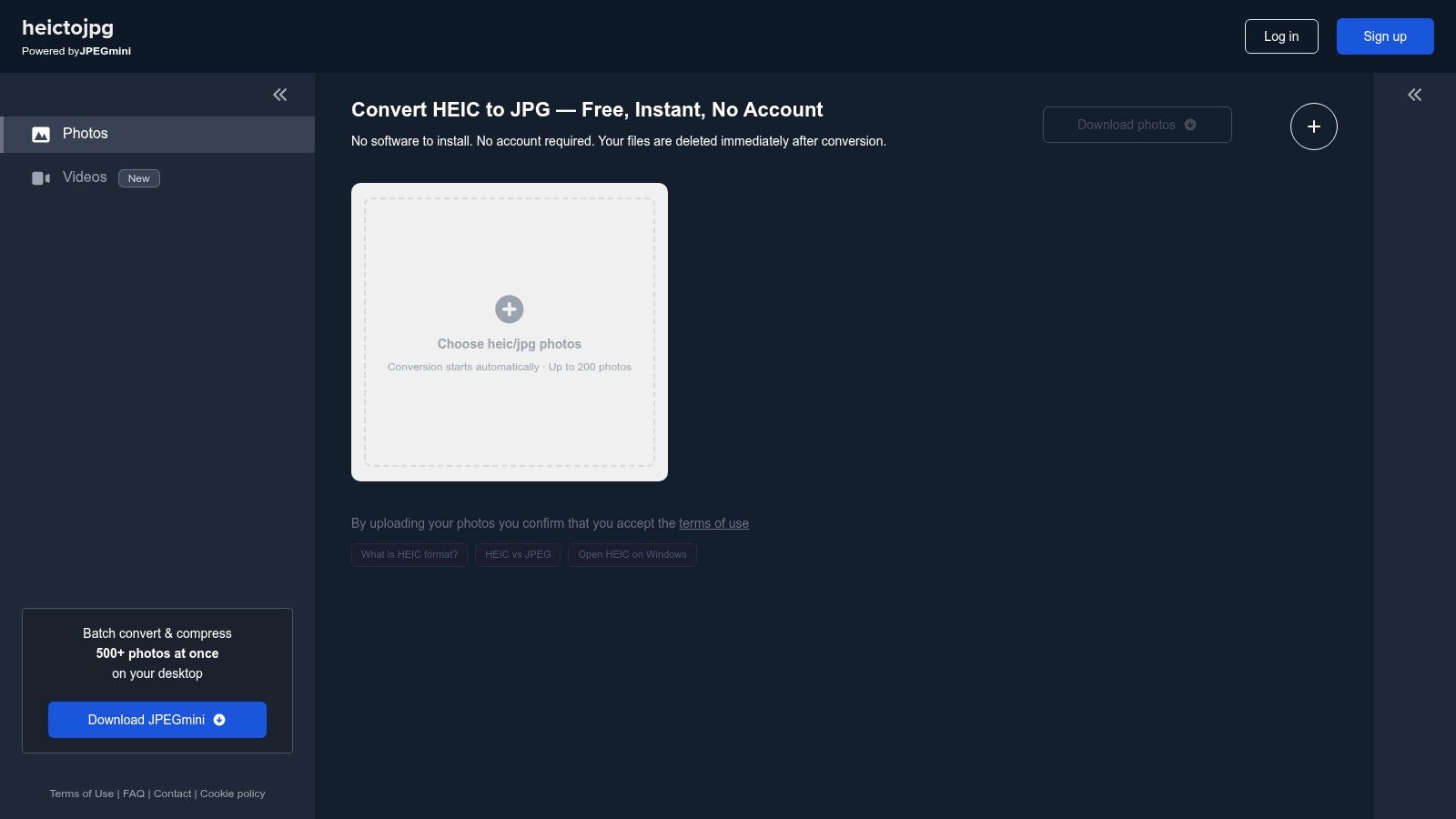
HEICtoJPG.com does one job and states a big batch number: up to 200 photos, no account, and files deleted right after conversion. For a dump of screenshots and casual snaps, that allowance is the most generous upload batch in this list. You aren’t installing anything.
The photo still uploads. Output controls are thin. You won’t get a serious resize ladder, PDF page setup, or a clear GPS switch. The site also sells an upgrade for unlimited conversions, so the free allowance is something to read before you rely on it for a weekly workflow.
JPG wins here because almost every form accepts it, not because it stores more detail than HEIC. If you want that trade-off in plain language before you pick a format, read HEIC vs JPG. Use this site for a large, low-sensitivity batch. Don’t use it when you need the export to match a print spec.
10. HEIC.dev
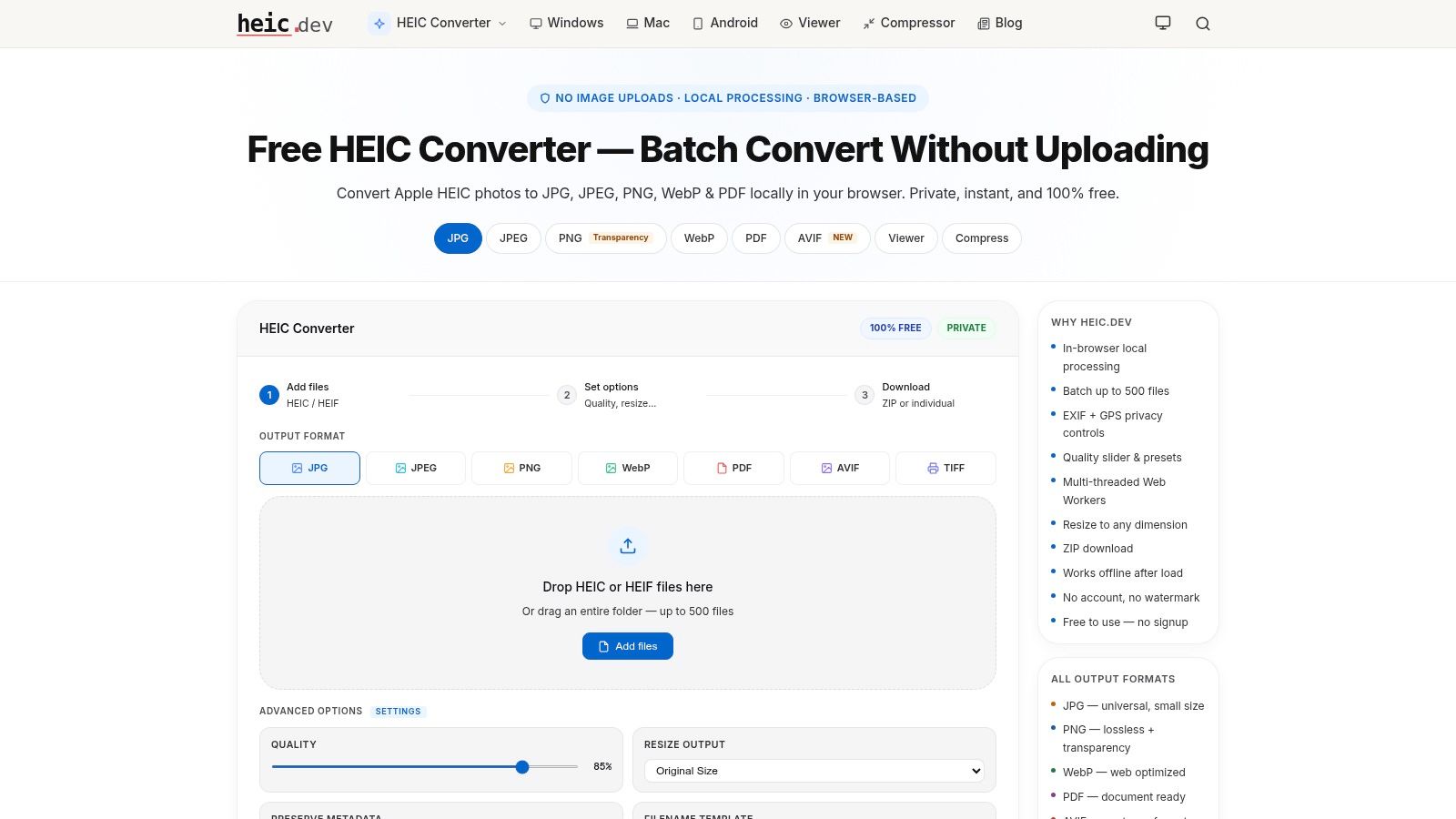
HEIC.dev is the other browser tool that says processing stays on your device. Output includes JPG, JPEG, PNG, WebP, and PDF, with batch conversion and no install. For a privacy-first reader who wants a second local option, that claim is the whole point. Verify it in the interface you load. A marketing line and a network panel are not the same check.
What you give up is suite behavior. There’s less file management and editing than Adobe or iLoveIMG. Large batches lean on your browser memory, the same way any local decoder does. Current caps and how deep the quality controls go should be read on the page, because they aren’t spelled out as hard public numbers.
I treat HEIC.dev as a local alternate when I want PNG or WebP without sending the roll anywhere. I still convert a single frame first. If the tab climbs in memory, I shrink the batch rather than refreshing and hoping.
All 10 HEIC to JPG free converters at a glance
The practical differences are where the photo is processed, how much control you get over the output, and what the free tier allows. Upload-based tools send photos to an online service. ConvertHEICto and HEIC.dev process them in the browser on your device.
| Converter | Processing location | Free tier limits | Output controls | Best for |
|---|---|---|---|---|
| ConvertHEICto | Locally in your browser; photos are not uploaded | Free; no account required; batch conversion | Quality, compression, dimensions, metadata, color handling, orientation, PDF layout | Private batch conversion with flexible format and output options |
| Adobe Express | Uploaded and processed online | Free; supports files up to 40 MB | Converts to JPG; further editing available in Adobe Express | A simple conversion followed by image editing |
| CloudConvert | Online processing | Free usage limits can restrict frequent or large conversions | Resolution, quality, output size | Adjustable conversion settings and other file types |
| Convertio | Uploaded for remote processing | Free tier; no account required; results are removed within 24 hours | Batch conversion and support for multiple formats | Converting files from a device or cloud storage |
| FreeConvert | Uploaded and processed online | 1 GB maximum file size; 20 conversion minutes per day and 5 minutes per file | Resizing, compression, auto-orientation, metadata stripping | Conversions needing orientation or metadata options |
| iLoveIMG | Uploaded and processed online | Basic plan allows up to 30 files per JPG conversion task; task and file-size limits apply | Resizing, compression, rotation | Batch conversion alongside other image tools |
| Online-Convert | Uploaded and processed online | 100 MB per image | Quality, dimensions, DPI, color space, filters | Granular output settings |
| Zamzar | Uploaded and processed online | Basic web conversion requires no account | Basic format conversion; separate desktop and API products offer other options | Straightforward conversion |
| HEICtoJPG.com | Uploaded for conversion; files reportedly deleted afterward | Batch conversion up to 200 photos; check the free allowance before converting | Few output controls specified | Simple conversion of larger photo batches |
| HEIC.dev | Locally in your browser, according to the service | Batch conversion available | JPG, JPEG, PNG, WebP, PDF | Privacy-conscious users seeking multiple output formats |
Which Converter Should You Actually Use?
Match the tool to the photo, not to the logo. If the frame is sensitive, or you’re clearing a camera roll, stay on the device. ConvertHEICto keeps decoding in the browser and still gives you quality, resizing, PDF assembly, and a ZIP, with no fee and no account. HEIC.dev is the other local claim on this list. Use it when you want a second on-device check, and watch memory on big sets.
A single harmless image for a web form can go through any upload converter. Adobe Express is enough when you’ll edit next and the file is under 40 MB. CloudConvert and Online-Convert earn their place when you must set size, DPI, or color and you accept the upload. FreeConvert is the one with a visible metadata strip and a hard daily clock, so it fits a short, settings-heavy session. iLoveIMG fits a mixed resize-and-convert afternoon up to 30 files. Convertio fits Drive and Dropbox. Zamzar fits one simple file. HEICtoJPG.com fits a large low-sensitivity batch if you confirm the free allowance first.
Whatever you pick, convert a test photo before the folder. Open the JPG on the machine that has to use it. Check that it’s upright, that skin and skies didn’t shift, and that the file size is something the form will take. Quality around the low-to-mid 80s is usually enough for web and forms. Higher settings keep more detail and make heavier files. A second lossy encode can soften fine texture. For everyday email and uploads you often won’t see it. For retouching or print, keep the HEIC as the master and export JPG only as the delivery copy.
Live Photos won’t survive as motion inside a JPG. You get the still. Built-in Apple and Windows saves sometimes keep date and camera data. Many websites strip it, sometimes on purpose. If location must be gone, don’t trust a default. Open the JPG’s details and look.
You can also stop making new HEIC files. On iPhone, Settings, Camera, Formats, Most Compatible saves new shots as JPG. Old library items stay HEIC until you convert them. Automatic transfer to a Mac or PC can hand the computer a more compatible copy, and those JPGs will take more space than the HEIC originals. For one portal that rejects HEIC, converting the few files is cheaper than doubling the whole library.
On a Mac, Finder Quick Actions or Preview can write a JPEG without a website. On Windows, install the free HEIF extensions if the file won’t open, then Save as JPEG from Paint or Photos. Those paths are slow past a handful of images, which is why a batch tool exists. None of them replace keeping the original until you’ve opened the JPGs and confirmed they work.
If your photos need to open on Windows, Android, and web forms without an upload, ConvertHEICto turns HEIC, HEIF, and HIF files into JPG and other common formats right in the browser. You set quality, size, and whether GPS stays, then download a single file or a ZIP, and you keep the originals. Open ConvertHEICto and convert a test photo before you run the whole roll.