
A relative emails you an iPhone photo. You save it, open File Explorer, and see a blank icon instead of a thumbnail. Perhaps Photos opens it anyway, but the website where you need to submit it says the file type isn’t supported.
Those are different problems. Windows needs a decoder to display the HEIC, while the website needs a file format it accepts. To convert HEIC to JPG on Windows without losing your original photo, choose the path that fits the destination, then check the new file before sending it.
Table of Contents
- Choose the Windows Path and Keep the HEIC
- Save a JPG Copy in Photos or Paint
- Fix HEIC Files Windows Still Cannot Open
- Protect Orientation, Color and File Size
- Confirm the JPG Before You Send It
Choose the Windows Path and Keep the HEIC
Displaying a photo and making it acceptable to another system aren’t the same task. A codec can help your computer read HEIC, but it can’t change a corporate portal’s accepted file types.
HEIC is an efficient format used by iPhones and iPads. Nutrient’s explanation of Apple’s HEIC adoption describes Apple’s estimate that HEIF photos could reduce storage requirements by up to 50% compared with equivalent JPEG images. That efficiency helps explain why the original is worth keeping, even when you need a different format for sharing.
JPG and JPEG are names for the same image format. A file ending in .jpg serves the same purpose as one ending in .jpeg; the destination may prefer a particular extension.
Pick the destination before installing anything
If you regularly browse iPhone photos on this PC, install HEIF Image Extensions and, when required for decoding, HEVC Video Extensions. Then use Photos or Paint to make JPEG copies when you need them. The extensions enable viewing and can support Explorer thumbnails; saving a JPEG is a separate action.
If your immediate destination is a web form, an older email application, or a work system that refuses HEIC, make a JPG. Installing extensions on your own PC won’t install anything on the recipient’s computer or change the upload form.
The Microsoft Tech Community discussion about Windows HEIC conversion illustrates this distinction: built-in conversion can depend on local decoding support, and application support isn’t universal.
Which Windows HEIC path fits the job
| Path | Best when | Codecs required | Original HEIC | Where it runs |
|---|---|---|---|---|
| Photos or Paint Save a copy | This PC will view iPhone photos often | Yes, HEIF and often HEVC | Kept if you save a copy | On this PC |
| In-browser conversion | Forms, email, or a PC you cannot install on | No Windows HEIF or HEVC extensions | Kept; a new JPG is downloaded | In the browser on this device when the tool does not upload |
| Install codecs and keep HEIC | You only need to look at the photo here | Yes, for the local decoding path | Kept as the only file | On this PC |
| Rename .heic to .jpg | Never; pixels stay HEIC | No | Unchanged and still not a JPEG | Nowhere |
For the no-install route, our ConvertHEICto browser converter processes photos on your own device. There’s no upload step and no server that keeps a copy, and the iPhone’s stored rotation is applied before saving so the exported photo is upright.
Treat the HEIC as your master file
Keep the HEIC in your archive and use the JPG as the delivery copy. JPEG conversion can discard information that a still-image recipient doesn’t need, including auxiliary camera content. Converting the JPG back to HEIC won’t reconstruct the original file.
Our HEIC versus JPG comparison explains the format trade-offs in more detail.
Practical rule: Use codecs for ongoing viewing on this PC. Create a real JPEG whenever another system needs a compatible delivery file.
Save a JPG Copy in Photos or Paint
Start with a file that the app can decode. A blank preview isn’t a useful starting point for an export, even if the filename appears in the app.
Microsoft’s guidance on HEIF support explains that HEIF Image Extensions and, in many configurations, HEVC Video Extensions are needed to open these images. It also warns that some HEIC files may not work with the expected codec.
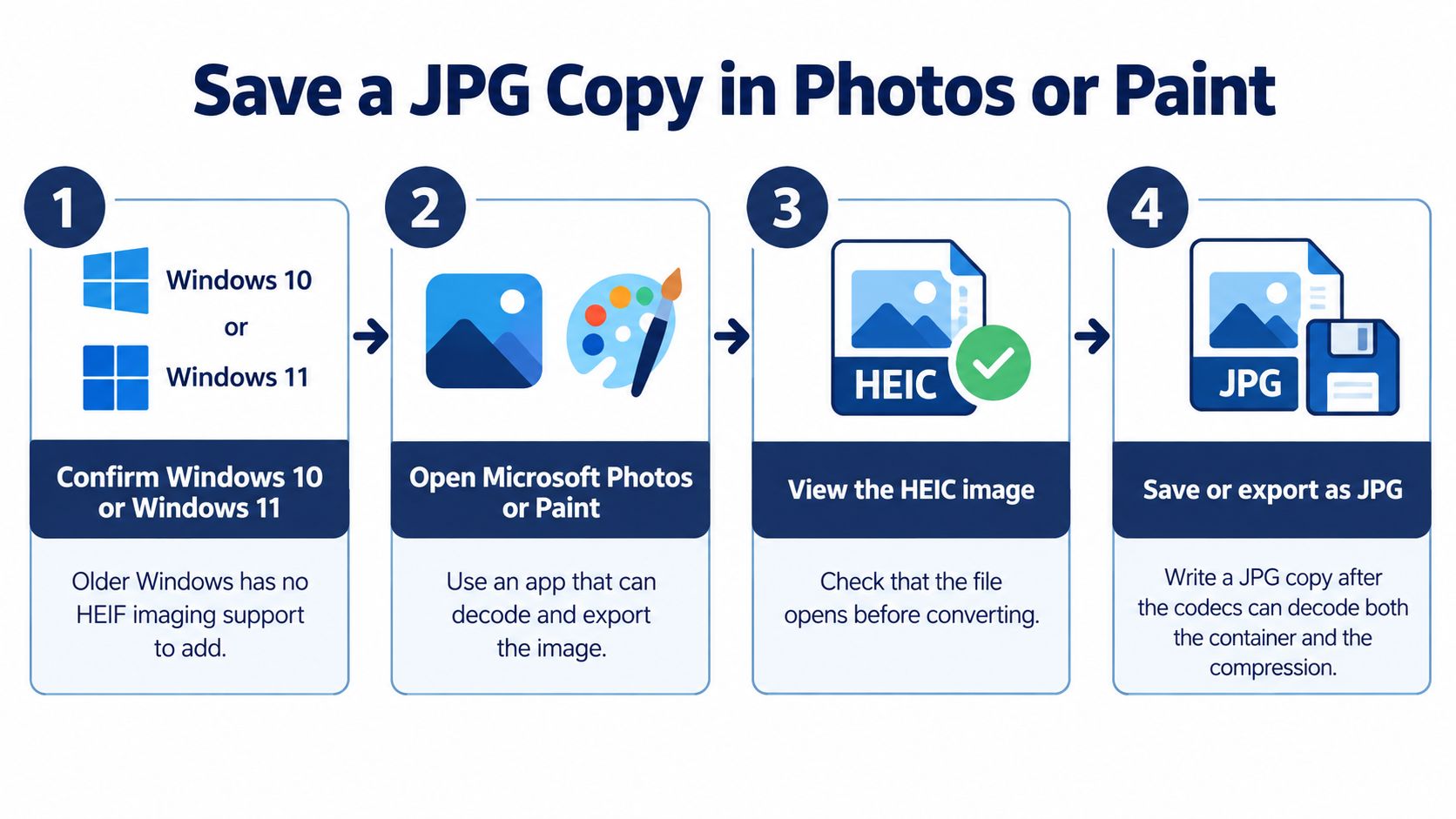
The basic sequence is to confirm support, open the image, inspect it, and save a JPEG copy.
Prepare Windows and open a test image
-
Check your Windows version. Open Start > Settings > System > About, then look under Windows specifications. These instructions target Windows 10 and Windows 11; don’t assume an older installation offers the same imaging-extension path.
-
Install the container extension. Open Microsoft Store, search for HEIF Image Extensions, and select the Microsoft listing. Install it, or confirm that the Store identifies it as installed. This adds support for reading the HEIF container.
-
Test the HEIC in Photos. In File Explorer, right-click the file and choose Open with > Photos. If the image is blank or Photos reports a decoding error, search Microsoft Store for HEVC Video Extensions and check whether the required package is installed. On a managed PC, use your organisation’s approved installation route.
-
Close and reopen the affected apps. Restart Photos and close and reopen File Explorer. If Explorer still hasn’t refreshed, save any work and restart Windows. This gives the apps a chance to recognise newly installed extensions.
-
Inspect the entire preview. Confirm that the image finishes loading and that the subject is upright. Try a portrait photo and an image from a different iPhone, rather than trusting a single successful horizontal shot.
Don’t begin with your whole photo library. A small test selection can reveal an orientation or colour problem before you create a folder full of unsuitable copies.
Export with Photos or Paint
-
Choose a JPEG export in Photos. Open the image’s More options menu and look for Save as, or use Edit image and inspect the Save options menu for Save as copy. Labels differ between Photos versions. In the save dialog, select JPEG or JPG in the file-type selector; if there’s no JPEG choice, use Paint instead.
-
Use Paint as the explicit alternative. Right-click the HEIC in Explorer and select Open with > Paint. Choose File > Save as > JPEG picture, pick the destination folder, enter a name such as
family-photo.jpg, and click Save. If Paint can’t open the source, it can’t perform this export. -
Save beside the source without replacing it. Keep the original
.heicand give the JPEG a recognisable name. If Windows asks whether to replace an existing JPG, choose a different name unless you deliberately intend to overwrite that earlier export. -
Reopen the result elsewhere. If Photos saved it, try opening the JPG in Paint or dragging it into Microsoft Edge. Check the image itself, not just the fact that a new filename appeared.
A successful save writes JPEG image data. A filename ending in
.jpgalone doesn’t prove that happened.
Before processing a folder, test a portrait, a bright outdoor image, and an older iPhone photo. Include a wide-colour image or a Live Photo-derived still if those are part of your collection. Your finished folder should contain the untouched HEIC and a readable JPG that doesn’t need HEIC decoding support.
Fix HEIC Files Windows Still Cannot Open
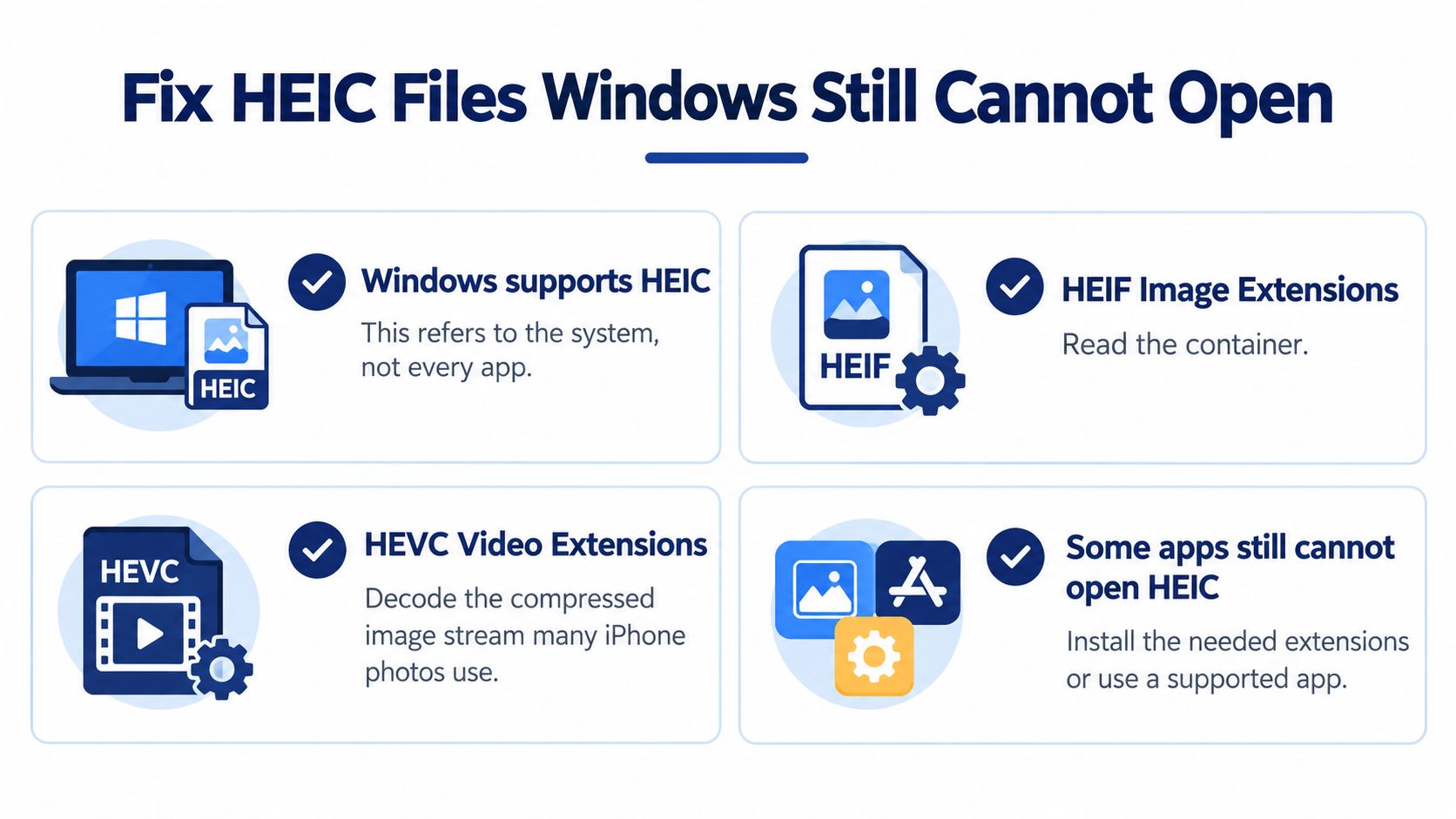
HEIF and HEVC handle different parts of the file. HEIF Image Extensions read the container; HEVC Video Extensions decode the compressed image stream used by many iPhone photos.
That distinction explains why installing HEIF alone may not solve the problem. The Microsoft support discussion about HEIC decoding also makes an important practical point: changing the default photo application doesn’t add the missing codecs.
Use the split between system support and app support to narrow the fault.
Identify where the failure happens
A generic Explorer icon isn’t conclusive. Try opening the actual file in Photos. If Photos displays it properly, you’ve established that at least that application can decode the image; a missing thumbnail may be an Explorer refresh or thumbnail-setting issue.
If Photos opens the picture but Paint fails, don’t conclude that the file is corrupt. The applications may use different imaging paths or have different support in their installed versions. Use the application that can decode and export it, or use a browser converter with its own decoder.
A browser upload form rejecting .heic is another case entirely. Once the photo opens locally, installing more Windows extensions won’t change the form’s rules. Supply the required JPEG.
Check installation and file availability
Open Settings > Apps > Installed apps, or Apps & features on Windows versions that use that label, and search for both extensions. Seeing a product in Store search results isn’t the same as having it installed. Close and restart the failing application after making changes.
Also check whether the photo is downloaded. A OneDrive or iCloud listing can represent a cloud-only placeholder rather than a complete local image. In OneDrive, right-click the file and choose Always keep on this device; with other cloud clients, use their equivalent download command and wait for completion.
For a broader viewing walkthrough, use our guide to opening HEIC files on Windows.
HEIC failures after a Windows install
| What you see | What it usually means | Next action |
|---|---|---|
| Generic Explorer icon after HEIF install | HEVC decoding may still be missing | Install HEVC Video Extensions if missing, then restart Explorer |
| Photos shows an error | Missing codec or an unsupported HEVC profile | Confirm both extensions; if it still fails, convert to JPG using another decoder |
| Only one app rejects the file | That app may not use system HEIF decoding | Export a JPG for that app; don’t only change the default app |
| Cloud icon and the file will not open | Placeholder, not a local photo | Make it available offline, then open or convert |
| Sideways or mirrored preview | Container rotation may not have been applied on export | Convert with a tool that bakes orientation into the pixels |
| Renamed file fails on a form | Extension changed, data still HEIC | Transcode to a real JPEG and upload that |
If installation is blocked, use the browser-conversion path rather than repeatedly trying Store packages. The same fallback can help with an unsupported HEVC profile, provided the browser tool’s decoder supports that particular file.
Protect Orientation, Color and File Size
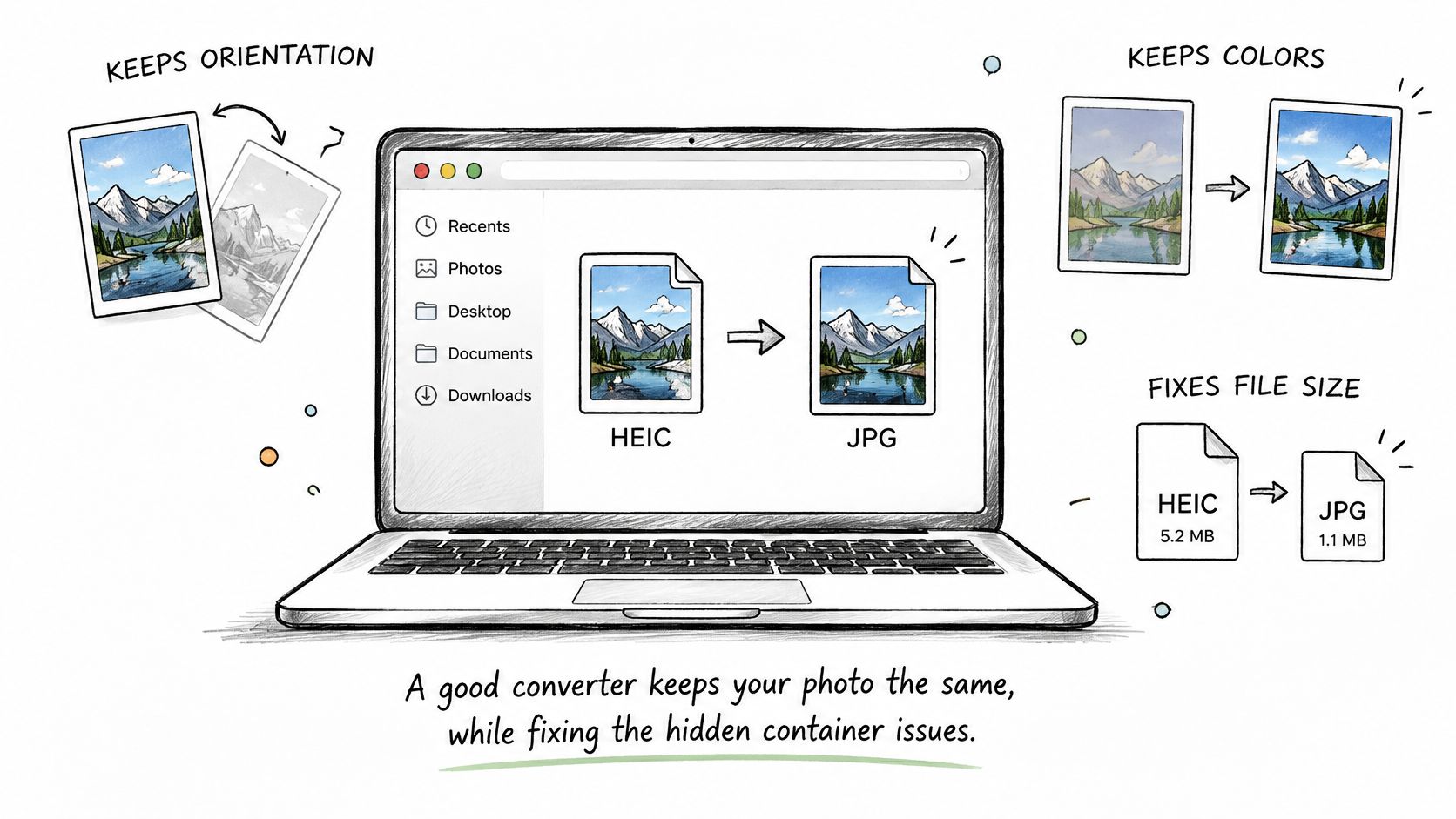
A JPG may open on Windows yet still fail a form’s size limit or look different from the original. Check orientation, color, compression, and metadata before making copies for different destinations.
Resolve rotation and colour deliberately
HEIC can store rotation and mirroring instructions separately from the image pixels. A converter should apply those instructions before saving, so the JPG displays upright without a conflicting orientation tag. If a portrait turns sideways, the export may not have applied the stored rotation correctly.
Color needs its own check. An iPhone photo may use a Display P3 profile. Preserve that profile when the destination supports it. For a general web form or an app with unknown color handling, convert to sRGB. Labeling unchanged Display P3 values as sRGB can shift the appearance, so check color-conversion settings if reds or skin tones look different. Raising JPEG quality will not fix a color mismatch.
Choose compression for the destination
JPEG is lossy, so each edit-and-save cycle can add compression artifacts, such as halos around lettering or smeared fine detail. Finish edits before exporting the delivery JPG. If you need another version, start from the HEIC rather than repeatedly saving the JPG.
JPEG quality setting by use
| Use | Quality setting | Note |
|---|---|---|
| Web page or document upload | General-purpose range, around 85 to 90 | Balances file size and detail |
| Printed keepsake | Higher than the web range | A starting point for retaining detail; inspect the result |
| Second JPEG save | Avoid | Adds compression artifacts; export again from the HEIC |
Quality scales differ between encoders. Treat the setting as a starting point, then inspect the result at full size. For steps on changing an image format to JPEG, see the format guide.
The video below provides a visual companion to the export process.
Control metadata and dimensions
Keep the date taken and camera details if they help organise your collection. Remove GPS coordinates from family, travel, medical, or workplace images unless the recipient needs the location. Conversion does not necessarily remove location metadata.
If a portal rejects an oversized file, check its stated limit before changing dimensions or compression. Reduce the image’s long edge only as much as needed, preserving its aspect ratio. A JPG can be larger than the original HEIC without being defective.
Archive safeguard: Keep the source outside any batch-export folder you might later clear. A delivery copy should not become your only surviving version.
Confirm the JPG Before You Send It
The best final test isn’t a thumbnail. It’s opening the saved file independently and trying it at the actual destination.
Keep this check separate from editing. If you spot a problem, correct the export settings rather than repeatedly modifying the delivery JPEG.
Check the file and the picture
-
Open it in a different viewer. Drag the JPG into Edge or open it in another photo application. This helps catch an export that only appeared successful inside the app that created it.
-
Compare the framing and dimensions. Check the source preview against the JPEG. Make sure a portrait remains portrait, the whole subject is present, and no accidental crop or resize has removed important detail.
-
Inspect at actual size. Look at fine text, hair, fabric, and shadow detail rather than judging the thumbnail. Watch for halos around lettering, smeared strands, or unusually rough dark areas.
-
Reveal the complete filename. In File Explorer, enable View > Show > File name extensions, or the File name extensions checkbox on the View tab. Confirm that the delivery file ends in
.jpgor.jpeg, not.jpg.heic. -
Check your privacy choice. In Explorer, right-click the JPEG, select Properties > Details, and inspect any GPS fields. If location removal was intended, confirm those coordinates aren’t present; don’t infer that from the filename.
Test the destination itself
Attach the saved JPG to the email or select it on the upload page. Make sure you choose the output file rather than the similarly named HEIC beside it. Check its size against the destination’s stated limit before changing anything else.
If the portal still rejects it, inspect the full extension, confirm that the file finished downloading, and read the rejection message. An accepted format can still fail a size, dimension, filename, or account-specific rule.
For batch work, first send a tested sample through the same workflow the rest will use. Once the destination accepts it and the picture looks right, apply those settings to the remaining photos.
The final folder should remain easy to understand: original HEIC files for safekeeping and clearly named JPG copies for delivery. That makes future edits safer and prevents you from accidentally submitting the wrong version.
ConvertHEICto converts HEIC photos to JPG inside your browser without uploading them to a server. Visit ConvertHEICto, choose your photos, and download JPEG copies for your Windows apps, email attachments, or upload forms while keeping the originals.